

Contact Form Not Sending Email? Trace the Failure
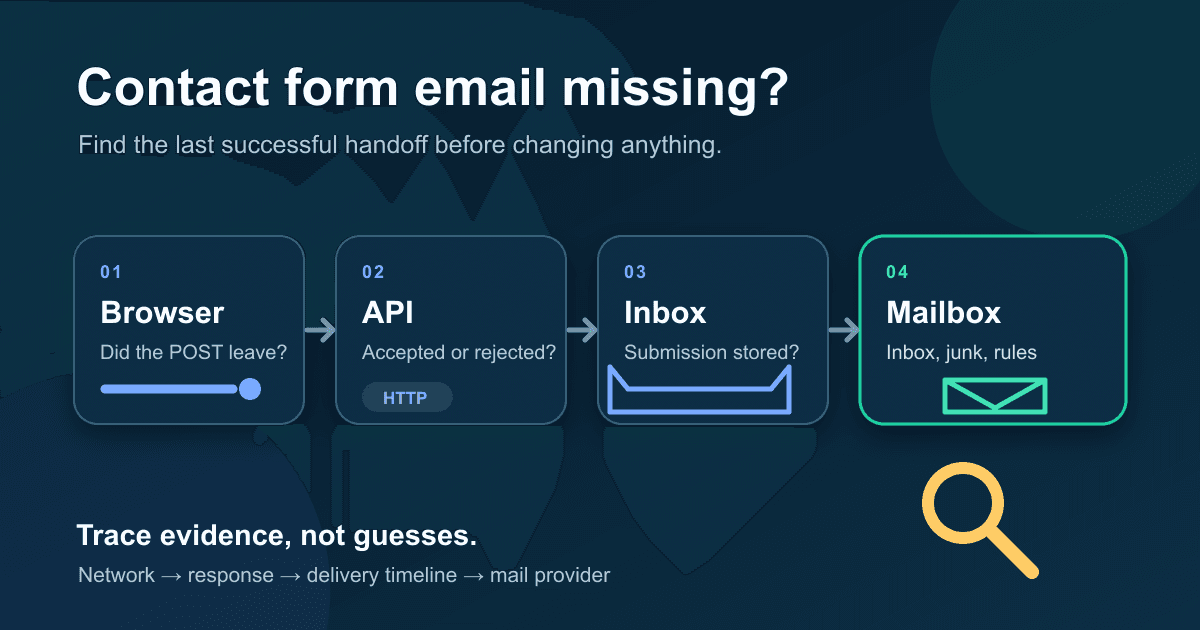
A missing contact-form email is not one problem. The browser may never have sent the request. The endpoint may have rejected it. Static Forms may have accepted and stored it while email delivery was disabled or blocked. The message may also be sitting in a mailbox rule or junk folder.
Treat those as separate boundaries. Start with one controlled submission using an unmistakable subject such as Delivery test 2026-09-14 12:15 +04. Keep that value handy. You will use it to match the browser response, the Static Forms Inbox entry, the delivery timeline, and the mailbox search.
The short diagnostic path
Work through these checks in order:
- Submit once with the browser Network panel open.
- Confirm that a POST request left the page and read its response.
- Search Static Forms Inbox for the test submission.
- Open the submission's Delivery tab.
- Check the form recipient and your account notification preference.
- Search the receiving mailbox across all folders and review its rules.
Do not keep resubmitting while you guess. Repeated test messages muddy the evidence and can trigger rate or spam controls.
Step 1: prove that the browser sent the form
Open the published page, then open Developer Tools and select Network. Submit one test message. Look for a POST to your configured form endpoint.
Static Forms currently documents the endpoint format as:
https://api.staticforms.dev/submit/YOUR_API_KEYThe API key in that URL is a public form identifier, so it can appear in your HTML. Private webhook tokens, email-provider keys, and other server credentials must stay out of browser code.
If no request appears, the email system has not had a chance to do anything. Check these first:
- Native HTML forms need
method="post"and the correctaction. - JavaScript handlers must not throw before
fetch()runs. - Client validation may stop an invalid form before a request is sent.
- Content Security Policy can block native submissions through
form-actionor JavaScript requests throughconnect-src.
The CSP form-action guide covers the last case without weakening the rest of your policy.
Step 2: read the HTTP response without claiming delivery
A response tells you whether the endpoint accepted the request. It does not tell you whether someone received an email.
This temporary diagnostic handler displays the status and returned message without printing submitted form data to the console:
<form id="delivery-test" action="https://api.staticforms.dev/submit/YOUR_API_KEY" method="post">
  <label for="test-email">Email</label>
  <input id="test-email" name="email" type="email" autocomplete="email" required>

  <label for="test-message">Message</label>
  <textarea id="test-message" name="message" required></textarea>

  <button type="submit">Send test</button>
  <p id="delivery-status" role="status" aria-live="polite"></p>
</form>

<script>
  const form = document.querySelector('#delivery-test');
  const status = document.querySelector('#delivery-status');

  form.addEventListener('submit', async (event) => {
    event.preventDefault();
    if (!form.reportValidity()) return;

    const button = form.querySelector('button[type="submit"]');
    button.disabled = true;
    status.textContent = 'Sending test...';

    try {
      const response = await fetch(form.action, {
        method: 'POST',
        body: new FormData(form),
        headers: { Accept: 'application/json' },
      });
      const result = await response.json().catch(() => ({}));

      status.textContent = response.ok
        ? `Accepted (${response.status}). Check Static Forms Inbox next.`
        : `Rejected (${response.status}): ${result.message || result.error || 'Read the response body in Network.'}`;
    } catch {
      status.textContent = 'The browser could not reach the endpoint. Check Network and Console.';
    } finally {
      button.disabled = false;
    }
  });
</script>
Replace YOUR_API_KEY with the key shown in the form's General tab. Remove the diagnostic script after testing if your production form already has its own submit handler.
The Static Forms API reference lists success and rejection responses. One detail matters during this incident: HTTP 200 can also be returned when a submission is recorded but email delivery is blocked for a bounced recipient.[1] A green response moves the investigation to the dashboard. It does not close it.
Step 3: use Inbox as the boundary check
Search Static Forms Inbox for the unique test value. The Inbox records submissions independently of notification delivery, and the product documentation calls it the source of truth for this check.[2]
If the test submission is absent:
- Confirm you opened the workspace and form that own the API key.
- Check the HTTP response again rather than relying on the page's success message.
- Look in the Inbox Spam tab. The spam filter can accept a submission and route it there instead of the normal view.[6]
- If the response was 403, inspect domain restriction and CAPTCHA settings instead of changing email settings.
If the submission is present, the browser and endpoint did their jobs. Stop editing frontend code.
Step 4: inspect the submission's Delivery tab
Open the test submission and select Delivery. Static Forms documents this view as a timeline of delivery attempts for notification email, CC, webhooks, Google Sheets, and Slack.[3]
Read the entry for the missing destination. A failed or blocked notification is different from a message that the mail system says it sent. Save the status and timestamp before changing settings. If you contact support, include the submission ID and delivery status, but do not paste the submitter's private message into a public ticket.
This is also where you separate owner notifications from other destinations. A successful Slack post or webhook does not prove that the notification email arrived. Each destination runs independently.[4]
Step 5: check who should receive the notification
The form's Delivery tab shows where submissions go. The primary notification recipient is the account email or, in a team workspace, the workspace owner's email. CC addresses must be verified before they receive submissions.[4]
Then open Account -> Notifications. The form-submission notification toggle controls whether you personally get a per-submission email. Turning it off does not stop the Inbox from recording submissions.[5]
That distinction catches a surprisingly common mistake: a submission appears in Inbox, the form is healthy, and the account owner has simply disabled their own notification emails.
Check all of these:
- The form is active in General.
- You are looking at the owner's recipient address, not a collaborator's address.
- Each intended CC address shows as verified.
- The account's form-submission notification toggle is on.
- A form rule has not suppressed the default email or routed the test elsewhere.
Do not change several controls at once. Fix one mismatch, send one new uniquely named test, and compare the new delivery timeline with the first one.
Step 6: search the mailbox properly
Once the delivery timeline shows that email was sent, move to the receiving mailbox. Search by the unique test subject across Inbox, Spam or Junk, Trash, archived mail, and any quarantine tool used by your organization.
Google's missing-message guide recommends searching Mail, Spam, and Trash, then reviewing filters, forwarding, POP or IMAP behavior, and available account storage.[7] Microsoft documents the Safe Senders list for mail that Outlook incorrectly classifies as junk.[8]
For a company mailbox, ask the mail administrator to check the gateway or quarantine. Give them the recipient, approximate timestamp, sending domain, and subject. Avoid forwarding unrelated submission contents.
If the message is in junk, mark that specific legitimate message as not junk and review the mailbox rule that moved it. Do not disable spam filtering across the account. The older email deliverability guide covers preventive sender authentication and reputation work; this checklist is for locating one failed notification now.
What each result means
- No POST in Network: The page is the last proven boundary. Check form markup, validation, JavaScript, and CSP.
- POST returns 4xx or 5xx: The browser reached the endpoint. Read the response body and inspect the setting named by the error.
- HTTP 200 but no Inbox entry: Recheck the workspace, API key, and Spam tab. If they match, contact support with the test details.
- Inbox entry with delivery blocked or skipped: The submission was stored. Check recipient verification, notification preferences, bounce status, and rules.
- Delivery says sent but mailbox search is empty: The message left the application delivery path. Check mailbox filters, quarantine, forwarding, storage, and the mail gateway.
- Message is in Junk: The receiving mailbox classified it. Mark the legitimate message as not junk and review sender or filter configuration.
The point is to preserve the chain of evidence. A page-level success message proves less than an Inbox record. An Inbox record proves less than a successful delivery attempt. A successful delivery attempt still does not prove that the recipient saw the message.
A clean incident note
Keep a short record for the failed test:
Test subject: Delivery test 2026-09-14 12:15 +04
Page URL: https://example.com/contact
POST status: 200
Static Forms Inbox: present
Submission ID: [record privately]
Notification delivery: sent at 12:15:08 +04
Mailbox search: absent from Inbox, Junk, Trash, and archive
Mailbox rule/quarantine check: pending with mail administrator
Do not put API tokens, private form messages, or full request bodies in that note. The subject, timestamps, HTTP status, submission ID, and destination status are usually enough to identify the broken handoff.
Sources
[1] Static Forms API reference
[2] Static Forms: Inbox notifications
[3] Static Forms: Managing submissions
[4] Static Forms: Delivery settings
[5] Static Forms: Account notifications
[6] Static Forms: Spam filter
[7] Google: Gmail messages are missing
[8] Microsoft: Add recipients to the Safe Senders list in Outlook
Related Articles
Fix CSP form-action Errors for Contact Form Endpoints
Fix CSP form-action errors that block contact forms with safe allowlisting patterns, Vercel and Netlify examples, and practical browser test steps.
Turnstile Test Keys, Localhost and Token Errors, Fixed
Cloudflare Turnstile test keys and what each one does, how to test on localhost without a domain, and an error lookup table for missing or rejected tokens.
HTML form enctype: URL encoding, multipart, and file uploads
Choose the right HTML form enctype, inspect URL-encoded and multipart bodies in a local demo, and fix file uploads without breaking Content-Type boundaries.







































