

Conditional Form Routing by Topic, Region, or Lead Type
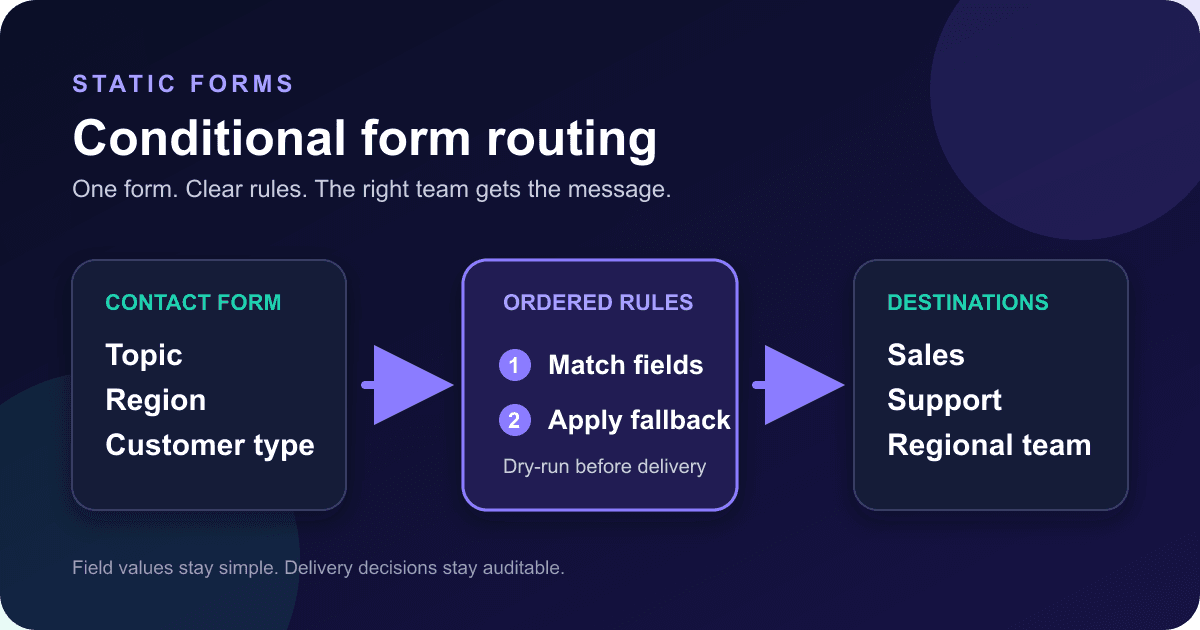
A contact form that sends every message to one inbox works until sales leads, support requests, and partner questions start arriving together. You do not need three separate forms to sort them. Add one stable classification field, then route each submitted value to the right verified recipient with Static Forms Rules.
This is backend routing after submission. It does not show or hide questions in the browser; the existing form branching guide owns that job. Every visitor sees the same accessible form, while the delivery path changes behind the scenes.
Build the routing field into the form
Use submitted values that will stay stable even if the visible wording changes. In the example below, a visitor sees "Technical support," but the server receives support. Static Forms field rules compare the input's name and submitted value, not the label painted beside it.[1]
<form action="https://api.staticforms.dev/submit" method="post">
  <input type="hidden" name="apiKey" value="YOUR_STATIC_FORMS_API_KEY">

  <label for="name">Name</label>
  <input id="name" name="name" type="text" autocomplete="name" required>

  <label for="email">Email</label>
  <input id="email" name="email" type="email" autocomplete="email" required>

  <label for="department">What can we help with?</label>
  <select id="department" name="department" required>
    <option value="">Choose a topic</option>
    <option value="sales">Sales</option>
    <option value="support">Technical support</option>
    <option value="partnerships">Partnerships</option>
  </select>

  <label for="region">Your region</label>
  <select id="region" name="region" required>
    <option value="">Choose a region</option>
    <option value="americas">Americas</option>
    <option value="emea">Europe, Middle East, and Africa</option>
    <option value="apac">Asia-Pacific</option>
  </select>

  <label for="customerType">Are you already a customer?</label>
  <select id="customerType" name="customerType" required>
    <option value="">Choose one</option>
    <option value="existing">Yes</option>
    <option value="prospect">No</option>
  </select>

  <label for="message">Message</label>
  <textarea id="message" name="message" rows="6" required></textarea>

  <button type="submit">Send message</button>
</form>
Replace YOUR_STATIC_FORMS_API_KEY with the key for the form you are configuring. The current API reference accepts standard form-encoded submissions at https://api.staticforms.dev/submit and requires an apiKey.[3]
A native <select> submits the selected option under its name. It also supports keyboard input without a custom widget. Keep a visible <label> whose for value matches the control's id; the W3C form-labeling tutorial recommends that explicit association because browsers and assistive technology can connect the label to the control.[5][6]
The empty first option matters when required is present. It forces a real choice instead of quietly routing a placeholder value. Do not use visible text such as Technical support as your rule value. Product copy changes. A small machine value such as support is much less likely to drift.
Route by topic without changing the form code
Form Rules are configured per form. Rules run after security and spam checks, then before delivery. Matching rules are evaluated from top to bottom.[1]
Open the form in the dashboard, select Rules, and enable the feature. The built-in Route by dropdown value recipe creates a useful starting point. Configure the first rule like this:
| Setting | Value |
|---|---|
| Rule name | Sales inquiries |
| Condition subject | Field value |
| Field name | department |
| Operator | is |
| Value | sales |
| Action | Send the notification to your verified sales address |
Create equivalent rules for support and partnerships. The destination addresses must already be verified. Static Forms checks recipient eligibility again when delivery runs, so a removed, unverified, or bounce-suppressed address may be skipped even if the rule matched.[1]
Field comparisons are case-insensitive, but exact, tidy option values still make the setup easier to audit. Pick one spelling and keep it in the HTML, the rule, test fixtures, webhook mappings, and reports.
Choose a safe fallback before enabling rules
The most consequential setting is what happens when no recipient rule matches.
Send the default notification email is the safer rollout mode. The normal recipient remains available, and matching rules add other recipients or actions. A typo such as partner in the HTML versus partnerships in the rule will still reach the default inbox.
Only send where rules say suppresses the default notification. Use it only when the rules are meant to own all notification delivery. A submission that matches no recipient rule will not send a notification email, although integrations are controlled separately.[1]
Start in additive mode. Test all expected values and one unexpected value. Move to rules-only delivery only if duplicate notification recipients are a bigger problem than the risk of an unmatched message.
There is another detail worth seeing before launch: recipients selected by multiple matching rules share one notification email, with addresses visible in the To and CC fields. Do not use a single fan-out email for recipients who should not see one another's addresses. Rework the rule order, use stop-processing where appropriate, or send to separate integration destinations instead.[1]
Route by a visitor-selected region
A submitted region field is predictable and available to Pro field rules. For example, create a rule where region is emea, then send the notification to the verified EMEA address.
This is not geolocation. The visitor chooses the value, which is often better for sales ownership because people know which office, market, or support team they need. It also avoids pretending that network location proves where a company belongs.
Static Forms also has an Agency-only Country condition based on a two-letter edge country code.[1] Use that for genuinely location-based operations, then keep a fallback for VPNs, missing metadata, travelers, and countries that do not have a dedicated owner. If the visitor's choice should win, put that field-based rule first and select Stop processing further rules when this rule matches.
Do not confuse delivery routing with Static Forms data residency. Sending a notification to a regional team does not change where account or submission data is stored. Treat storage-region requirements as a separate configuration and policy question.
Triage existing customers without trusting the field
A customerType rule can send self-identified customers to support and prospects to sales. It is useful for inbox triage, but it is still browser input. Anyone can edit a select value before submission.
Use this field to choose a queue, subject line, or notification recipient. Do not use it to grant account access, skip authentication, expose customer data, set a price, or decide an entitlement. Any sensitive customer check belongs on a trusted server tied to an authenticated identity.
You can combine conditions when a route needs more context. A rule with all conditions might require customerType is prospect and region is emea before adding the EMEA sales recipient. An any group matches when at least one condition passes. Static Forms supports one condition group per rule rather than nested Boolean trees, so split complicated policies into ordered rules and write down which one should win.[1]
Use subjects to make the destination obvious
Routing is easier to monitor when the email subject shows why a message landed there. A matching action can set a subject such as:
New {{department}} request from {{name}}Static Forms replaces placeholders with submitted field values. The first matching subject action wins. If a placeholder resolves to an empty result, the normal subject is used rather than allowing a later rule to take over.[1]
Keep submitter-controlled text out of addresses, URLs, or other sensitive configuration unless the product explicitly validates the result. A short category in a subject is useful. Treating a submitted value as a trusted destination is not.
Test the routing matrix before saving
The Rules dry run evaluates the current draft without sending email, calling a webhook, or storing a submission. That makes it safe for testing the decision tree, but a green dry run proves only evaluation.[1]
Test the topic routes with small JSON fixtures:
{
  "name": "Routing Test",
  "email": "routing-test@example.com",
  "department": "support",
  "region": "emea",
  "customerType": "existing",
  "message": "Synthetic support request"
}
Then change one field at a time. This table catches both expected routes and dangerous gaps:
| Fixture | Expected result |
|---|---|
department=sales |
Sales rule matches |
department=support |
Support rule matches |
department=partnerships |
Partnerships rule matches |
department=unknown |
No topic rule; fallback remains visible |
no department field |
No topic rule; fallback remains visible |
department=SUPPORT |
Support rule matches because text comparison is case-insensitive |
region=emea, customerType=prospect |
Combined EMEA prospect rule matches, if configured |
Read the per-rule trace, not only the final recipient list. It shows which conditions passed and which actions were planned or skipped. A planned action is not proof that the destination received anything.[1]
After saving, submit one synthetic message through the deployed form for every route. Open the resulting item in the Static Forms Inbox, then inspect its Delivery tab. The Inbox records form fields, while Delivery loads the attempts and their sent or failed states.[4] If a route also calls Slack, a webhook, or another integration, verify that destination separately. The default Delivery settings and rule actions are independent layers.[2]
For an asynchronous form, expose sending, success, and error text to assistive technology with an appropriate status region. The WCAG 2.2 status-message guidance says status changes that do not move focus need to be programmatically available so screen readers can announce them.[7] Do not announce the internal routing destination to the visitor unless they need that information.
Diagnose the failures that look like routing bugs
If no rule matches, compare the submitted field name with the rule field name. The label What can we help with? is irrelevant to evaluation; the rule needs department. Then compare the option's value, not its visible text.
If the rule matches but no email arrives, inspect Delivery. The recipient may no longer be eligible, the address may be suppressed after a bounce, or the delivery attempt may have failed. Do not keep resubmitting the same message until you know which boundary failed.
If two teams receive one message, two recipient actions probably matched. Check rule order, all versus any, and whether a rule should stop later evaluation. Duplicate destinations are deduplicated, but different recipients can still be combined into one notification.[1]
If changing the fallback setting appears to do nothing, confirm that Rules are enabled and the saved rule list is not empty. A disabled configuration or empty list leaves normal delivery unchanged.[1]
If an Agency metadata rule stops working after a plan change, review the rule trace. Eligibility is checked during submission. On Pro, rules after the first ten and rules using Agency-only metadata conditions are skipped rather than partially evaluated.[1]
Keep the routing policy maintainable
Give rules names that describe business ownership, such as Support inquiries or EMEA prospects. Avoid Rule 1 and New rule; those names explain nothing in an incident trace.
Keep one fallback owner. Even a complete dropdown can drift when someone edits the HTML but forgets the dashboard rule. The fallback inbox should have a person or rotation responsible for reassigning unmatched messages.
Review verified recipients when staff change roles. Deleting an address from a team directory does not automatically explain the intended replacement in your form policy.
Test the deployed form rather than stopping at the dry run. The dry run checks logic. A real synthetic submission checks the browser form, API acceptance, rule evaluation, and delivery attempts as separate boundaries. That is the shortest path to knowing the routing setup works rather than merely looking correct.
Launch checklist
- The HTML uses stable
nameandvalueattributes. - Every control has a visible, associated label.
- Each expected value has a matching rule or an intentional fallback.
- Recipient addresses are verified.
- Additive versus rules-only delivery is a deliberate choice.
- Overlapping rules do not expose recipient addresses unexpectedly.
- Dry-run fixtures include expected, unknown, and missing values.
- Real synthetic submissions appear in the Inbox.
- Delivery details show the intended email or integration result.
- Browser-supplied classification fields never make security, billing, or entitlement decisions.
The Rules documentation is the current reference for supported conditions, actions, limits, and the dry-run trace. If the form itself still needs conditional fields, pair this routing setup with the form branching guide, but keep the two concerns separate: the browser controls what the visitor sees, while Rules controls what happens after submission.
Sources
[1] https://www.staticforms.dev/docs/forms/rules — Static Forms Rules documentation
[2] https://www.staticforms.dev/docs/forms/delivery — Static Forms Delivery documentation
[3] https://www.staticforms.dev/docs/api-reference — Static Forms API reference
[4] https://www.staticforms.dev/docs/inbox/managing-submissions — Static Forms Inbox delivery documentation
[5] https://developer.mozilla.org/en-US/docs/Web/HTML/Reference/Elements/select — MDN select element reference
[6] https://www.w3.org/WAI/tutorials/forms/labels — W3C WAI labeling controls tutorial
[7] https://www.w3.org/WAI/WCAG22/Understanding/status-messages.html — W3C WCAG 2.2 status messages
Related Articles
Confirm email field validation in HTML and JavaScript
Build a confirm email field that catches mismatches, clears stale errors, and works with Enter. Test the exact HTML example without confusing matching with verification.
checkValidity() vs reportValidity(): Check or show errors
Compare checkValidity() and reportValidity() with a working HTML lab. Debug invalid events, clear custom errors, and separate validation from form submission.
Build a FilePond Upload Form Without an Upload Server
Add FilePond to a multipart form, keep uploads in one browser request, validate size and type, preserve fallback HTML, and test the real payload.







































