

Confirm email field validation in HTML and JavaScript
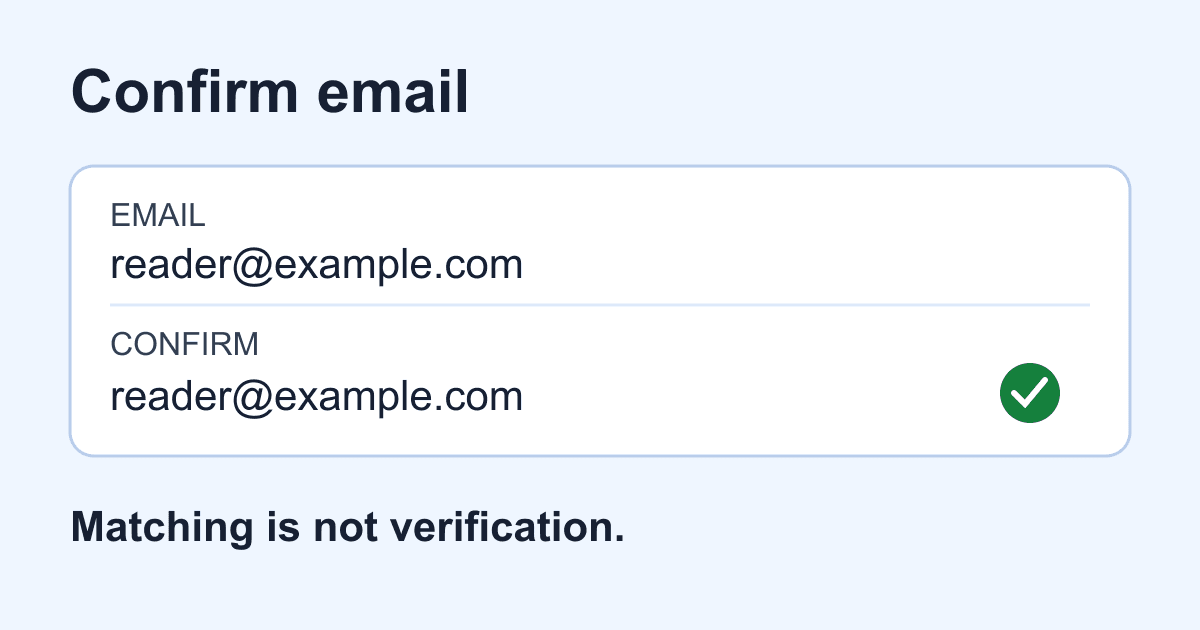
A confirm email field catches one specific mistake: the visitor enters two different addresses. It does not prove that either address exists, belongs to the visitor, or can receive mail. If both entries contain the same typo, they still match.
Use a second field only when that extra typing is worth asking for. For an ordinary contact form, a clearly labeled email field and a chance to review the address may be enough. If your workflow needs proof of mailbox access, build a separate verification-link or code flow; comparing two strings cannot provide that proof.
This tutorial builds a small HTML page that checks both email syntax and agreement between two fields. It displays a mismatch message, clears the error when either field changes, and works when you press Enter as well as when you click the button. The example is a local validation lab: it never sends data. You need a text editor and a browser, not an account or API key.
Why HTML alone cannot compare the fields
type="email" checks the browser's email syntax rules, and required rejects an empty value. Neither attribute knows about another input. A pattern is also a pattern for one field's value, not a reference to the current value of a different field.
JavaScript can add the comparison with setCustomValidity(). A nonempty message makes the input invalid. Passing an empty string removes that custom error, while leaving native constraints such as required in place. MDN's setCustomValidity reference documents why clearing the message explicitly matters.
Our comparison uses exact equality between the inputs' current values. It does not lowercase addresses, strip plus tags, or guess that two spellings identify the same mailbox. The browser's email input has its own value handling; this code compares the values it exposes. See the email input reference for the native behavior and its limitations.
Build the confirm email example
Save this as confirm-email.html and open it in your browser. There are no placeholders to replace. Use made-up addresses such as reader@example.com for the exercise.
<!doctype html>
<html lang="en">
<head>
  <meta charset="utf-8">
  <meta name="viewport" content="width=device-width, initial-scale=1">
  <title>Confirm email validation lab</title>
  <style>
    body { margin: 0; font: 1rem/1.6 system-ui; color: #172033; }
    main { max-width: 36rem; margin: auto; padding: 1.5rem; }
    label, input { display: block; }
    input, button { font: inherit; padding: .65rem; }
    input { box-sizing: border-box; width: 100%; }
    label { margin-top: 1rem; }
    button { margin-top: 1rem; }
    :focus-visible { outline: 3px solid #175cd3; outline-offset: 3px; }
    #match-error { color: #9c1c20; min-height: 1.6em; }
    #result { min-height: 3.2em; }
  </style>
</head>
<body>
  <main>
    <h1>Confirm your email address</h1>
    <p>This lab checks two fields. Nothing is sent or saved.</p>
    <form id="email-lab">
      <label for="email">Email address (required)</label>
      <input id="email" name="email" type="email" required
        autocomplete="email">
      <label for="confirmation">Confirm email address (required)</label>
      <input id="confirmation" type="email" required
        autocomplete="email" aria-describedby="match-help match-error">
      <p id="match-help">Enter the same address again. Pasting is allowed.</p>
      <p id="match-error" aria-live="polite"></p>
      <button id="check" type="submit" disabled>Check addresses</button>
    </form>
    <p id="result" role="status"></p>
    <noscript>This lab needs JavaScript. It does not submit a form.</noscript>
  </main>
  <script>
    const form = document.getElementById("email-lab");
    const email = document.getElementById("email");
    const confirmation = document.getElementById("confirmation");
    const error = document.getElementById("match-error");
    const result = document.getElementById("result");
    let attempted = false;

    function updateMatch() {
      confirmation.setCustomValidity("");
      const comparable = email.validity.valid && confirmation.validity.valid;
      const mismatch = comparable && email.value !== confirmation.value;
      const message = mismatch ? "Enter the same email address in both fields." : "";
      confirmation.setCustomValidity(message);
      error.textContent = message;
      if (mismatch) confirmation.setAttribute("aria-invalid", "true");
      else confirmation.removeAttribute("aria-invalid");
    }

    for (const field of [email, confirmation]) {
      field.addEventListener("input", () => {
        result.textContent = "";
        if (attempted) updateMatch();
      });
    }

    form.addEventListener("submit", (event) => {
      event.preventDefault();
      attempted = true;
      updateMatch();
      result.textContent = form.reportValidity()
        ? "The addresses match. Nothing was sent; mailbox access is not verified."
        : "Check the highlighted field. Nothing was sent.";
    });

    // Run our comparison before explicitly reporting all constraints.
    form.noValidate = true;
    document.getElementById("check").disabled = false;
  </script>
</body>
</html>
The confirmation input deliberately has no name. A normal form data set would include the named email field but omit the unnamed confirmation field. That avoids collecting a second copy if you later adapt the interface for submission. The lab itself constructs no request and saves neither value.
The button starts disabled and is enabled only after the script installs the handler. If JavaScript is disabled, the lab cannot be used; the explanatory noscript text says so. This is not a progressive-enhancement template for a production contact form.
Clear the error before checking again
The first line of updateMatch() is easy to overlook. It clears any previous custom error before the function reads confirmation.validity.valid. Without that reset, the old mismatch could make the field invalid even after its text was corrected.
We compare only when both fields pass their native constraints. An empty confirmation gets the browser's required-field message instead of an inaccurate mismatch warning. A malformed address gets native syntax feedback first. The custom message is reserved for two individually valid-looking addresses that differ.
After the first attempt, changes in either field recompute the comparison. Watching only the confirmation field leaves a bug: a visitor could make both entries match, edit the original address, and leave stale feedback behind. The result message also clears on edits so a previous successful check is not presented as a verdict on new values.
This example does not block paste. A pasted match still does not prove mailbox ownership, but forcing people to retype does not prove it either.
Check before reporting, including keyboard submission
Normal interactive validation can stop an invalid form before its submit event fires. That creates a trap if the only code that can clear a custom error lives inside the submit handler.
The lab sets form.noValidate = true after installing its handler. This skips automatic submission-time constraint checking, allowing the handler to recompute the cross-field rule first. The explicit form.reportValidity() call still checks the constraints and asks the browser to display uncanceled validation errors. MDN documents its boolean result and reporting behavior.
All attempts use the form's submit event, not a click listener on the button. That includes ordinary Enter-key submission. The handler always calls preventDefault() because this page is a demonstration, even when validation passes. For a focused explanation of the two checking methods, read checkValidity() vs reportValidity().
Do not copy noValidate into another form without carrying over a complete validation path. Do not call form.submit() to bypass a stuck error: it skips normal validation and the submit event. requestSubmit() vs submit() explains that separate submission choice.
Test the behavior before connecting a backend
Try the following cases in the saved page and again after hosting it:
- Leave both fields empty. The check should fail, with native missing-value feedback.
- Enter
not-an-addressin one field. Fix the syntax before expecting the comparison to pass. - Enter
reader@example.comandother@example.com. The visible mismatch message should appear and the confirmation field should become invalid. - Change the confirmation to
reader@example.com. The mismatch message should clear. Check again to see the local success status. - Now change the original email to
changed@example.com. The mismatch should return without editing the confirmation. - Make them match, focus the confirmation field, and press Enter. The result should be the same as a button click, with no navigation or network submission.
- Tab through the inputs and button. Confirm that focus is visible and that each input has its own label.
The mismatch text is linked to the confirmation input with aria-describedby, and updates use a polite live region. The final result has role="status". Native missing-value and syntax errors remain the browser's responsibility. Test the browser and assistive-technology combinations your visitors use; these attributes alone are not a full accessibility audit.
You can deploy the file on a static host without a build step. If your site's Content Security Policy blocks inline code, move the script and styles into permitted same-origin files. Keep the script after the form or load it with defer; do not loosen your security policy to accommodate the example.
Keep matching, submission, and verification separate
To adapt this rule to an existing Static Forms contact page, keep that page's actual submission handler and configuration. Recompute the comparison before sending, report invalid controls, and stop the send path when validation fails. Remove the lab's always-blocking handler rather than stacking a second sender on top of it. Start with the Static Forms API reference for the real submission contract; this article does not configure delivery or test email receipt.
A hosted form endpoint does not learn your cross-field rule from this JavaScript. Anyone can bypass browser code. If equality is a required server-side business rule, your receiving application needs both values and must enforce the rule there; the unnamed confirmation field in this lab intentionally does not send that evidence.
For mailbox ownership, use a server-managed verification flow with an expiring, single-use link or code and appropriate abuse controls. Keep verification tokens out of analytics and logs. A contact-form notification or a successful HTTP response is not proof that the visitor controls the address.
Before shipping, decide which result you need: fewer mismatched entries, an accepted submission, or verified mailbox access. Test that result directly. This page demonstrates only the first.
Related Articles
checkValidity() vs reportValidity(): Check or show errors
Compare checkValidity() and reportValidity() with a working HTML lab. Debug invalid events, clear custom errors, and separate validation from form submission.
Contact Form Success Message Examples That Help Users
Write clearer contact form success messages with practical examples, accessible live-region markup, honest response states, and a tested HTML pattern.
Make a Claude-Generated Website Contact Form Send Email
Fix a Claude-generated website contact form that fakes success. Trace the handler, patch HTML or React, protect secrets, and test the published Artifact.







































