

Build a FilePond Upload Form Without an Upload Server
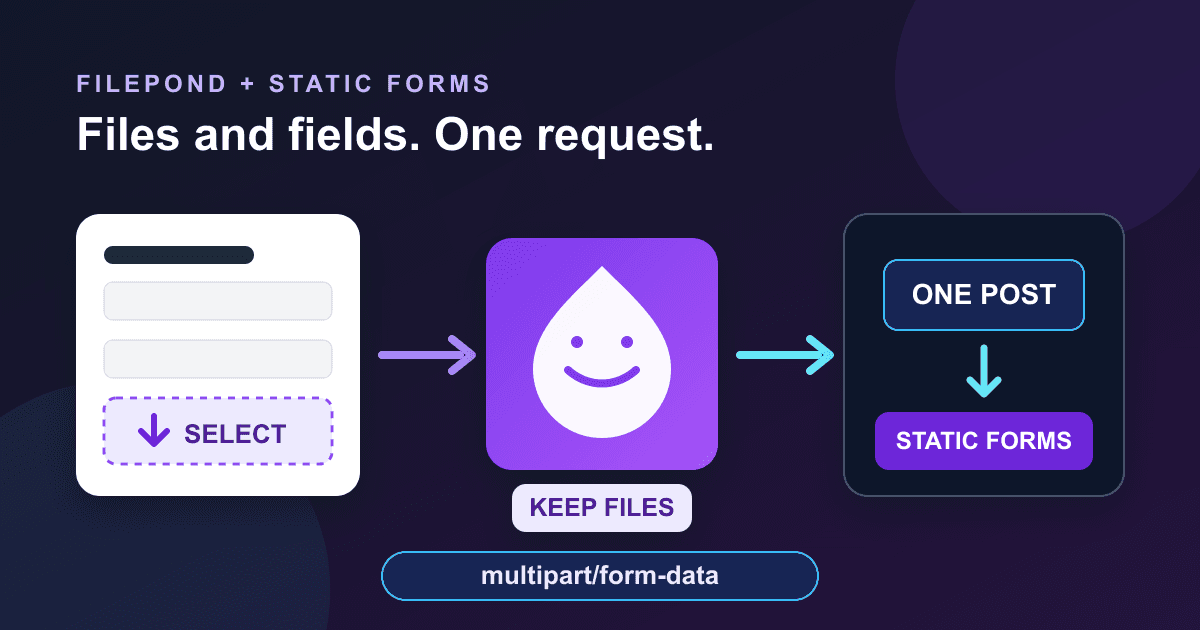
FilePond usually appears in examples with a temporary upload API, a second request, and a server-generated file ID. You do not need that machinery when the form endpoint already accepts multipart/form-data.
This guide keeps the files inside the form until the visitor presses Submit. FilePond adds drag and drop, file-size feedback, and type guidance. The browser then sends the text fields and selected files to Static Forms in one request. If JavaScript does not load, the original file input still works.
Choose a one-request upload flow
FilePond supports two different upload models. Its asynchronous model sends each file to a process endpoint first. That endpoint must save a temporary file, return a unique ID, and later support the rest of FilePond's server contract if you need restore or revert behavior.[5]
That is useful for large files, resumable uploads, and long forms where an early upload improves the experience. It is unnecessary for a small contact or application form with files below the receiving endpoint's limit.
For a normal form POST, FilePond's storeAsFile option places selected files in file inputs so the browser can include them in the final submission.[1] This option needs the DataTransfer constructor. FilePond documents support in Firefox, Chrome and Chromium browsers, and Safari 14.1 or newer.[1] The example checks for that capability before enhancing the input. Older browsers keep the original control.
The finished request contains:
- the public Static Forms form key;
- the visitor's name, email, and message;
- up to three PDF, PNG, or JPEG files;
- a return URL for a successful native submission.
Static Forms accepts named file inputs in a multipart request and applies a 4.5 MB limit to each file.[6] File uploads require Starter or a higher plan. Check the current file-upload documentation before publishing your own limits because plan details can change.
Build the form before adding FilePond
Start with a real HTML form. The native input is the fallback, not a disposable hook for JavaScript.
<!doctype html>
<html lang="en">
<head>
  <meta charset="utf-8">
  <meta name="viewport" content="width=device-width, initial-scale=1">
  <title>Send project files</title>
  <link
    rel="stylesheet"
    href="https://unpkg.com/filepond@4.32.12/dist/filepond.min.css"
  >
  <style>
    :root {
      color-scheme: light dark;
      font-family: system-ui, sans-serif;
    }
    body {
      margin: 0;
      background: #f5f3ff;
      color: #1f2937;
    }
    main {
      width: min(42rem, calc(100% - 2rem));
      margin: 3rem auto;
      padding: 2rem;
      box-sizing: border-box;
      border: 1px solid #d8d5e5;
      border-radius: 1rem;
      background: #ffffff;
    }
    .field { margin-top: 1.25rem; }
    label { display: block; margin-bottom: 0.4rem; font-weight: 700; }
    input:not([type="file"]), textarea, button {
      width: 100%;
      box-sizing: border-box;
      font: inherit;
    }
    input:not([type="file"]), textarea {
      padding: 0.75rem;
      border: 1px solid #6b7280;
      border-radius: 0.5rem;
      background: #ffffff;
      color: #1f2937;
    }
    textarea { min-height: 9rem; resize: vertical; }
    .help { margin: 0.4rem 0 0; color: #4b5563; }
    button {
      margin-top: 1.5rem;
      padding: 0.85rem 1rem;
      border: 0;
      border-radius: 0.5rem;
      background: #6d28d9;
      color: #ffffff;
      font-weight: 700;
      cursor: pointer;
    }
    :focus-visible { outline: 3px solid #f59e0b; outline-offset: 3px; }
    @media (prefers-color-scheme: dark) {
      body { background: #111827; color: #f9fafb; }
      main { background: #1f2937; border-color: #4b5563; }
      input:not([type="file"]), textarea {
        background: #111827;
        color: #f9fafb;
        border-color: #9ca3af;
      }
      .help { color: #d1d5db; }
    }
  </style>
</head>
<body>
  <main>
    <h1>Send project files</h1>
    <p>Attach up to three PDF, PNG, or JPEG files. Each file must be 4.5 MB or smaller.</p>

    <form
      action="https://api.staticforms.dev/submit"
      method="POST"
      enctype="multipart/form-data"
    >
      <input type="hidden" name="apiKey" value="YOUR_API_KEY">
      <input
        type="hidden"
        name="redirectTo"
        value="https://YOUR-DOMAIN.example/thanks/"
      >

      <div class="field">
        <label for="upload-name">Name</label>
        <input id="upload-name" name="name" autocomplete="name" required>
      </div>

      <div class="field">
        <label for="upload-email">Email</label>
        <input
          id="upload-email"
          name="email"
          type="email"
          autocomplete="email"
          required
        >
      </div>

      <div class="field">
        <label for="upload-message">Message</label>
        <textarea
          id="upload-message"
          name="message"
          minlength="20"
          maxlength="5000"
          required
        ></textarea>
      </div>

      <div class="field">
        <label for="project-files">Project files</label>
        <input
          id="project-files"
          class="filepond"
          type="file"
          name="attachments"
          accept="application/pdf,image/png,image/jpeg"
          aria-describedby="file-help"
          multiple
        >
        <p id="file-help" class="help">
          Optional. Add up to three PDF, PNG, or JPEG files, no larger than 4.5 MB each.
        </p>
      </div>

      <button type="submit">Send files</button>
    </form>
  </main>

  <script src="https://unpkg.com/filepond-plugin-file-validate-size@2.2.8/dist/filepond-plugin-file-validate-size.min.js"></script>
  <script src="https://unpkg.com/filepond-plugin-file-validate-type@1.2.9/dist/filepond-plugin-file-validate-type.min.js"></script>
  <script src="https://unpkg.com/filepond@4.32.12/dist/filepond.min.js"></script>
  <script>
    const input = document.querySelector('#project-files');

    if (
      window.FilePond &&
      FilePond.supported() &&
      typeof window.DataTransfer !== 'undefined'
    ) {
      FilePond.registerPlugin(
        FilePondPluginFileValidateSize,
        FilePondPluginFileValidateType
      );

      FilePond.create(input, {
        storeAsFile: true,
        checkValidity: true,
        allowMultiple: true,
        maxFiles: 3,
        maxFileSize: 4.5 * 1024 * 1024,
        fileSizeBase: 1024,
        acceptedFileTypes: [
          'application/pdf',
          'image/png',
          'image/jpeg'
        ],
        labelIdle:
          'Drop files here or <span class="filepond--label-action">browse</span>'
      });
    }
  </script>
</body>
</html>
Replace YOUR_API_KEY with the form key from your Static Forms account. Replace the example return URL with an HTTPS page on your site. The form key has to be present in browser-submitted markup, so it is a public identifier rather than a private server credential. It does not grant access to the inbox or account settings.
The pinned package versions were current when this guide was checked on September 20, 2026: FilePond 4.32.12, the size plugin 2.2.8, and the type plugin 1.2.9. FilePond's installation guide recommends pinning CDN versions so an upstream release does not change a working form without review.[4]
Understand the important options
storeAsFile: true is the decision that keeps this a one-request form. Do not set FilePond's server option to the Static Forms submission URL. The server.process contract expects an immediate temporary upload and a plain-text file ID, while the Static Forms endpoint expects the complete submission.[5]
checkValidity: true connects FilePond's invalid state to parent-form validation.[1] A rejected file should stop submission rather than leaving a visually failed item beside a form that can still be sent.
The size plugin blocks files above maxFileSize before upload.[2] The numeric value uses the same 4.5 x 1024 x 1024-byte boundary as the current Static Forms parser. fileSizeBase: 1024 keeps FilePond's displayed unit consistent with that calculation. The type plugin reads the native input's accept value and can also use acceptedFileTypes directly.[3] Keeping both lists identical avoids a file picker that offers one set of formats while FilePond accepts another.
Neither check establishes that a file is safe. Browsers derive a file's MIME type from local information, which can be missing or wrong. FilePond's own documentation notes that type detection relies on the browser unless you provide a custom detector.[3] Static Forms currently enforces the size limit but does not enforce a server-side file-type allowlist.[6] Do not treat the picker as malware scanning or use this pattern for material you cannot safely receive.
Keep the multipart request intact
The form needs enctype="multipart/form-data". Without it, a native form POST does not transmit file bodies. Every field also needs a name; FormData ignores controls without one.[8]
If you later replace the native submit with fetch(), create the body from the form and let the browser write the request header:
const form = document.querySelector('form');

form.addEventListener('submit', async (event) => {
  event.preventDefault();

  if (!form.reportValidity()) return;

  const response = await fetch(form.action, {
    method: 'POST',
    body: new FormData(form)
  });

  if (!response.ok) {
    throw new Error(`Upload failed with HTTP ${response.status}`);
  }
});
Do not add a Content-Type header to that request. The browser must generate the multipart boundary, and MDN warns that setting the header yourself prevents it from doing so correctly.[8]
A scripted submit also changes the completion experience. You need a visible status region, a disabled busy state that prevents repeat submissions, and a useful recovery path when the request fails. The native version in this guide avoids that extra state by using redirectTo. A redirect proves that the endpoint accepted the request; it does not prove that a notification email reached its destination.
Test the form without sending private files
Run these checks on the deployed HTTPS page, not only from a local file:
- Disable JavaScript and confirm the original file input remains usable.
- Re-enable JavaScript and add a small PDF. Confirm FilePond lists it and the form remains valid.
- Try a file larger than 4.5 MB. FilePond should reject it before submission.
- Try a disallowed file type. Check the visible error and confirm the form cannot submit while the invalid item remains.
- Use keyboard navigation to reach Browse, remove a selected file, and submit the form.
- Submit one harmless test file, then confirm the return page appears.
- Check the Static Forms inbox and delivery status separately. Verify the file name, size, and download behavior before accepting real submissions.
The first check matters because storeAsFile depends on browser support. A visitor should still have a normal file input when enhancement is unavailable. The final two checks keep endpoint acceptance, submission storage, and email delivery from being mistaken for the same event.
Diagnose common FilePond failures
FilePond shows the file but the request contains no attachment
Inspect the form data in browser developer tools. Confirm that storeAsFile is true, DataTransfer exists, the input has a name, and the form uses multipart encoding. If you configured server.process, FilePond may be posting the file separately and leaving only a server ID in the final form.[1][5]
Every file is rejected by the type plugin
Use MIME types in acceptedFileTypes, not only filename extensions. Check the selected File.type value in the browser. Some platforms provide an empty or unexpected type, and FilePond documents a custom detection hook for that case.[3] If you add a fallback based on the extension, describe it as a convenience check rather than a security rule.
The browser returns a malformed multipart error
Remove any manually assigned Content-Type header. Pass the FormData object as the request body and let the browser add the boundary.[8]
Static Forms rejects a file that FilePond accepted
First compare the actual byte size with the 4.5 MB server limit. Then check the account plan and current upload documentation.[6] Client checks improve feedback, but the receiving endpoint remains authoritative.
Adding files makes the mobile page wider
Test the selected-file state at a narrow viewport. Long filenames should wrap or truncate inside the FilePond item instead of widening the document. Keep the drop area inside a container with a fluid width and inspect it again at 200% zoom.
Know when to use a separate upload API
This pattern holds files in browser memory until the whole form is submitted. It fits short forms and small attachments. It does not provide resumable uploads, cross-session recovery, or an early transfer that survives a later validation mistake.
Use FilePond's asynchronous server integration when you genuinely need those behaviors and can implement its temporary-file lifecycle, IDs, cleanup, restore, and revert endpoints.[5] A direct submission endpoint is not automatically a FilePond process endpoint.
For a framework-specific component, the existing Next.js document upload guide covers React state and FormData. For a plain deployment workflow without an upload widget, see the static-site contact form guide. Domain allowlists and spam controls still apply to upload forms, so review domain restriction before opening the form to production traffic.
The practical finish line is one multipart request containing the visible fields and the actual File objects. Confirm that in the browser, then confirm the matching attachment in the inbox. FilePond should improve selection and feedback without quietly changing where or when the upload happens.
Sources
[1] FilePond instance properties
[2] FilePond file-size validation plugin
[3] FilePond file-type validation plugin
[4] FilePond JavaScript installation
[5] FilePond server configuration and process contract
[8] MDN: Using FormData objects
[9] MDN: file input
Related Articles
Multiple submit buttons: keep the chosen value in FormData
Keep the clicked submit button's value with event.submitter and FormData. Try a complete browser demo and fix values lost when buttons are disabled too soon.
HTML email multiple: validate a comma-separated list
Validate multiple email addresses in one HTML input. Test commas, invalid lists, a count limit, and the exact FormData value with a complete local demo.
HTML form reset: restore defaults and clear stale errors
Learn what form.reset() restores, why defaults are not empty values, and how to clear custom errors with a working HTML demo and keyboard-friendly feedback.







































