


Why JavaScript Can't Set a File Input's Value (and Fixes)
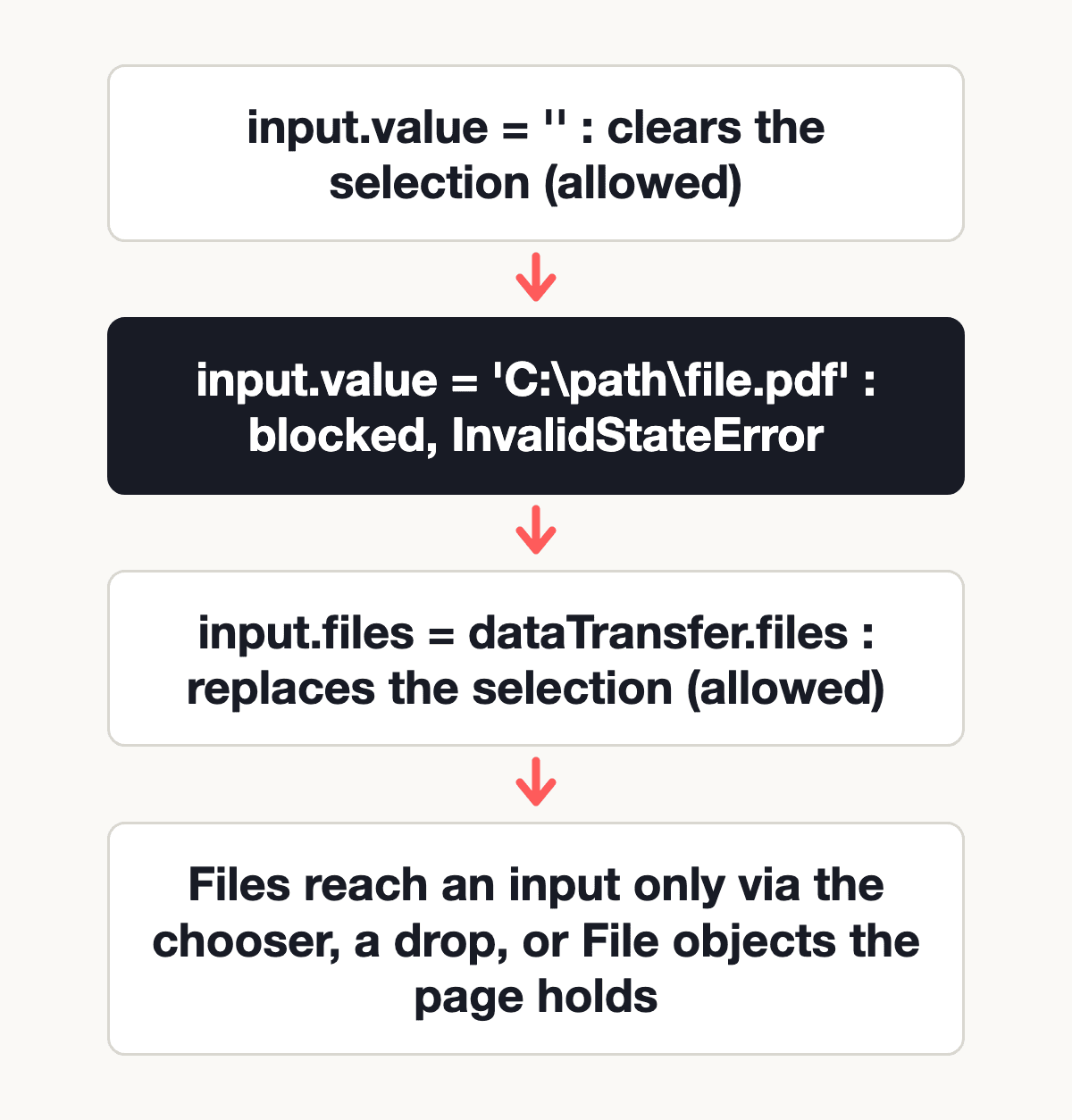
A script can't set the value of <input type="file"> to a file or a path. Browsers block it for security: if a page could write C:\Users\you\Documents\taxes.pdf into a file input and submit the form, any site could upload files from your disk without asking. The only value a script may write is the empty string, which clears the selection.
The rule is old, and it still catches people out when they try to pre-fill an upload field, restore a draft, or build an "add another file" button. You have three options instead, each shown below with code: clear the input, assign a FileList you already hold through DataTransfer, or keep the files in your own array and send them with FormData.
The facts below come from the HTML Living Standard and MDN's file input, DataTransfer and FileList references, all checked on 7 November 2026. We make Static Forms, a form backend, and the complete example at the end posts to it. Everything before that works with any server.
Why a file input's value can't be set programmatically
The file chooser is the only place where the visitor says "this page may read this file". If script could pick a file by writing its path, the chooser would be optional, and a hidden input plus form.submit() would be enough to copy files off someone's machine. So the browser keeps the choice with the visitor: a file gets into an input only through the chooser, a drop, or a File object the page already holds. The page never names a file on disk.
The spec puts the file input's value property in a special mode it calls filename. Two rules follow from it:
- Reading
valuereturnsC:\fakepath\followed by the name of the first selected file, or an empty string when nothing is selected. The spec keeps the prefix "for historical reasons", and notes that some legacy browsers really did include the full path, "which was a security vulnerability". MDN says the fake path exists "to prevent malicious software from guessing the user's file structure". - Writing
valueclears the selection when the new value is the empty string. Any other string makes the spec throw anInvalidStateErrorDOMException.
MDN's page phrases the second rule more softly: it says setting value to a string "has no effect". Either way the input keeps its files, so wrap a write in try/catch if you can't be sure what string you are passing.
This page shows both rules. Pick a file, then press the buttons:
<!DOCTYPE html>
<html lang="en">
<head>
  <meta charset="UTF-8">
  <title>What a script can do to input.value</title>
  <style>
    body { font-family: system-ui, sans-serif; max-width: 560px; margin: 2rem auto; padding: 0 1rem; }
    button { margin: 0.5rem 0.5rem 0 0; }
    pre { background: #f3f4f6; padding: 1rem; white-space: pre-wrap; }
  </style>
</head>
<body>
  <label for="doc">Pick any file</label>
  <input id="doc" type="file">
  <div>
    <button type="button" id="read">Read value</button>
    <button type="button" id="write-path">Set value to a path</button>
    <button type="button" id="clear">Set value to ''</button>
  </div>
  <pre id="log" aria-live="polite"></pre>

  <script>
    const input = document.getElementById('doc');
    const log = document.getElementById('log');

    function report(message) {
      log.textContent = message + '\nvalue: "' + input.value + '"\nfiles.length: ' + input.files.length;
    }

    document.getElementById('read').addEventListener('click', () => {
      report('Read');
    });

    document.getElementById('write-path').addEventListener('click', () => {
      try {
        input.value = 'C:\\Users\\you\\Documents\\taxes.pdf';
        report('No error thrown');
      } catch (error) {
        report('Threw ' + error.name);
      }
    });

    document.getElementById('clear').addEventListener('click', () => {
      input.value = '';
      report('Cleared');
    });
  </script>
</body>
</html>
After you pick report.pdf, "Read value" shows C:\fakepath\report.pdf on every operating system. "Set value to a path" leaves the file in place. "Set value to ''" empties files.
Fix 1: clear a file input with `value = ''`
Clearing is the one write the spec allows, and it covers the most common need: throw away a selection the visitor shouldn't send.
Use it when a file fails your type or size check, after a successful submission, or when the visitor may need to pick the same file twice. MDN notes that reselecting the same files fires cancel instead of change, so a cleared input is the reliable way to get a fresh change event.
<!DOCTYPE html>
<html lang="en">
<head>
  <meta charset="UTF-8">
  <title>Clear a rejected file</title>
  <style>
    body { font-family: system-ui, sans-serif; max-width: 560px; margin: 2rem auto; padding: 0 1rem; }
    .error { color: #b42318; }
  </style>
</head>
<body>
  <form action="/upload" method="post" enctype="multipart/form-data">
    <label for="photo">Photo (JPEG or PNG, up to 2 MB)</label>
    <input id="photo" name="photo" type="file" accept="image/jpeg,image/png" aria-describedby="photo-error">
    <p id="photo-error" class="error" role="alert"></p>
    <button type="submit">Upload</button>
  </form>

  <script>
    const photo = document.getElementById('photo');
    const photoError = document.getElementById('photo-error');
    const maxBytes = 2 * 1024 * 1024;

    photo.addEventListener('change', () => {
      photoError.textContent = '';
      const file = photo.files[0];
      if (!file) return;

      if (!['image/jpeg', 'image/png'].includes(file.type)) {
        photoError.textContent = file.name + ' is not a JPEG or PNG.';
        photo.value = '';
        return;
      }
      if (file.size > maxBytes) {
        photoError.textContent = file.name + ' is larger than 2 MB.';
        photo.value = '';
      }
    });
  </script>
</body>
</html>
Two related tools do the same job. form.reset() clears every file input in the form along with the other fields, and the form reset guide covers what reset does and doesn't restore. Replacing the input element with a fresh copy also works, but you lose its event listeners, so value = '' is simpler.
Fix 2: assign a FileList with `DataTransfer`
The files property is writable. The spec's setter has two steps: return if the value is null, otherwise "replace the element's selected files with the given value". The catch is that the value has to be a FileList, and MDN says "you don't create FileList objects yourself". You get them from an input or from a drag and drop.
DataTransfer is the way around that. Its constructor is part of the drag and drop API, and MDN lists it as widely available since April 2021. You add File objects to dataTransfer.items, then hand dataTransfer.files (a real FileList) to the input.
This only moves files the page already holds. It doesn't give a page any new way to read the visitor's disk. The File objects come from a drop, another input, or new File() built in the page, for example from a canvas or generated text.
<!DOCTYPE html>
<html lang="en">
<head>
  <meta charset="UTF-8">
  <title>Assign files to an input with DataTransfer</title>
  <style>
    body { font-family: system-ui, sans-serif; max-width: 560px; margin: 2rem auto; padding: 0 1rem; }
    #drop { border: 2px dashed #9ca3af; border-radius: 8px; padding: 2rem; text-align: center; margin: 1rem 0; }
    #drop.over { border-color: #1f2937; background: #f9fafb; }
  </style>
</head>
<body>
  <form action="/upload" method="post" enctype="multipart/form-data">
    <label for="attachments">Attachments</label>
    <input id="attachments" name="attachments" type="file" multiple>
    <div id="drop">Or drop files here</div>
    <button type="button" id="add-note">Add a generated notes.txt</button>
    <p id="count" aria-live="polite">0 files selected</p>
    <button type="submit">Upload</button>
  </form>

  <script>
    const input = document.getElementById('attachments');
    const drop = document.getElementById('drop');
    const count = document.getElementById('count');

    // Builds a new FileList from the input's current files plus extra ones,
    // because a FileList can't be edited or constructed directly.
    function setFiles(extraFiles) {
      const transfer = new DataTransfer();
      for (const file of input.files) transfer.items.add(file);
      for (const file of extraFiles) transfer.items.add(file);
      input.files = transfer.files;
      // Assigning files fires no event, so tell any listeners ourselves.
      input.dispatchEvent(new Event('change', { bubbles: true }));
    }

    input.addEventListener('change', () => {
      count.textContent = input.files.length + ' file(s) selected';
    });

    drop.addEventListener('dragover', (event) => {
      event.preventDefault();
      drop.classList.add('over');
    });
    drop.addEventListener('dragleave', () => drop.classList.remove('over'));
    drop.addEventListener('drop', (event) => {
      event.preventDefault();
      drop.classList.remove('over');
      setFiles(event.dataTransfer.files);
    });

    document.getElementById('add-note').addEventListener('click', () => {
      const note = new File(['Written in the browser.\n'], 'notes.txt', { type: 'text/plain' });
      setFiles([note]);
    });
  </script>
</body>
</html>
Picking files in the chooser replaces the selection as usual. Dropping files or pressing the button appends to it, and the form submits everything in files with a normal multipart POST.
DataTransfer caveats
- No
changeevent. The spec'sfilessetter only replaces the list, soinputandchangedon't fire. The example dispatcheschangeitself so the counter updates. - No
acceptormultiplecheck. The setter doesn't look at either attribute. A dropped.ziplands in anaccept="image/*"input, and three files land in an input withoutmultiple. Validate in your own code, and on the server. The accept attribute guide covers type checks. - Every edit rebuilds the list.
FileListhas nopushorsplice. Removing one file means building a newDataTransferwithout it. - Older browsers. Browsers released before the April 2021 baseline may lack the
DataTransfer()constructor. If you support them, use Fix 3, which doesn't need it.
Fix 3: keep files in your own array and send them with FormData
If the visitor adds files from several places and removes some before sending, stop treating the input as the store. Keep a plain array of File objects, render the list from it, and build the request body yourself when the form submits.
FormData.append() takes a File as the value, and MDN shows several append calls under the same name to send several files. Send the body with fetch and don't set a Content-Type header: the browser writes the multipart boundary itself.
<!DOCTYPE html>
<html lang="en">
<head>
  <meta charset="UTF-8">
  <title>Keep files in an array, send with FormData</title>
  <style>
    body { font-family: system-ui, sans-serif; max-width: 560px; margin: 2rem auto; padding: 0 1rem; }
    li button { margin-left: 0.5rem; }
  </style>
</head>
<body>
  <form id="upload">
    <label for="picker">Add files</label>
    <input id="picker" type="file" multiple>
    <ul id="file-list" aria-live="polite"></ul>
    <button type="submit">Upload</button>
    <p id="status" role="status"></p>
  </form>

  <script>
    const picker = document.getElementById('picker');
    const list = document.getElementById('file-list');
    const status = document.getElementById('status');
    let files = [];

    function render() {
      list.replaceChildren();
      files.forEach((file, index) => {
        const item = document.createElement('li');
        item.textContent = file.name + ' (' + Math.round(file.size / 1024) + ' KB)';
        const remove = document.createElement('button');
        remove.type = 'button';
        remove.textContent = 'Remove';
        remove.setAttribute('aria-label', 'Remove ' + file.name);
        remove.addEventListener('click', () => {
          files.splice(index, 1);
          render();
        });
        item.append(remove);
        list.append(item);
      });
    }

    picker.addEventListener('change', () => {
      files = files.concat(Array.from(picker.files));
      // Clear the picker so the same file can be added again after removal.
      picker.value = '';
      render();
    });

    document.getElementById('upload').addEventListener('submit', async (event) => {
      event.preventDefault();
      const body = new FormData();
      for (const file of files) body.append('attachments', file);

      status.textContent = 'Uploading...';
      try {
        const response = await fetch('/upload', { method: 'POST', body });
        status.textContent = response.ok ? 'Uploaded.' : 'Upload failed (' + response.status + ').';
      } catch {
        status.textContent = 'Upload failed. Check your connection and try again.';
      }
    });
  </script>
</body>
</html>
The picker has no name, so it never adds its own copy of the files to a submission. The array is the single source of truth, which is why the remove buttons are simple.
The trade-off: the form now needs JavaScript to send files. Fix 2 keeps a plain HTML submit working. Fix 3 is easier to reason about once the UI lets people remove files.
Which fix to use
| You want to | Use | Works without JavaScript on submit |
|---|---|---|
| Throw away a rejected or sent file | input.value = '' |
Yes |
| Add dropped or generated files to a normal form | DataTransfer and input.files |
Yes |
| Let visitors add and remove files before sending | Your own array plus FormData and fetch |
No |
| Pre-fill a file from a path on the visitor's disk | Not possible |
Complete Working Example
This form sends a message with attachments to Static Forms, which emails each submission with the files attached. It uses Fix 3, adds drag and drop on top, clears the picker after each pick, and refuses a total over 4 MB before sending: a submission is limited to 4.5 MB in total, files and fields together. File uploads are Starter and up. Replace YOUR_API_KEY with the key from your form's settings.
<!DOCTYPE html>
<html lang="en">
<head>
  <meta charset="UTF-8">
  <meta name="viewport" content="width=device-width, initial-scale=1.0">
  <title>Message with attachments</title>
  <style>
    body { font-family: system-ui, sans-serif; max-width: 560px; margin: 2rem auto; padding: 0 1rem; }
    label { display: block; font-weight: 600; margin-top: 1rem; }
    input[type="text"], input[type="email"], textarea { width: 100%; box-sizing: border-box; padding: 0.6rem; font-size: 1rem; }
    #drop { border: 2px dashed #9ca3af; border-radius: 8px; padding: 1.5rem; text-align: center; margin-top: 0.5rem; }
    #drop.over { border-color: #1f2937; background: #f9fafb; }
    li button { margin-left: 0.5rem; }
    .error { color: #b42318; }
    button[type="submit"] { margin-top: 1.5rem; padding: 0.75rem 1.5rem; font-size: 1rem; }
  </style>
</head>
<body>
  <h1>Send us a message</h1>
  <form id="contact">
    <label for="name">Name</label>
    <input id="name" name="name" type="text" required autocomplete="name">

    <label for="email">Email</label>
    <input id="email" name="email" type="email" required autocomplete="email">

    <label for="message">Message</label>
    <textarea id="message" name="message" rows="5" required></textarea>

    <label for="picker">Attachments (up to 4 MB in total)</label>
    <input id="picker" type="file" multiple accept=".pdf,image/jpeg,image/png" aria-describedby="files-error">
    <div id="drop">Or drop files here</div>
    <ul id="file-list" aria-live="polite"></ul>
    <p id="files-error" class="error" role="alert"></p>

    <button type="submit">Send</button>
    <p id="status" role="status"></p>
  </form>

  <script>
    const form = document.getElementById('contact');
    const picker = document.getElementById('picker');
    const drop = document.getElementById('drop');
    const list = document.getElementById('file-list');
    const filesError = document.getElementById('files-error');
    const status = document.getElementById('status');

    const allowedTypes = ['application/pdf', 'image/jpeg', 'image/png'];
    const maxTotalBytes = 4 * 1024 * 1024;
    let files = [];

    function totalBytes() {
      return files.reduce((sum, file) => sum + file.size, 0);
    }

    function render() {
      list.replaceChildren();
      files.forEach((file, index) => {
        const item = document.createElement('li');
        item.textContent = file.name + ' (' + Math.round(file.size / 1024) + ' KB)';
        const remove = document.createElement('button');
        remove.type = 'button';
        remove.textContent = 'Remove';
        remove.setAttribute('aria-label', 'Remove ' + file.name);
        remove.addEventListener('click', () => {
          files.splice(index, 1);
          filesError.textContent = '';
          render();
        });
        item.append(remove);
        list.append(item);
      });
    }

    function addFiles(newFiles) {
      filesError.textContent = '';
      for (const file of newFiles) {
        if (!allowedTypes.includes(file.type)) {
          filesError.textContent = file.name + ' is not a PDF, JPEG or PNG.';
          continue;
        }
        files.push(file);
      }
      render();
    }

    picker.addEventListener('change', () => {
      addFiles(Array.from(picker.files));
      picker.value = '';
    });

    drop.addEventListener('dragover', (event) => {
      event.preventDefault();
      drop.classList.add('over');
    });
    drop.addEventListener('dragleave', () => drop.classList.remove('over'));
    drop.addEventListener('drop', (event) => {
      event.preventDefault();
      drop.classList.remove('over');
      addFiles(Array.from(event.dataTransfer.files));
    });

    form.addEventListener('submit', async (event) => {
      event.preventDefault();
      filesError.textContent = '';

      if (totalBytes() > maxTotalBytes) {
        filesError.textContent = 'Your files add up to more than 4 MB. Remove one and try again.';
        return;
      }

      // FormData(form) picks up name, email and message. The picker has no name,
      // so the files come only from the array.
      const body = new FormData(form);
      body.append('apiKey', 'YOUR_API_KEY');
      body.append('subject', 'New message with attachments');
      for (const file of files) body.append('attachments', file);

      status.textContent = 'Sending...';
      try {
        const response = await fetch('https://api.staticforms.dev/submit', {
          method: 'POST',
          headers: { Accept: 'application/json' },
          body,
        });
        const result = await response.json();
        if (result.success) {
          status.textContent = 'Thanks, your message was sent.';
          form.reset();
          files = [];
          render();
        } else {
          status.textContent = 'Error: ' + (result.error || 'the submission failed.');
        }
      } catch {
        // A request over 4.5 MB is refused before it reaches Static Forms and shows up here.
        status.textContent = 'Sending failed. Check your connection, or try smaller files.';
      }
    });
  </script>
</body>
</html>
The email field doubles as the reply-to address, so you can answer from your inbox. The file uploads docs cover the size limit, where stored files live, and the error a Free plan form returns when a file is attached.
Troubleshooting
| What you see | Why, and what to do |
|---|---|
Failed to set the 'value' property on 'HTMLInputElement': This input element accepts a filename, which may only be programmatically set to the empty string. |
Chrome's wording for the spec's InvalidStateError. Your code, or a framework binding value to state, wrote a non-empty string. Only ever write '', and leave file inputs uncontrolled in React. |
value reads C:\fakepath\report.pdf |
Expected on every OS. Read input.files for names, sizes and types. |
Assigning input.files did nothing visible |
No change event fires on assignment. Dispatch one yourself, as in Fix 2. |
input.files = [file] doesn't work |
The value must be a FileList. Build one with new DataTransfer() and transfer.items.add(file). |
| Picking the same file again does nothing | Reselecting the same files fires cancel, not change. Clear the input with value = '' after you handle each pick. |
A dropped file ignores accept |
Assigning files doesn't check accept or multiple. Check type and count in your code and on the server. |
| A restored draft has text fields but no files | A page can't put a file from disk back into an input. Keep the files in memory while the page is open, or ask the visitor to pick them again. |
FAQ
Can I set the value of a file input with JavaScript?
Only to an empty string, which clears it. Any other string throws an InvalidStateError in the spec and never selects a file. To add files you already hold as File objects, assign a FileList built with DataTransfer to input.files.
How do I clear a file input?
Set input.value = ''. It empties input.files, and the next pick fires change even for the same file. form.reset() clears every file input in the form.
Why does a file input show C:\fakepath?
The spec has value return C:\fakepath\ plus the file name so pages can't learn the real path. The spec says the prefix is there for historical reasons; some old browsers exposed the full path, which was a security hole.
Can a page upload a file without the user choosing it?
No. A file enters an input only through the chooser, a drop, or a File object the page created itself, such as an image drawn on a canvas. No script API reads an arbitrary file from disk by path.
Send the files somewhere
All three fixes end with the files in a multipart request. To receive that request on a static site without running a server, post it to https://api.staticforms.dev/submit with your apiKey. The HTML file input reference covers the rest of the element's attributes and styling, the end-to-end file upload guide covers storage and server checks, and the quick start gets a first form working.
Related Articles
Preserve textarea line breaks in HTML without innerHTML
Fix textarea line breaks that disappear in a preview. Use textContent and CSS pre-wrap, keep user input as plain text, and test a complete HTML example.
Confirm email field validation in HTML and JavaScript
Build a confirm email field that catches mismatches, clears stale errors, and works with Enter. Test the exact HTML example without confusing matching with verification.
checkValidity() vs reportValidity(): Check or show errors
Compare checkValidity() and reportValidity() with a working HTML lab. Debug invalid events, clear custom errors, and separate validation from form submission.