

Preserve textarea line breaks in HTML without innerHTML
A message looks correct in your textarea, then turns into one long paragraph in the preview. Before changing the form submission code, check the element that displays the message. HTML normally collapses whitespace, including newline characters. The data may still contain every line break the visitor typed.
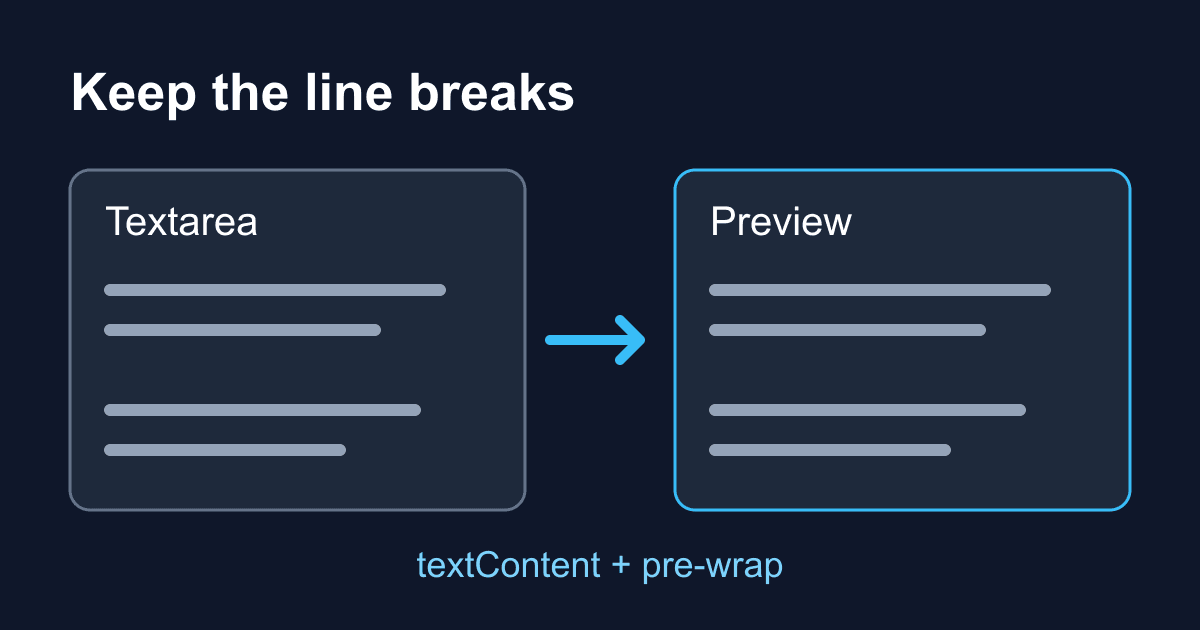
To preserve textarea line breaks in a web preview, assign the value with textContent and apply white-space: pre-wrap to the display element. Add overflow-wrap: anywhere if messages can contain long URLs or other unbroken strings. This keeps the message as plain text while allowing it to fit a narrow screen.
This guide builds a local message preview and shows how to tell a rendering problem from missing data. It does not send a form, store a message, or verify email delivery.
Why line breaks disappear outside the textarea
A textarea is a plain-text editing control. Its current content is available through its JavaScript value property. A normal HTML paragraph or div follows CSS whitespace rules instead: with white-space: normal, a newline does not necessarily produce a visible new line.
There are two separate questions to check:
- Does the string contain newline characters?
- Does the receiving element display those characters as line breaks?
Changing CSS can fix the second problem. It cannot restore characters that a server, template, or application already removed.
The MDN textarea reference covers the editing control. For general setup, see our textarea guide. Here the focus is what happens when you display its value elsewhere.
Build a plain-text message preview
Save this complete example as preview.html and open it in a browser. You do not need a build tool, account, or API key. There are no placeholders to replace.
Type two paragraphs, then choose Preview message. The preview should keep the blank line between them. Text that looks like HTML should remain visible text, not become an element.
<!doctype html>
<html lang="en">
<head>
  <meta charset="utf-8">
  <meta name="viewport" content="width=device-width, initial-scale=1">
  <title>Plain-text message preview</title>
  <style>
    * { box-sizing: border-box; }
    body {
      max-width: 42rem;
      margin: 2rem auto;
      padding: 0 1rem;
      color: #172033;
      background: #ffffff;
      font: 1rem/1.6 system-ui, sans-serif;
    }
    label { display: block; font-weight: 700; }
    textarea {
      display: block;
      width: 100%;
      padding: 0.75rem;
      font: inherit;
      resize: vertical;
    }
    button { margin-top: 1rem; padding: 0.6rem 1rem; font: inherit; }
    :focus-visible { outline: 3px solid #005fcc; outline-offset: 3px; }
    #preview {
      white-space: pre-wrap;
      overflow-wrap: anywhere;
      padding: 1rem;
      border: 1px solid #64748b;
      min-height: 6rem;
    }
  </style>
</head>
<body>
  <main>
    <h1>Preview your message</h1>
    <p>This demo stays in this page. It does not send or save your text.</p>
    <label for="message">Message</label>
    <p id="hint">Use Enter for a new line. Avoid sensitive information.</p>
    <textarea id="message" name="message" rows="6"
      wrap="soft" aria-describedby="hint"></textarea>
    <button type="button" id="preview-button">Preview message</button>
    <p id="status" role="status"></p>
    <section aria-labelledby="preview-heading">
      <h2 id="preview-heading">Message preview</h2>
      <div id="preview"></div>
    </section>
  </main>
  <script>
    const message = document.querySelector("#message");
    const preview = document.querySelector("#preview");
    const status = document.querySelector("#status");
    document.querySelector("#preview-button").addEventListener("click", () => {
      preview.textContent = message.value;
      status.textContent = message.value
        ? "Preview updated below. Nothing was sent."
        : "Preview cleared. Nothing was sent.";
    });
  </script>
</body>
</html>
The label names the field, and aria-describedby connects the instruction to it. The button uses the browser's native keyboard behavior. A short status message changes when you request a preview; the entire message is not placed in a live region and reread after every keystroke. Repeated updates with the same status wording may not be announced again by every screen reader.
The textarea remains vertically resizable. The preview can grow with the message rather than clipping it inside a fixed-height box.
Choose the whitespace behavior you need
pre-wrap preserves newline characters and sequences of spaces, while still wrapping lines to the container width. It is a sensible default when the preview should resemble what someone typed.
pre-line preserves line breaks but collapses sequences of spaces. Use it when indentation and repeated spaces do not matter. For example, a short customer note may not need to retain several spaces between words.
pre preserves whitespace but does not wrap long lines to fit the box. That can suit code with an intentional horizontal scrollbar, but it is usually inconvenient for an ordinary message preview on a phone.
The MDN white-space reference documents these differences. Overflow-wrap handles a different problem: breaking an otherwise unbreakable string to prevent horizontal overflow. These are display choices; they do not rewrite the text stored in the DOM.
Keep user input out of innerHTML
Do not repair missing line breaks by replacing newlines with HTML break tags and assigning the result to innerHTML. If the original message contains markup, that approach can interpret it as HTML unless you have correctly escaped or sanitized it.
The example uses textContent so the browser creates text rather than parsing the message as markup. As MDN explains, textContent is the appropriate property for inserting plain text. It replaces the target element's children, which is why the preview div contains only the message, not a heading or buttons that must survive an update.
This protects this particular DOM insertion. It does not sanitize data for every other destination. A server-rendered HTML template still needs context-appropriate escaping, and a plain-text message should not automatically become a clickable link or executable markup.
Check the data before changing the backend
Enter an address on several lines and inspect document.querySelector("#message").value in the browser console. A string representation can show newline escapes even when a preview looks like a single paragraph. Compare the value with the request payload and the response or stored value if your real form sends data.
Do not confuse visual wrapping with an explicit newline. A long sentence can wrap across three visible lines without containing two newline characters. The example uses wrap="soft", the textarea default, so visual wrapping is not a request to insert extra submission line breaks. wrap="hard" has different submission behavior and requires cols; it is not a fix for a div that collapses whitespace.
Also distinguish newline representations. JavaScript values and encoded form requests can represent line endings differently. Seeing LF in one place and CRLF in another is not, by itself, evidence that a paragraph was lost.
If you are adding a preview to a Static Forms contact page, keep the submission setup separate. Follow the plain HTML integration guide for the form action and fields. A successful preview proves only that this browser rendered a string. It does not prove that a request reached the service or that an email arrived.
Troubleshoot the rendered result
If paragraphs still collapse, inspect the computed white-space value on the actual display element. A more specific CSS rule may override your declaration, or you may have styled the textarea instead of the preview.
If a long URL stretches the page, check overflow-wrap and the widths of the preview's ancestors. In a flex or grid layout, an ancestor's minimum sizing can also prevent the content from shrinking. Test the real embedding layout rather than assuming this standalone page covers it.
If angle brackets turn into elements, look for an innerHTML assignment or an unescaped server template. Keep the input as text at every plain-text rendering boundary.
If only an email has flattened paragraphs, inspect that email template and its HTML or plain-text body. CSS on your website does not control a separate email client. Do not change the visitor's original message merely to compensate for one display template.
Test before putting it on a contact page
Try a blank message, two paragraphs, leading spaces, a long unbroken string, and literal HTML such as <strong>hello</strong>. Confirm that clearing the textarea and previewing again removes the old content. Tab to the button and activate it with the keyboard. At a phone-width viewport, the message should remain readable without sideways page scrolling.
You can deploy this file on a static host as-is. If your production Content Security Policy blocks inline scripts or styles, move those blocks to permitted external files under your site's policy before deploying. No message should leave the page in this demo; add and test a real submission flow separately when you need delivery.
Related Articles
Confirm email field validation in HTML and JavaScript
Build a confirm email field that catches mismatches, clears stale errors, and works with Enter. Test the exact HTML example without confusing matching with verification.
checkValidity() vs reportValidity(): Check or show errors
Compare checkValidity() and reportValidity() with a working HTML lab. Debug invalid events, clear custom errors, and separate validation from form submission.
HTML input pattern: validate a format without blocking users
Learn how HTML input pattern matches a whole value, handles empty fields, and uses the v flag. Build a local checker with clear, accessible format hints.







































