

File input accept: validate type hints and file size
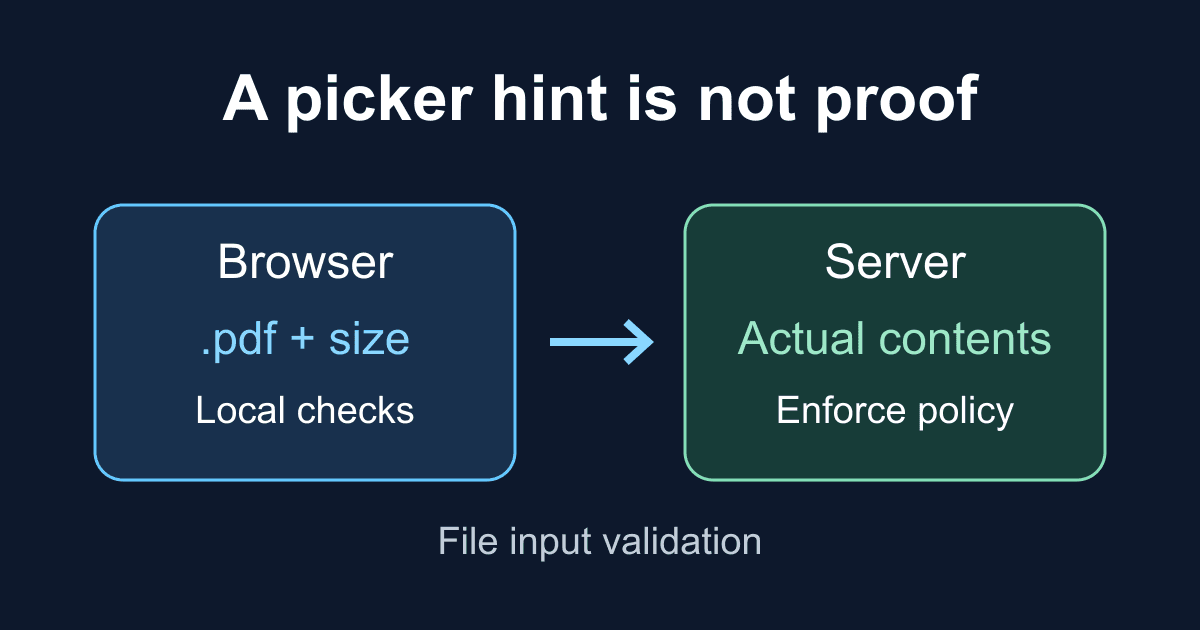
A file picker that shows only PDFs can still hand your page a file that isn't a PDF. The HTML accept attribute guides selection; it does not validate the file's contents. Adding a JavaScript MIME check doesn't turn it into a security check either.
This tutorial builds a local PDF-selection demo with a size limit, visible errors, and a reset button. You can test a wrong extension, an oversized file, and a renamed text file without uploading anything. The result tells you exactly what the browser checked, not whether a server accepted the document.
If you need the upload markup first, use the HTML file input guide. Here the focus is the gap between picker hints and validation, including errors that remain after someone chooses a replacement file.
What accept does and doesn't check
For a PDF picker, accept=".pdf,application/pdf" supplies both a filename extension and a MIME type. According to MDN's accept reference, users can often override the picker filter and select another type. The exact picker controls depend on the browser and operating system.
required has a different job: a required file input needs a selection. It doesn't inspect the selected bytes. A file with the right name is not necessarily the right format.
JavaScript can read file.size, which is a size in bytes, before uploading. It can also read file.type, but that value may be empty or inferred from the extension. MDN's Blob.type documentation explicitly warns against using it as the sole validation scheme.
Use these checks to help someone correct an accidental selection. Enforce any security requirement on the receiving server.
Build a local file-validation demo
Save the following complete file as file-check.html and open it in a browser. It needs no packages, API key, or backend. The demonstration limit is 2 MiB, defined in the code as a byte count; it is not a claim about a Static Forms plan limit.
<!doctype html>
<html lang="en">
<head>
  <meta charset="utf-8">
  <meta name="viewport" content="width=device-width, initial-scale=1">
  <title>Check a PDF selection locally</title>
  <style>
    body { font: 1rem/1.6 system-ui; margin: 2rem auto;
      max-width: 42rem; padding: 0 1rem; color: #172033; }
    label { display: block; font-weight: 600; }
    input { display: block; max-width: 100%; margin: 1rem 0; }
    button { font: inherit; margin: .4rem; padding: .5rem 1rem; }
    :focus-visible { outline: 3px solid #2458d3; outline-offset: 3px; }
    #file-error { color: #a10e22; }
    #result { overflow-wrap: anywhere; }
  </style>
</head>
<body>
  <main>
    <h1>Check a PDF selection locally</h1>
    <p>This demo never uploads your file.</p>
    <form id="file-form">
      <label for="document">PDF document (required)</label>
      <p id="file-help">Choose one .pdf file, at most 2 MiB.</p>
      <input id="document" name="document" type="file"
        accept=".pdf,application/pdf" required
        aria-describedby="file-help file-error">
      <p id="file-error" aria-live="polite"></p>
      <button type="submit">Check selection</button>
      <button type="reset">Clear selection</button>
    </form>
    <p id="result" role="status"></p>
    <noscript>This local demo needs JavaScript. No upload is configured.</noscript>
  </main>
  <script>
    const form = document.querySelector('#file-form');
    const input = document.querySelector('#document');
    const error = document.querySelector('#file-error');
    const result = document.querySelector('#result');
    const maxBytes = 2 * 1024 * 1024;

    function validateSelection() {
      const file = input.files[0];
      let message = '';
      if (file && !/\.pdf$/i.test(file.name)) {
        message = 'Choose a file with a .pdf extension.';
      } else if (file && file.size > maxBytes) {
        message = 'Choose a file no larger than 2 MiB.';
      }
      input.setCustomValidity(message);
      error.textContent = message;
      if (message) input.setAttribute('aria-invalid', 'true');
      else input.removeAttribute('aria-invalid');
      return input.checkValidity();
    }

    input.addEventListener('change', () => {
      result.textContent = '';
      validateSelection();
    });
    input.addEventListener('invalid', () => {
      input.setAttribute('aria-invalid', 'true');
      if (input.validity.valueMissing) {
        error.textContent = 'Choose a PDF file before checking.';
      }
    });
    form.addEventListener('submit', (event) => {
      event.preventDefault();
      if (!validateSelection()) {
        input.reportValidity();
        return;
      }
      const file = input.files[0];
      result.textContent =
        `Local checks passed: ${file.name} (${file.size} bytes). ` +
        'Contents were not inspected. Nothing was uploaded.';
    });
    form.addEventListener('reset', () => {
      input.setCustomValidity('');
      input.removeAttribute('aria-invalid');
      error.textContent = '';
      result.textContent = '';
    });
  </script>
</body>
</html>
There are no placeholders to replace. Change maxBytes and the visible help/error text together if your application uses a different limit. This example deliberately supports one file, so it doesn't include multiple or silently ignore additional selections in the normal picker.
The native input remains visible and keyboard accessible. Its label identifies the control, the help text states the limit before selection, and the error text is associated through aria-describedby. The status message avoids saying "uploaded" when only a local check ran. Screen-reader announcements still need testing with the browser and assistive technology you support.
The demo doesn't read the document contents, log filenames, or send a request. Keep it as a local test until you have configured an actual receiving endpoint. If JavaScript is disabled, the local checks and status message won't run; this file is not a production upload form.
Test the boundary, not just a valid PDF
Try the following cases before adapting the example:
- Click Check selection with no file. Native
requiredvalidation blocks submission and the page adds a visible missing-file message. - Choose a small PDF. The page reports its filename and size, then says that nothing was uploaded.
- Choose a
.txtfile by overriding the picker filter where your system allows it. The page rejects the extension. - Choose a PDF larger than the displayed limit. The page rejects it. A file exactly at the limit passes the size check because the comparison uses
>, not>=. - After a failure, choose a small PDF again. The error should disappear and the form should become valid.
- Clear an invalid selection with Clear selection, then choose a valid file. The previous custom error must not return.
- Rename an ordinary text file to end in
.pdf. A small enough file passes this demo. That is an intentional demonstration of the security boundary, not evidence that the renamed file is a valid PDF.
The example doesn't reject an empty MIME string. Doing so can reject legitimate files on systems that don't provide a useful type. It also doesn't use application/pdf as proof: a convincing MIME label cannot establish that the contents are safe.
A zero-byte .pdf also passes these limited checks. If your workflow requires a nonempty, parseable PDF, enforce that policy on the server and add a matching browser hint for convenience.
Clear custom validity when the selection changes
A frequent bug is setting a custom error once and never removing it. setCustomValidity() keeps the control invalid while its message is nonempty, even if the next file is acceptable.
validateSelection() starts with an empty message on every call. It replaces that message only when a check fails, then always passes the result to setCustomValidity(). This is why the invalid-to-valid transition matters more than testing two fresh page loads.
The change listener runs before the next submission attempt. Waiting until a submit listener to clear an existing custom error is too late: native validation can block the submit event from firing in the first place.
Resetting the native control and resetting application-owned state are also separate tasks. The reset listener clears the custom validity message, inline error, ARIA flag, and status text. It doesn't need to inspect the file list during reset. For reset ordering and other field types, see HTML form reset and stale errors.
Connect an upload only after deciding the server policy
This demo's submit handler always prevents navigation. Adding an action alone will not make it upload. When moving the pattern into an existing upload form, retain the selection checks but remove the demonstration-only submit handler; let your established native POST or AJAX handler perform delivery and handle its response.
Native file uploads need a POST form with enctype="multipart/form-data" and a named file input. Static Forms' file-upload documentation covers that setup, current plan requirements, and service limits. Use those documented limits rather than copying this demo's arbitrary 2 MiB policy.
The current Static Forms documentation says the service does not enforce file-type validation. Do not describe a PDF-only accept value as a server-enforced Static Forms restriction. If your application requires a verified PDF-only intake, it needs a receiving service that enforces that policy before the file enters the trusted workflow.
Follow the OWASP file-upload guidance on a receiver you control: verify size and actual format, reject malformed or unsupported files, and decide whether malware scanning is required. Treat filenames and MIME metadata as untrusted input. Do not render arbitrary uploaded HTML or SVG as trusted content, and avoid collecting sensitive documents just to test an upload.
Deploy the real upload page over HTTPS, test with a harmless sample, and confirm both the receiver's response and the destination record or attachment. A local validation message proves neither storage nor email delivery.
Diagnose common failures
If the picker lets someone select another format, check the selected filename and your change listener. accept is a hint, so the picker alone cannot enforce your rule.
If every replacement file remains invalid, inspect input.validationMessage. A stale custom message usually means the success path forgot to call setCustomValidity('').
If a valid file receives no status message, check that the script loaded and that the input has no missing-value or custom error. A failed native constraint prevents the submit handler from running.
If the browser passes a file that the server rejects, compare the policies and units at both ends. A per-file browser limit does not account for multipart overhead, other files, or a hosting platform's request-body limit.
Before releasing an upload form, test wrong-type selection, the size boundary, replacement after an error, reset, and keyboard operation. Then verify the receiving system separately with a harmless document. Keep the user-facing success message tied to what that system actually confirmed.
Related Articles
HTML URL input validation: accept website links correctly
Learn what HTML URL inputs validate, add HTTP and HTTPS checks, and test an accessible website field without confusing valid syntax with a safe or working link.
HTML email multiple: validate a comma-separated list
Validate multiple email addresses in one HTML input. Test commas, invalid lists, a count limit, and the exact FormData value with a complete local demo.
HTML minlength and maxlength: why validation gets skipped
Debug HTML minlength and maxlength with a runnable form. Test empty fields, emoji, scripted values, and native validation without sending a submission.







































