


Contact Form on a Static WordPress Site (Simply Static)
A contact form on a static WordPress site has to send its submissions somewhere other than WordPress. Once Simply Static, WP2Static or a similar exporter turns your site into HTML files, nothing runs PHP on the live site. A Contact Form 7 or WPForms form still shows up on the page, but when a visitor presses Send, the request goes to a WordPress address that the static host can't answer.
The fix is to point the form at an external endpoint. You build the page in WordPress as usual, put a plain HTML form in a Custom HTML block with action="https://api.staticforms.dev/submit", export, and every message arrives by email. Before you test, you can also check the exported HTML to see which forms still depend on WordPress.
We make Static Forms, the form backend in the examples. The free plan covers 250 submissions every 30 days.
Why WordPress form plugins stop working after a static export
A form plugin has two halves. The first half is the markup: fields, labels, a Send button. An exporter copies that into the HTML files without trouble.
The second half is the handler, PHP code that runs on your WordPress server when the form is submitted. It validates the fields, sends the email with wp_mail() and stores the entry. Plugins reach it through WordPress addresses such as admin-post.php, admin-ajax.php or a REST route under /wp-json/ (Contact Form 7, for example, submits through the REST API).
A static host only serves files. When the exported form posts to one of those addresses, there is either no file there or a file that can't run PHP, so the visitor gets an error and you get no email. The static site contact form guide covers the same problem for sites that were never WordPress.
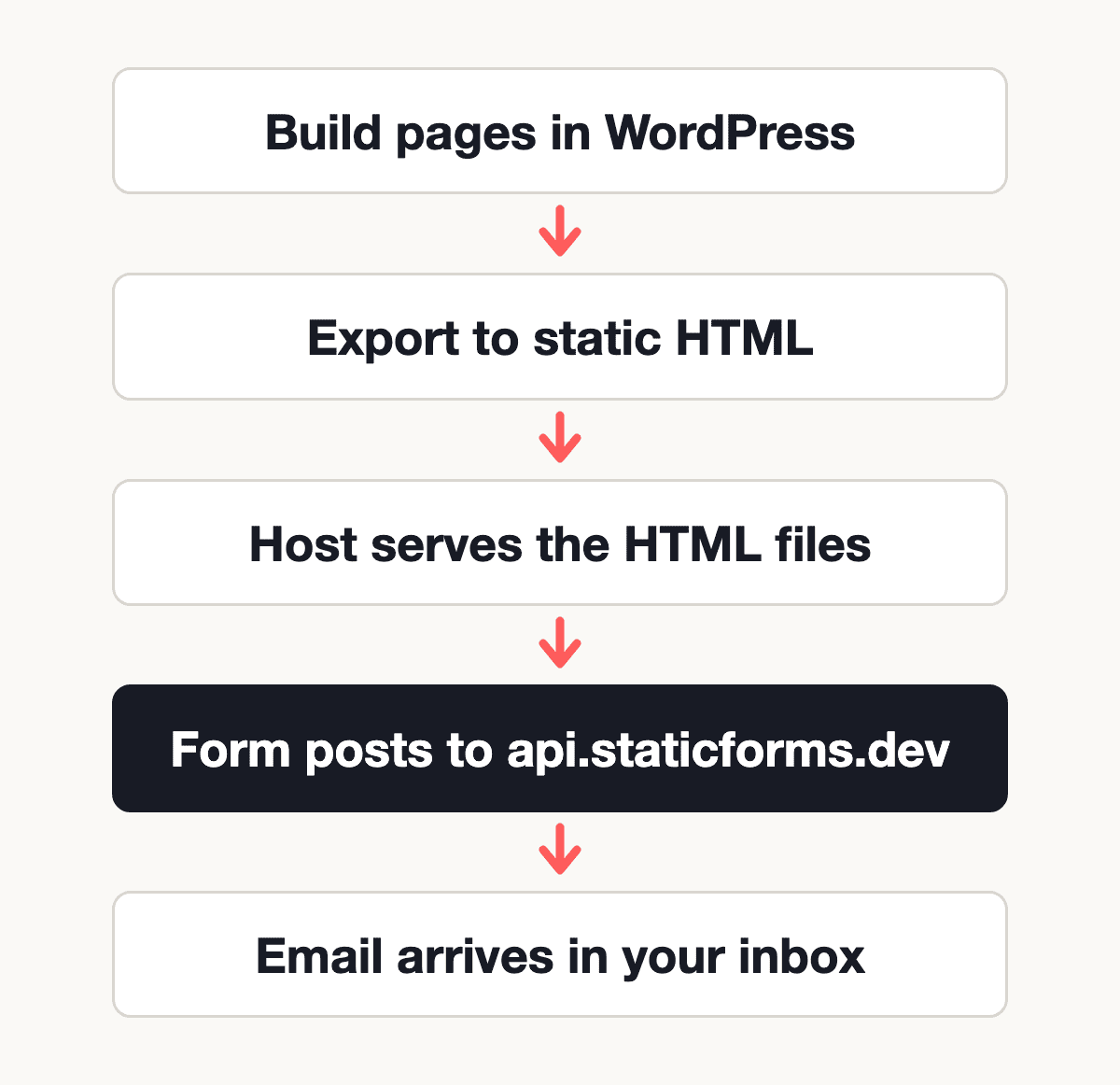
Your options, and which survive the export
| Approach | Where the submission goes | Works on the static copy? | WordPress must stay online? |
|---|---|---|---|
| Form plugin as installed (Contact Form 7, WPForms and so on) | Your WordPress server | No | Yes, and the form must post to it |
| Your exporter's own forms feature | Whatever the exporter's docs set up | See the exporter's docs | See the exporter's docs |
| Plain HTML form posting to Static Forms | https://api.staticforms.dev/submit |
Yes | No |
Static Forms plugin, [staticforms] shortcode |
https://api.staticforms.dev/submit |
Yes | No |
| Static Forms plugin, CF7 or Elementor forwarding | Your WordPress server first | No | Yes |
What the exporters say
- Simply Static has a forms feature of its own, documented on its Set up forms page, which connects plugin forms such as Contact Form 7 on the static site to a handler. According to that page, forms need Simply Static Pro.
- Other exporters such as WP2Static also produce plain files, so plugin forms need a separate handler.
When to keep forms on WordPress
If the form does more than send a message, a static export may be the wrong tool for that page. Forms that create WordPress users, save entries other plugins read, take payments through a WordPress plugin or run multi-page logic all need PHP. Keep those on a live WordPress install, or use your exporter's forms feature if it supports your plugin.
For a contact form that only needs to reach your inbox, the HTML route has the fewest moving parts: no WordPress in the request path and nothing to keep in sync between the two sites.
Prerequisites
- A WordPress site you export with Simply Static, WP2Static or another static exporter
- A WordPress account that can add a Custom HTML block (scripts in that block need the
unfiltered_htmlcapability, which administrators have on a single site) - A free Static Forms account and your form's API key, from the General tab of the form in the Static Forms app
Step 1: Add the form in a Custom HTML block
Open the contact page in the WordPress editor, add a Custom HTML block and paste this. Replace YOUR_API_KEY with your key.
<form class="sf-contact" action="https://api.staticforms.dev/submit" method="POST">
  <!-- Your form's API key, from the General tab of the form in Static Forms -->
  <input type="hidden" name="apiKey" value="YOUR_API_KEY" />

  <p>
    <label for="sf-name">Name</label><br />
    <input type="text" id="sf-name" name="name" autocomplete="name" required />
  </p>
  <p>
    <label for="sf-email">Email</label><br />
    <input type="email" id="sf-email" name="email" autocomplete="email" required />
  </p>
  <p>
    <label for="sf-message">Message</label><br />
    <textarea id="sf-message" name="message" rows="5" required></textarea>
  </p>

  <!-- Honeypot: hidden from people, filled in by bots -->
  <input type="text" name="honeypot" style="display:none" tabindex="-1" autocomplete="off" />

  <p><button type="submit">Send message</button></p>
  <p class="sf-status" role="status"></p>
</form>

<script>
  (() => {
    const form = document.querySelector('form.sf-contact');
    if (!form || form.dataset.sfBound) return;
    form.dataset.sfBound = 'true';
    const status = form.querySelector('.sf-status');
    const button = form.querySelector('button');

    form.addEventListener('submit', async (event) => {
      event.preventDefault();
      button.disabled = true;
      status.textContent = 'Sending...';

      try {
        const response = await fetch(form.action, {
          method: 'POST',
          body: new FormData(form),
          headers: { Accept: 'application/json' },
        });
        const isJson = (response.headers.get('content-type') || '').includes('application/json');
        const result = isJson ? await response.json() : {};

        if (result.success) {
          status.textContent = 'Thanks! Your message has been sent.';
          form.reset();
        } else {
          const fieldErrors = (result.errors || []).map((error) => error.message).join(' ');
          status.textContent = result.error || fieldErrors || 'Something went wrong. Please try again.';
        }
      } catch {
        status.textContent = 'Network error. Please try again.';
      } finally {
        button.disabled = false;
      }
    });
  })();
</script>
What the pieces do:
actionis an absolute URL on another domain, so the form doesn't depend on any WordPress address.apiKeytells Static Forms which form, and so which inbox, the message belongs to. It is public by design: it lets a page submit, but it can't read submissions.- The
emailfield becomes the reply-to address, so replying to the notification writes back to the visitor. - The
honeypotfield is hidden from people. Bots that fill in every field trip it and the submission is dropped. - The script sends the form with
fetchand shows the result under the button. The form still works without it: the browser posts normally and shows a plain "Form submitted successfully" page.
The block inherits your theme's fonts and colours, so it looks like the rest of the site. The free HTML form generator builds other field sets, and the plain HTML guide lists every field Static Forms reads.
Step 2: Export the site
Publish the page in WordPress, then run your exporter as usual. You don't need to change any exporter setting for this form: it is plain HTML and a script inside the page, and the request goes to api.staticforms.dev rather than to anything the exporter would have to copy.
Deploy the export to your static host the way you normally do.
Step 3: Check the exported HTML before you test
This check tells you whether any form on the static site still depends on WordPress. Open the exported contact page on your static host, view the page source and search for <form. For each form:
- The
actionshould readhttps://api.staticforms.dev/submit. If it shows your static domain or your WordPress domain instead, the form is posting to a page that can't handle it. - Look in the form's
actionor in a script that handles the form submit foradmin-ajax.php,admin-post.phpandwp-json. Ignore the<link rel="https://api.w.org/">tag in<head>. A hit in the form or its submit script means a plugin script or handler is still wired in. That form won't deliver from the static copy. - Check the
<script>block is present. Some setups strip inline scripts. Without it the form still submits, but the visitor lands on a plain "Form submitted successfully" page instead of seeing the status line.
Step 4: Send a test message from the static site
Open the contact page on the static host, not on WordPress, and send yourself a message. You should see "Thanks! Your message has been sent." under the button, then an email with the name, email and message. The submission is also listed in the Inbox in the app, which is the quickest way to tell a delivery problem from a form problem.
Using the Static Forms WordPress plugin with a static export
The WordPress integration has several modes, and they behave differently once the site is static:
[staticforms]shortcode, noformattribute. It renders a plain HTML form withaction="https://api.staticforms.dev/submit", your form API key in a hiddenapiKeyfield and a honeypot. That is the same markup as Step 1, generated for you, so it works on the static copy.- Static Forms block, or
[staticforms form="..."]. It renders an empty container plus two scripts:staticforms.jsfrom staticforms.dev and a smallstaticforms-init.jsfrom the plugin's ownassetsfolder, which mounts the form you built in the dashboard. The static copy only works if the export includes that plugin file, so run the Step 3 check and confirm both scripts load. - Contact Form 7 forwarding and the Elementor Pro action. These run in PHP on WordPress after the plugin form is submitted (the CF7 mode hooks into Contact Form 7's send step). The static copy has no PHP, so nothing is forwarded. Use the shortcode or the Step 1 form on exported pages.
The platform-independent WordPress forms guide covers these modes on a live WordPress site.
Send visitors to a thank-you page
If you prefer a separate thank-you page to the inline message, create a "Thank you" page in WordPress so it is exported with the rest of the site. Then add a redirectTo field with its full address on your static site, and remove the <script> block so the browser posts normally:
<input type="hidden" name="redirectTo" value="https://www.example.com/thank-you/" />Use the static site's address, not the WordPress one, and make it a full https:// URL (a relative path such as /thank-you/ is ignored). If you build the site on wp.example.com and serve it from www.example.com, a redirectTo pointing at wp.example.com sends visitors back to WordPress.
You can also set the page under Redirect after submit on the form's General tab in the app. That needs no field in the HTML and no re-export, and a redirectTo field in the page wins over it.
Spam protection and domain restriction
Every submission goes through the built-in spam filter, and the honeypot field catches bots that fill in every field. Both work on the free plan with nothing to configure.
For a CAPTCHA, the plain HTML guide has the widget code for each provider (Turnstile, hCaptcha and Altcha are Starter and up). Register your static site's hostname with the CAPTCHA provider, since that is where visitors load the widget.
If you turn on domain restriction (Starter and up), list the static site's domain. Add the WordPress domain too only if you also send test messages from WordPress itself.
Complete Working Example
To try the form before it goes into WordPress, save this as contact-test.html, replace YOUR_API_KEY, and open it from a served page (for example python3 -m http.server in its folder) rather than double-clicking the file. A file:// page sends no usable origin, so with domain restriction on the API answers 403 even though the exported page would work. A page served from localhost is rejected too unless you enable Allow Localhost in the domain restriction settings or turn restriction off while testing. The <form> and <script> are the same as Step 1, so with restriction off a message that arrives from this file will arrive from the exported page too. With restriction on, the test file's origin differs from your site's, so a pass or fail here says nothing about the exported page.
<!DOCTYPE html>
<html lang="en">
<head>
  <meta charset="utf-8" />
  <meta name="viewport" content="width=device-width, initial-scale=1" />
  <title>Contact form test</title>
  <style>
    body { max-width: 480px; margin: 40px auto; padding: 0 16px; font-family: system-ui, -apple-system, 'Segoe UI', Roboto, Arial, sans-serif; }
    input, textarea { width: 100%; padding: 8px; box-sizing: border-box; font: inherit; }
    button { padding: 10px 20px; font: inherit; }
  </style>
</head>
<body>
  <h1>Contact</h1>
  <form class="sf-contact" action="https://api.staticforms.dev/submit" method="POST">
    <input type="hidden" name="apiKey" value="YOUR_API_KEY" />

    <p>
      <label for="sf-name">Name</label><br />
      <input type="text" id="sf-name" name="name" autocomplete="name" required />
    </p>
    <p>
      <label for="sf-email">Email</label><br />
      <input type="email" id="sf-email" name="email" autocomplete="email" required />
    </p>
    <p>
      <label for="sf-message">Message</label><br />
      <textarea id="sf-message" name="message" rows="5" required></textarea>
    </p>

    <input type="text" name="honeypot" style="display:none" tabindex="-1" autocomplete="off" />

    <p><button type="submit">Send message</button></p>
    <p class="sf-status" role="status"></p>
  </form>

  <script>
    (() => {
      const form = document.querySelector('form.sf-contact');
      if (!form || form.dataset.sfBound) return;
      form.dataset.sfBound = 'true';
      const status = form.querySelector('.sf-status');
      const button = form.querySelector('button');

      form.addEventListener('submit', async (event) => {
        event.preventDefault();
        button.disabled = true;
        status.textContent = 'Sending...';

        try {
          const response = await fetch(form.action, {
            method: 'POST',
            body: new FormData(form),
            headers: { Accept: 'application/json' },
          });
          const isJson = (response.headers.get('content-type') || '').includes('application/json');
          const result = isJson ? await response.json() : {};

          if (result.success) {
            status.textContent = 'Thanks! Your message has been sent.';
            form.reset();
          } else {
            const fieldErrors = (result.errors || []).map((error) => error.message).join(' ');
            status.textContent = result.error || fieldErrors || 'Something went wrong. Please try again.';
          }
        } catch {
          status.textContent = 'Network error. Please try again.';
        } finally {
          button.disabled = false;
        }
      });
    })();
  </script>
</body>
</html>
Troubleshooting
The form works on WordPress but not on the static site
Run the Step 3 check. If the action doesn't read https://api.staticforms.dev/submit, or the form's action or its submit script mentions admin-ajax.php, admin-post.php or wp-json (ignore the <link rel="https://api.w.org/"> tag in <head>), a plugin is still handling it. Replace it with the Step 1 form or the [staticforms] shortcode and export again.
The script disappeared after saving the block
Your account can't save scripts in posts (no unfiltered_html capability), or a security plugin strips them. The form still submits without the script and shows a plain "Form submitted successfully" page. For an inline message, ask an administrator to add the block, or use a redirectTo thank-you page instead.
"Invalid API key"
The apiKey value doesn't match the key on your form's General tab. Copy it again and check for extra spaces.
403 "is not in the allowed domains list"
Domain restriction is on and the static site's domain isn't on the list. Add it in the form's settings.
403 "Unable to determine origin domain"
The request carried no usable origin, which is what a test page opened from disk (file://) sends. Adding your static domain to the list doesn't fix this. Serve the test page over http://localhost (with Allow Localhost enabled) or turn restriction off while testing.
No email arrives
Check your spam folder first. Then look in the Inbox in the app: if the submission is listed there, the form works and the problem is delivery to your mailbox. If it isn't listed, open the browser's developer tools on the static page and check the Network tab for the request to api.staticforms.dev.
FAQ
What's the best way to add a form to a static WordPress site?
For a contact form, a plain HTML form in a Custom HTML block that posts to a form backend. It needs nothing from WordPress after export. If you need a plugin's WordPress-side features, use your exporter's own forms feature or keep that page on live WordPress.
Does Contact Form 7 work with Simply Static?
Not on its own. Contact Form 7 submits to your WordPress server, which the static copy doesn't have. Simply Static documents a forms feature that connects such forms to a handler; check its Set up forms page, which says forms need Simply Static Pro.
Do I have to re-export when I change the form?
Yes. The form is part of the page HTML, so edit the block in WordPress and export again. Changes you make in the Static Forms app, such as notification email or spam settings, apply straight away without a re-export.
Is it safe to put my API key in the page?
Yes. The form API key lets a page submit to your form. It can't read your submissions.
Next steps
Create a free Static Forms account, paste the Step 1 form into a Custom HTML block, export, and send yourself a message from the static site. If you're weighing PHP handling against an endpoint on a live site, the guide to a WordPress form without a plugin compares the two.
Related Articles
Add a Contact Form to Eleventy Without Writing a Backend
Build an Eleventy contact form that sends email without a server, with a copy-paste Nunjucks template, spam protection, deployment steps, and troubleshooting.
How to Add a Contact Form to Cloudflare Pages
Build and deploy a working Cloudflare Pages contact form with email delivery, spam protection, a thank-you page, and a practical test checklist.
How to Add a Contact Form to a Hugo Site (No Backend Required)
Add a working contact form to any Hugo site using a reusable partial and shortcode — no server, no plugins. Includes setup for popular themes like PaperMod and Ananke.