

Multiple submit buttons: keep the chosen value in FormData
A form has two submit buttons, but the request doesn't say which one the visitor chose. The buttons can have the right name and value and still disappear when JavaScript builds the payload.
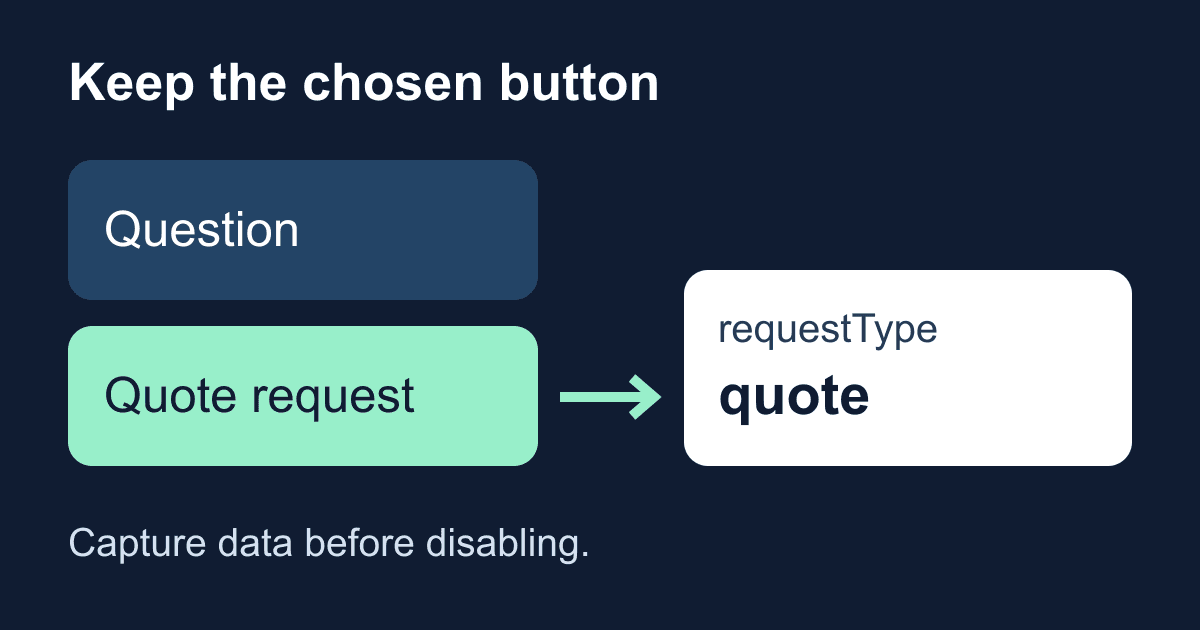
Use event.submitter to identify the button, then pass it to new FormData(form, submitter). Build that data before disabling the button. A disabled button is excluded even when you pass it explicitly.
This guide gives you a complete browser-only preview that demonstrates both choices, the missing-value bug, and the order that preserves the chosen value. It does not send a request or require a Static Forms account.
Why the button value disappears
A submit button can contribute a name/value pair, but it is not a permanent field in every serialization of the form. Calling new FormData(form) does not tell the constructor which submit button was used.
The FormData constructor documentation describes its second parameter: a submit button belonging to the form. If that button has a name and is eligible for submission, its data joins the entry list. The same documentation notes that disabled controls are excluded.
The SubmitEvent.submitter reference identifies the element that initiated submission. Read it from the form's submit event, rather than remembering the last button clicked. A click-only variable can become stale, and keyboard submission should reach the same handler.
These are two separate questions: which button initiated submission, and which controls are eligible when the data is constructed? Knowing the first does not override the second.
Run the two-button preview
Save the following file as submit-buttons.html and open it in a current browser. There are no placeholders, dependencies, credentials, or network calls. The first output includes the selected button; the second deliberately leaves out the constructor's submitter argument.
<!doctype html>
<html lang="en">
<head>
  <meta charset="utf-8">
  <meta name="viewport" content="width=device-width, initial-scale=1">
  <title>Two submit buttons: payload preview</title>
  <style>
    * { box-sizing: border-box; }
    body {
      max-width: 42rem;
      margin: 2rem auto;
      padding: 0 1rem;
      font: 1rem/1.5 system-ui, sans-serif;
      color: #172033;
      background: #fff;
    }
    label { display: block; margin-top: 1rem; }
    input { width: 100%; padding: .6rem; font: inherit; }
    button { margin: 1rem .4rem 0 0; padding: .7rem; font: inherit; }
    :focus-visible { outline: 3px solid #175cd3; outline-offset: 3px; }
    pre { white-space: pre-wrap; overflow-wrap: anywhere; }
  </style>
</head>
<body>
  <h1>Preview the selected request type</h1>
  <p>Use a fictional name. This preview sends nothing.</p>
  <form id="demo">
    <label for="visitor">Name (required)</label>
    <input id="visitor" name="visitor" required>
    <button id="question" type="submit" name="requestType"
      value="question" disabled>Preview question</button>
    <button id="quote" type="submit" name="requestType"
      value="quote" disabled>Preview quote request</button>
  </form>
  <noscript>Enable JavaScript to use this preview.</noscript>
  <p id="status" role="status"></p>
  <h2>With the chosen button</h2>
  <pre id="included"></pre>
  <h2>Without the submitter argument</h2>
  <pre id="omitted"></pre>
  <script>
    const form = document.querySelector('#demo');
    const status = document.querySelector('#status');
    const buttons = [...form.querySelectorAll('button[type="submit"]')];
    let previews = 0;

    form.addEventListener('submit', (event) => {
      event.preventDefault();
      const button = event.submitter;
      if (!button) {
        status.textContent = 'Choose one of the preview buttons.';
        return;
      }

      // Capture the button value while it is still enabled.
      const data = new FormData(form, button);
      const withoutButton = new FormData(form);
      const show = (id, value) => {
        document.getElementById(id).textContent =
          JSON.stringify([...value.entries()], null, 2);
      };
      show('included', data);
      show('omitted', withoutButton);
      previews += 1;
      status.textContent =
        `Preview ${previews}: ${data.get('requestType')}. Nothing was sent.`;
    });
    buttons.forEach((button) => { button.disabled = false; });
  </script>
</body>
</html>
Enter Test visitor and activate Preview question. The first list contains visitor and requestType=question. The second contains only visitor. Activate Preview quote request and the first list changes to requestType=quote; it does not include both buttons.
Leave the name empty and try again. Native validation blocks submission before the handler runs. The preview counter should not increase. If an older preview is already visible, it remains the previous result rather than evidence of a new submission.
The buttons start disabled and are enabled after the handler is installed. This is a local demonstration, not a native form intended to submit when JavaScript is unavailable. Keep real personal information out of debugging examples.
Capture first, disable second
Disabling a submit button is a common loading-state pattern. Doing it before constructing the payload loses the button's value. Passing the disabled element as the second argument does not make it eligible again.
In an asynchronous submission handler, capture the data first. Then set your in-flight guard and disable the controls you need to prevent repeat activation. Send the captured data, and restore the interface in a finally block. The data already captured does not change merely because you subsequently disable a button.
Our duplicate-submission guide covers pending requests and uncertain outcomes. Disabling a button is a user-interface measure, not server-side idempotency. Avoid disabling all fields before serialization: their values can disappear for the same reason. The disabled versus readonly guide explains the broader distinction.
Keyboard and programmatic submissions
Tab to either preview button and press Enter or Space. Its value should appear just as it does after a pointer click. Test implicit Enter submission in the text field too; don't build a workflow that assumes it means the secondary action. In this example, the first submit button is the default choice in the tested browser.
The handler also handles a missing submitter by asking the visitor to choose a button. It does not silently turn a missing request type into a quote request. That makes the intended action explicit when code initiates submission without a button.
For a programmatic action that needs a specific choice, pass the intended button to requestSubmit(button). The requestSubmit versus submit guide explains validation and event dispatch. Its method comparison is separate from the serialization order discussed here: whenever you construct FormData, do so before disabling the selected button.
A button value is not an endpoint override
This preview reads a request type. It does not route requests, save drafts, or change recipients.
Button attributes such as formaction and formmethod affect native submission. Constructing FormData only constructs data; it does not instruct a custom fetch handler to change its URL or HTTP method. If your handler always sends to one URL, adding a button-level action alone will not change that JavaScript request.
For a real Static Forms contact form, keep the documented endpoint, authentication field, spam controls, and response handling from the current API reference. Change the serialization step only after checking the receiving contract. This tutorial does not claim that a field named requestType automatically changes delivery routing or grants any permission.
Treat every submitted choice as untrusted input. A caller can change the value without using your buttons. Any receiver that uses it to choose a privileged action must validate the permitted values and the caller's authority. Do not put server credentials in a button value or hidden field.
Check the deployed form at each boundary
After adapting the pattern, deploy your real form over HTTPS and test with synthetic data. In the browser's Network panel, inspect the payload for each button separately. Confirm that the name appears once and has the expected value. Then check the stored submission and any destination whose behavior depends on it; a correct browser payload does not prove email delivery or downstream processing.
If the value is absent, check these causes in order:
- The button has no
name. Its visible label andiddo not replace a submitted name. - The constructor only receives the form. Pass the event's submitter when the button matters.
- The button was disabled before serialization. Move data capture earlier.
- Code supplied the wrong element. The constructor requires a submit button belonging to that form; a different element or form owner can throw an exception.
- The data was correct initially but a later conversion discarded it. Inspect the entry list before editing the HTML again.
Finish by testing both buttons with the keyboard, an invalid required field, and the real form's network-error path. Keep success feedback tied to the receiver's documented response rather than the fact that a button was pressed.
Related Articles
FormData.getAll(): keep every selected form value
Fix missing checkbox values with FormData.getAll(). Run a complete browser demo, compare JSON conversions, and check repeated fields before sending them.
HTML form attribute: include fields outside the form
Fix missing external form fields with the HTML form attribute. Check form ownership, native validation, keyboard submission, and the exact FormData payload.
Disabled vs readonly: why form fields go missing
Learn why disabled fields disappear from HTML form submissions, when readonly keeps a value, and how to inspect the exact payload with a working browser demo.







































