

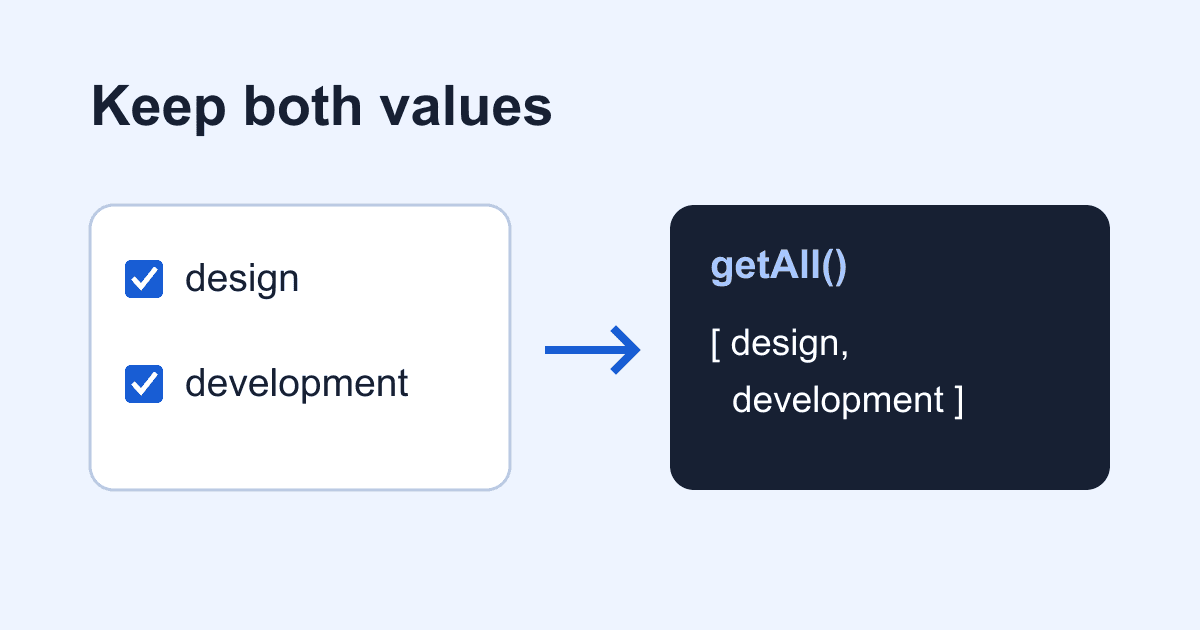
FormData.getAll(): keep every selected form value
Two checkboxes are selected, but your JSON contains only one value. Before changing the HTML, look for Object.fromEntries(new FormData(form)). A form can contain repeated names; an ordinary JavaScript object cannot keep two separate properties with the same key.
Use FormData.getAll(name) when a field can have several values. It returns an array, including an empty array when the name is absent. This guide builds a local browser demo that compares the original entries, a lossy object conversion, and an explicit JSON shape. Nothing is submitted to a server.
Where the second value goes
MDN's FormData entries reference explains that entry keys are not necessarily unique. Two checked controls named services contribute two entries. Calling get('services') returns the first value; getAll('services') returns all of them.
Object.fromEntries() converts entries into object properties. When a key repeats, the later value replaces the earlier one. The form data was intact until that conversion.
Repeated field names are useful, not malformed HTML. A checkbox group or a multiple-select control can contribute several values under one name. Our checkbox guide covers building the controls. Here the problem is narrower: preserving their values when JavaScript reads them.
Run a complete local demo
Save this as formdata-demo.html and open it in a browser. It needs no packages, credentials, or backend. The selected options are fictional service choices, not consent settings.
<!doctype html>
<html lang="en">
<head>
  <meta charset="utf-8">
  <meta name="viewport" content="width=device-width, initial-scale=1">
  <title>FormData multiple-value demo</title>
  <style>
    * { box-sizing: border-box; }
    body {
      max-width: 38rem;
      margin: 2rem auto;
      padding: 0 1rem;
      font: 1rem/1.5 system-ui, sans-serif;
      color: #172033;
      background: #fff;
    }
    fieldset { min-width: 0; margin-bottom: 1rem; }
    label { display: block; padding: .6rem 0; }
    button { font: inherit; padding: .75rem 1rem; }
    :focus-visible {
      outline: 3px solid #175cd3;
      outline-offset: 3px;
    }
    pre { white-space: pre-wrap; overflow-wrap: anywhere; }
  </style>
</head>
<body>
  <h1>Keep every selected value</h1>
  <p>This preview stays in your browser. Nothing is sent.</p>
  <form id="demo">
    <fieldset>
      <legend>Services (choose any, or none)</legend>
      <label>
        <input type="checkbox" name="services"
          value="design" checked> Design
      </label>
      <label>
        <input type="checkbox" name="services"
          value="development" checked> Development
      </label>
      <label>
        <input type="checkbox" name="services"
          value="maintenance"> Maintenance
      </label>
    </fieldset>
    <button id="preview" type="submit" disabled>
      Preview values
    </button>
  </form>
  <noscript>Enable JavaScript to run this local preview.</noscript>
  <p id="status" role="status"></p>
  <h2>Original entries</h2>
  <pre id="entries"></pre>
  <h2>Lossy object conversion</h2>
  <pre id="lossy"></pre>
  <h2>Explicit array field</h2>
  <pre id="correct"></pre>
  <script>
    const form = document.querySelector('#demo');
    const status = document.querySelector('#status');
    let previews = 0;

    form.addEventListener('submit', (event) => {
      event.preventDefault();
      const data = new FormData(form);
      const payload = { services: data.getAll('services') };
      const show = (id, value) => {
        document.getElementById(id).textContent =
          JSON.stringify(value, null, 2);
      };
      show('entries', Array.from(data.entries()));
      show('lossy', Object.fromEntries(data));
      show('correct', payload);
      previews += 1;
      status.textContent =
        `Preview ${previews} ready. Nothing was sent.`;
    });
    document.querySelector('#preview').disabled = false;
  </script>
</body>
</html>
There are no placeholders to replace. The disabled button becomes available after the handler is installed. Without JavaScript, this demonstration does not offer an enabled submit button.
Click Preview values with the initial selection. The original entries contain services twice. The lossy object keeps only development, while the explicit array contains both design and development.
Uncheck every option and preview again. The entries are empty, the lossy object is empty, and the explicit shape still has services with an empty array. Select only Maintenance and the array contains one item. Keeping that shape stable saves the receiver from guessing whether a value will be a string, an array, or missing.
Choose a field shape rather than a universal converter
For a known form, write down which fields are scalar and which are lists. Use getAll() for lists, and validate the allowed values in the system that acts on them. The demo intentionally leaves selection optional; an empty array is a legitimate result.
Avoid a converter that turns one occurrence into a string and two occurrences into an array unless your API explicitly expects that union. Adding a second selection should not silently change a field's type.
If a field must occur exactly once, get() alone does not enforce that rule. Inspect getAll() and reject an unexpected count on the receiving side. Client-side restrictions are useful feedback, but a caller can construct a request without your page.
Names are exact strings. services and services[] are different keys to the browser. Bracket notation may have meaning to a particular server parser; it is not an instruction to FormData to create a JavaScript array. Read the same name you put in the HTML, then check the receiving parser's documented behavior.
Separate omitted values from lost values
The FormData constructor reads the form's current eligible controls. A missing value may never have entered the entry list:
- An unchecked checkbox contributes no entry. It does not submit the string
false. - A disabled control is excluded. Read our disabled versus readonly guide before disabling fields that must still submit.
- A control needs a
name. Itsidassociates a label or JavaScript selector; it is not a replacement for the submitted name. - A control outside the form must belong to it. The form attribute guide explains that association.
Inspect the original entries first. If both values are there but only one survives in your JSON, fix serialization. If an entry is already missing, inspect the control's state, name, and form owner instead.
FormData is also a snapshot for this purpose: construct a new instance when you preview or submit, rather than reusing one created before the user changed the selection.
Files need a different transport decision
This demo has text values only. Form data can also carry files, so its values are not universally strings. Converting a FormData object to JSON does not upload file bytes. Do not use the demo's JSON preview as a generic file-upload encoder.
If an endpoint accepts multipart form data, send the FormData through the documented submission path. When passing it as a fetch request body, let the browser generate the multipart Content-Type and boundary rather than setting that header yourself. MDN's FormData guide documents this boundary requirement.
If the endpoint instead expects JSON, build the exact schema it documents and handle attachments through its supported upload mechanism. Preserving an array in your browser proves nothing about whether a backend accepts, stores, or forwards that array unchanged.
Connect the result to a real form carefully
The example is a debugging tool, not a working contact service. To deploy a real form, retain your existing submission handler, endpoint, authentication fields, spam controls, and success/error interface. Replace only the serialization step that was dropping values, after checking the receiving contract.
For Static Forms, start with the current setup documentation. Do not replace a working native POST with a JSON request merely because the preview uses JSON for readability. This article makes no claim that every downstream email, integration, or webhook represents repeated fields in the same way.
Deploy the actual form over HTTPS. Send a clearly marked test with two selections, then compare the browser request with the stored submission and the destination you depend on. An accepted request and a delivered notification are separate checks. Repeat with one selection and no selections if your form allows them.
Use synthetic values while debugging. Do not paste customer names, addresses, or credentials into shared console logs or issue screenshots. The demo writes JSON with textContent, so values appear as text rather than executable markup.
Verify keyboard behavior and the receiving data
Tab to each checkbox and use Space to change it. Tab to Preview values and press Enter. Focus should remain visible, and the status should update without moving focus into the JSON. The counter makes successive previews distinguishable even when the selection stays the same.
Before shipping the serialization change, check these cases against your own receiver:
- Two selected values both arrive, in the intended field shape.
- One selected value remains a list if the contract says it is a list.
- No selection produces the documented empty or missing representation.
- Unexpected values and duplicate scalar fields are rejected where business decisions happen.
- Files follow the upload contract rather than disappearing into a JSON conversion.
Start with the original entry list and follow the data one boundary at a time. That tells you whether to fix the HTML, the JavaScript conversion, or the receiving parser.
Related Articles
HTML form attribute: include fields outside the form
Fix missing external form fields with the HTML form attribute. Check form ownership, native validation, keyboard submission, and the exact FormData payload.
Disabled vs readonly: why form fields go missing
Learn why disabled fields disappear from HTML form submissions, when readonly keeps a value, and how to inspect the exact payload with a working browser demo.
Add browser details to a bug report form safely
Build a bug report form that captures page, viewport, language, time zone, and user agent while letting users review the details before sending.




































