

Disabled vs readonly: why form fields go missing
A value can be visible in your contact form and still be missing from the request. If the input is disabled, that is expected browser behavior. The browser leaves disabled controls out of a native form submission and out of new FormData(form).
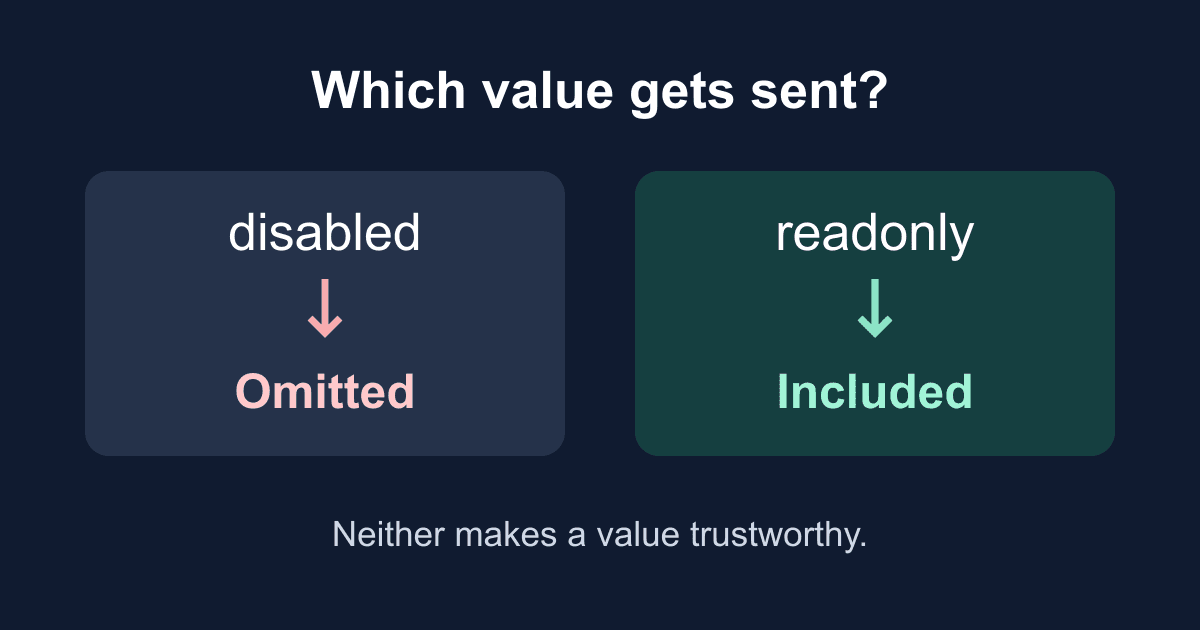
Use readonly when a supported field should remain in the submitted data but should not be editable through the page. Use disabled when a control is unavailable and its value should not be submitted. Neither attribute makes the value trustworthy on the server.
This guide focuses on missing form fields: how to reproduce the problem, choose the right attribute, and inspect the payload before changing your form backend.
What disabled and readonly actually change
A disabled input cannot normally receive keyboard focus, does not participate in constraint validation, and is omitted when the browser constructs the form data. The attribute also works on controls such as buttons, selects, and fieldsets. MDN's disabled reference documents these behaviors.
A read-only input remains focusable and can contribute its name and value to the request. The visitor cannot edit it through the normal input interface. It also does not participate in constraint validation, so readonly is not a way to lock a field while retaining its required check.
The catch is support. readonly works on supported input types, including text, email, date, and number, and on textareas. It does not make a select, checkbox, radio button, or file input read-only. Adding the attribute to those controls does not give you the behavior of a read-only text field.
Both attributes are Boolean attributes. Writing disabled="false" still disables the control because the attribute is present. Remove it, or set the JavaScript property to false, to enable the control.
Reproduce the missing field without sending a request
Save the following as field-check.html and open it in a browser. Select Inspect form data. The example prints the actual entries in a FormData object; it makes no network request and needs no API key.
<!doctype html>
<html lang="en">
<head>
  <meta charset="utf-8">
  <meta name="viewport" content="width=device-width, initial-scale=1">
  <title>Disabled and readonly field check</title>
  <style>
    body { font: 1rem/1.5 system-ui; margin: 2rem auto;
      max-width: 36rem; padding: 0 1rem; }
    label { display: block; margin-top: 1rem; }
    input, button { font: inherit; max-width: 100%; }
    input { box-sizing: border-box; width: 100%; }
    button { margin-top: 1rem; }
    :focus-visible { outline: 3px solid #155eef;
      outline-offset: 3px; }
    pre { white-space: pre-wrap; overflow-wrap: anywhere; }
  </style>
</head>
<body>
  <h1>Which fields reach the request?</h1>
  <p>This demo displays data locally. It sends nothing.</p>
  <form id="field-check">
    <label for="contact-name">Name</label>
    <input id="contact-name" name="name" value="Alex" required>

    <label for="topic">Topic (read-only)</label>
    <input id="topic" name="topic" value="Support" readonly>

    <label for="plan">Plan (disabled)</label>
    <input id="plan" name="plan" value="Starter" disabled
      aria-describedby="plan-help">
    <p id="plan-help">Plan is unavailable and is not submitted.</p>

    <label for="unnamed">Visible but missing a name attribute</label>
    <input id="unnamed" value="Not included">

    <fieldset disabled>
      <legend>Unavailable delivery details</legend>
      <label for="city">City</label>
      <input id="city" name="city" value="Dubai">
    </fieldset>

    <button type="submit">Inspect form data</button>
  </form>
  <p id="status" role="status"></p>
  <pre id="result" aria-label="Form data entries"></pre>
  <script>
    const form = document.querySelector("#field-check");
    form.addEventListener("submit", (event) => {
      event.preventDefault();
      const entries = [...new FormData(form).entries()];
      document.querySelector("#result").textContent =
        JSON.stringify(entries, null, 2);
      document.querySelector("#status").textContent =
        `Inspected ${entries.length} fields. Nothing was sent.`;
    });
  </script>
</body>
</html>
The initial result contains name=Alex and topic=Support. It does not contain plan, city, or the unnamed input. The submit button has no name, so there is no button entry either.
Clear the Name field and submit again. Native validation stops the submit event, leaving the previous output unchanged. That previous output is a snapshot, not a live view of the inputs.
Next, remove disabled from the Plan input in your saved file, reload, and inspect again. plan=Starter now appears. Replace that attribute with readonly instead and it still appears, while normal editing is blocked. You have isolated the missing-value behavior without involving a network connection, email delivery, or backend validation.
Check the fieldset, not just the input
An input can be disabled without having its own disabled attribute. A disabled ancestor fieldset disables descendant controls, except those inside its first legend element. The HTML standard's fieldset definition specifies that exception.
In the demo, City has a name and a value, but its disabled fieldset keeps it out of the payload. Checking only whether the input has a disabled attribute misses the cause. In DevTools, inspect the ancestor elements too; element.matches(":disabled") can help identify the effective state.
Keep ordinary data fields outside the legend. Use the legend to describe the group, with separate labels for the fields. Our fieldset guide covers grouping and legends in more detail.
Take the data snapshot before locking controls
A common regression appears when a working form gains a loading state. The handler disables the whole fieldset, then constructs FormData. The browser sees disabled controls and leaves their values out.
Construct the data first. Only then disable the controls needed for the pending state. If you need a named submit button's value, pass the submitter to the constructor while that button is still enabled. The FormData constructor reference explains the optional submitter argument and the rules for included controls.
Disabling a submit button alone does not remove the email and message inputs. Disabling a fieldset that contains them does. This distinction is worth checking before rewriting a fetch handler. For a complete pending-state handler, including keyboard submission and error recovery, use the separate duplicate-submission tutorial.
A locked select needs a different design
There is no native readonly mode for a select. If a visitor must see a fixed selection, one option is to show ordinary text and use a hidden input for the submitted value. If you keep a disabled select for display, its selected option will not supply the value; a separate named hidden input can do that.
Avoid accidentally submitting two values with the same name when you later enable the select. Decide which control owns the submitted value in each state. Inspect FormData.getAll(name) if a field unexpectedly produces multiple entries; converting entries into a plain object can hide duplicates.
A hidden field is still client-controlled. A visitor can modify it, a read-only input, or the entire request. Use server-side records and validation for prices, account roles, authorization, and any other decision that must not depend on a visitor's chosen value. Do not trust a field merely because the page makes it inconvenient to edit.
Keep unavailable controls understandable
A disabled field is usually skipped in keyboard navigation. Put the reason it is unavailable in visible text near the field rather than in a tooltip that requires focusing it. The demo includes both a visible explanation and aria-describedby; it does not rely on the description alone to make the message discoverable.
Read-only fields remain useful when visitors need to focus and copy a value. Label them as read-only if the reason is not obvious. Do not rely only on a gray background to explain the state.
aria-disabled="true" communicates an unavailable state to assistive technology. It does not implement native disabling, prevent activation, or remove a value from FormData. If you use it to keep a control focusable, you must implement the disabled behavior yourself. For an ordinary unavailable native input, prefer the native attribute.
Trace the value before blaming delivery
When a Static Forms submission is missing one field, start in the browser:
- Check that the control has the intended
name. Anidconnects a label or script to a control; it does not supply the submitted field name. - Check the control and its fieldset ancestors for a disabled state. Confirm the control belongs to the form you are inspecting.
- Inspect the Network panel's actual request payload. A
FormDatasnapshot helps diagnose browser serialization, but custom JavaScript can send a different body. - If the value is present in the request but absent from an email or integration, investigate that later step rather than changing the input attributes again.
Static Forms documents POST https://api.staticforms.dev/submit and the required apiKey field in its API reference. Keep the key-bearing hidden input out of a fieldset that you disable before constructing the request. This article's local demo deliberately does not call that endpoint or test email delivery.
Before shipping the fix, test the real page with a keyboard, inspect one authorized test submission, and verify the intended destination. Check both the normal state and the loading state. A field that survives the first request can still disappear after a later UI change.
Sources
Checked September 29, 2026. The browser rules above were checked against current documentation, not inferred from a backend's response.
Related Articles
Add browser details to a bug report form safely
Build a bug report form that captures page, viewport, language, time zone, and user agent while letting users review the details before sending.
requestSubmit() vs submit(): Validate Forms Before Sending
Learn why requestSubmit() runs browser validation and submit handlers while submit() skips them, with a tested contact form pattern and debugging checks.
Input Type Checkbox: Comprehensive Guide 2026
Input type checkbox - Master the `input type="checkbox"` for static sites: HTML semantics, state, accessibility, styling, JS APIs, framework patterns, & Static




































