

HTML number input: fix min, max, and step validation
A quantity field accepts 2 but rejects 2.5. A different field accepts 1e2, even though you expected digits only. Both can be correct behavior for <input type="number">: the control validates a numeric value against its range and step, not a fixed spelling of digits.
This guide builds a local quantity checker so you can see those rules before attaching a field to a real form. It shows the submitted string beside the numeric value and explains why an entry fails. It does not send data or create an order.
Use number inputs for quantities, not identifiers
Choose type="number" when increasing or decreasing the value makes sense: ticket count, item quantity, or a measurement. A postal code, account reference, or telephone number is an identifier, even if it contains only digits. Keep those values as text. For telephone fields, use the separate phone number input guide.
The MDN number input reference describes the control as a numeric input, often with increment and decrement buttons. It is not a digits-only text box. Valid floating-point syntax can include an exponent, so 1e2 represents one hundred. Which characters a browser lets you type during editing is a separate question from whether the final value is valid.
If you need a numeric keyboard for a text identifier, inputmode="numeric" is a hint you can use on a text input. It does not validate the value. MDN's inputmode reference also distinguishes a decimal keyboard hint from a numeric one. Actual keyboards vary by device; shrinking a desktop browser is not a phone-keyboard test.
How min, max, and step work together
min and max describe numeric bounds. step describes the spacing between allowed values, measured from the step base. For a number input, the base is a valid numeric min attribute, otherwise a valid numeric value attribute, otherwise zero. The default step is one. The HTML Standard's number input definition specifies these numeric constraints.
That last detail explains many rejected decimals. With min="0" and no explicit step, 2.5 has a step mismatch. With min="0.5" and step="1", values such as 0.5, 1.5, and 2.5 fit the step instead. The base matters as much as the interval.
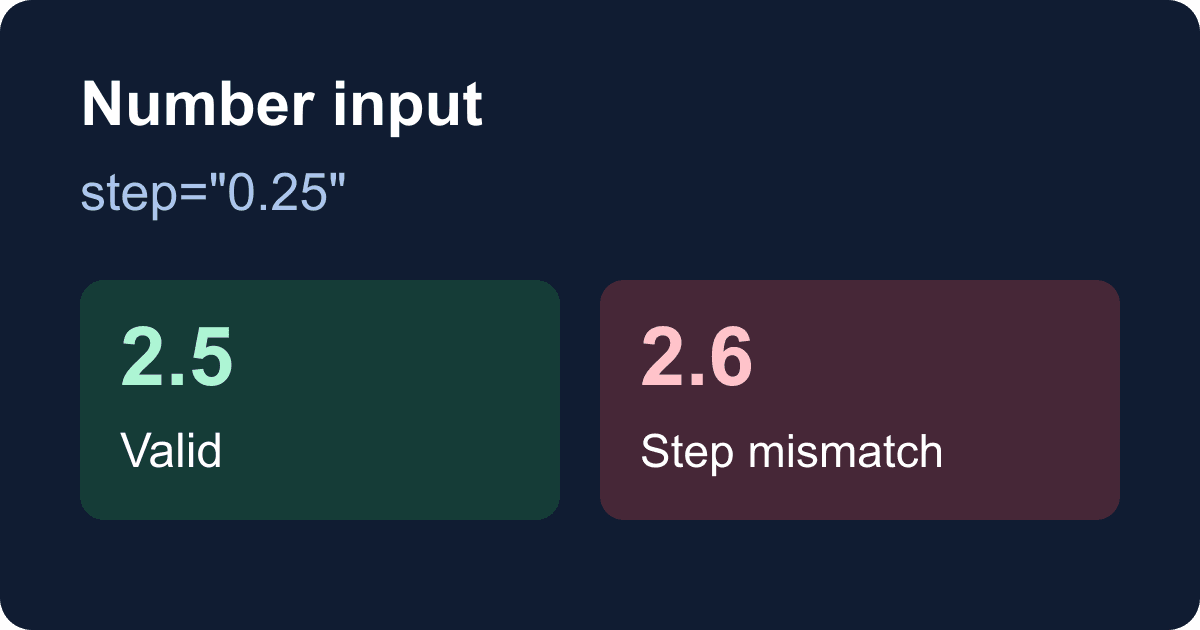
For a quantity between zero and ten in quarter units, use min="0", max="10", and step="0.25". The value 2.5 is valid; 2.6 is within the range but does not land on a quarter-unit step. step="any" removes the step restriction, not the range checks. Add required if an empty field should fail too.
Do not use maxlength or pattern to constrain a number input. Those attributes do not apply to this input type. Use a text field with an appropriate format rule when the number of characters matters more than the numeric quantity. The broader input types guide covers choosing other controls.
Run the quantity checker
Save the complete example below as quantity-checker.html and open it in a browser. It needs no packages, credentials, or placeholder replacements. JavaScript is required for this local preview; the button starts disabled so the demo cannot accidentally submit when scripts are unavailable.
The example uses novalidate deliberately. It lets the submit handler receive invalid entries and show specific feedback; the handler still calls checkValidity() before displaying a successful result. MDN's constraint validation guide explains this distinction. This is a teaching demo, not a reason to skip validation in a production form.
<!doctype html>
<html lang="en">
<head>
  <meta charset="utf-8">
  <meta name="viewport" content="width=device-width, initial-scale=1">
  <title>Quantity checker</title>
  <style>
    * { box-sizing: border-box; }
    body {
      max-width: 38rem;
      margin: 2rem auto;
      padding: 0 1rem;
      font: 1rem/1.5 system-ui, sans-serif;
      color: #172033;
      background: #fff;
    }
    label { display: block; font-weight: 600; }
    input, button { font: inherit; padding: .6rem; }
    input { width: 100%; max-width: 18rem; }
    button { display: block; margin-top: 1rem; }
    :focus-visible { outline: 3px solid #1459b3; outline-offset: 3px; }
    #error { color: #a01423; }
    pre { white-space: pre-wrap; overflow-wrap: anywhere; }
  </style>
</head>
<body>
  <main>
    <h1>Check a quantity</h1>
    <p>This demo previews data locally. It sends nothing.</p>
    <form id="quantity-form" novalidate>
      <label for="quantity">Quantity (required)</label>
      <p id="quantity-help">Enter 0 to 10 in steps of 0.25.</p>
      <input id="quantity" name="quantity" type="number"
        min="0" max="10" step="0.25" required
        aria-describedby="quantity-help error">
      <p id="error" role="alert"></p>
      <button id="check" type="submit" disabled>Check quantity</button>
    </form>
    <p id="status" role="status"></p>
    <pre id="result" aria-label="Preview data"></pre>
    <noscript>Enable JavaScript to run this local checker.</noscript>
  </main>
  <script>
    const form = document.querySelector('#quantity-form');
    const quantity = document.querySelector('#quantity');
    const error = document.querySelector('#error');
    const status = document.querySelector('#status');
    const result = document.querySelector('#result');

    form.addEventListener('submit', (event) => {
      event.preventDefault();
      error.textContent = '';
      status.textContent = '';
      result.textContent = '';

      if (!quantity.checkValidity()) {
        const validity = quantity.validity;
        let message = 'Enter a valid quantity.';
        if (validity.badInput) message = 'Enter a number.';
        else if (validity.valueMissing) message = 'Enter a quantity.';
        else if (validity.rangeUnderflow || validity.rangeOverflow) {
          message = 'Enter a quantity from 0 to 10.';
        } else if (validity.stepMismatch) {
          message = 'Use steps of 0.25, such as 2.5 or 2.75.';
        }
        quantity.setAttribute('aria-invalid', 'true');
        error.textContent = message;
        quantity.focus();
        return;
      }

      quantity.removeAttribute('aria-invalid');
      const data = new FormData(form);
      result.textContent = JSON.stringify({
        submittedText: data.get('quantity'),
        numericValue: quantity.valueAsNumber
      }, null, 2);
      status.textContent = 'Valid quantity. Preview updated below.';
    });

    quantity.addEventListener('input', () => {
      quantity.removeAttribute('aria-invalid');
      error.textContent = '';
      status.textContent = '';
      result.textContent = '';
    });
    document.querySelector('#check').disabled = false;
  </script>
</body>
</html>
Enter 2.5 and activate Check quantity. The preview should contain "submittedText": "2.5" and "numericValue": 2.5. Change it to 2.6 and check again: the error should explain the quarter-unit rule, focus should return to the field, and the previous preview should disappear.
Try an empty value, -0.25, and 10.25 too. Each should fail with a required or range message. The boundary values 0 and 10 should pass. Press Enter while the field is focused to check the keyboard path, rather than testing only the button with a mouse.
Keep the submitted string separate from arithmetic
A number input's .value is still a string. For this text-based form control, FormData.get('quantity') also returns a string. The valueAsNumber property provides a numeric value or NaN when conversion is not possible, including an empty number field.
The demo checks validity before reading the number. Avoid treating Number('') as proof that a user supplied zero: JavaScript converts an empty string to zero. Also avoid assuming that valueAsNumber proves the value meets min, max, or step; those are separate validity checks.
step="0.01" is not a two-decimal-place formatter. It defines allowed increments from the base. It does not promise trailing zeroes, a currency symbol, or exact monetary arithmetic. For payments, keep pricing and amount validation on the server and use the payment provider's required representation. This example is a quantity preview, not payment code.
Move the field into a real form
Copy the labeled quantity control, its help text, and its constraints into your existing form. Do not copy the local preview handler unchanged: preventDefault() deliberately stops delivery. If you already use Static Forms, keep the working submission configuration from your existing form; this article does not change endpoint or account settings.
If your form relies on native browser validation, omit the demo's novalidate. If you keep custom validation, preserve the visible error, focus behavior, and status region. The guide to validation without JavaScript explains the native validation path.
Repeat the numeric checks at the trusted application boundary before using a quantity to allocate stock, calculate a price, or trigger another action. Browser attributes can be edited or bypassed. Do not assume a form delivery service enforces your application's custom quantity rules merely because your HTML contains them.
On deployment, check that the script actually runs under your site's Content Security Policy. A policy that disallows inline scripts will keep this exact demo's button disabled; move the script into an allowed external file rather than loosening the policy. Test the final hosted form separately with non-sensitive data and verify the destination, not just a success message. No live delivery test is part of this local checker.
Troubleshoot the rule that failed
- A decimal is rejected: inspect
stepand its base. The default step is one, andmincan shift the allowed sequence. - An apparently numeric entry is invalid: check
validity.badInput, then range and step flags. Do not rely on which characters the browser allowed during typing. - An exponent is accepted: number inputs validate numeric values, not a digits-only spelling. Choose a text field if a restricted identifier format is the actual requirement.
- A length or pattern rule has no effect: those attributes do not apply to
type="number". - The preview stays blank: confirm JavaScript is enabled and check the console for script or CSP errors. The disabled button is intentional when initialization cannot finish.
- The preview works but nothing arrives at your backend: this example intentionally sends nothing. Restore your real submission path and test delivery independently.
Before shipping, check valid boundaries, an invalid step, an empty field, keyboard activation, and the error after editing a previously valid entry. Then test on the actual mobile devices your form supports. A desktop browser test can verify the validation logic, but it cannot certify a phone's keyboard layout.
Related Articles
HTML phone number input: type=tel without a restrictive regex
Build an accessible HTML phone number input with type=tel, autocomplete, and an optional extension. Test what submits and where phone validation belongs.
HTML date inputs: min, max, step, and timezone mistakes
Build an HTML date input with min, max, and step. Validate a weekly date range, preserve date-only values, and avoid off-by-one timezone mistakes.
requestSubmit() vs submit(): Validate Forms Before Sending
Learn why requestSubmit() runs browser validation and submit handlers while submit() skips them, with a tested contact form pattern and debugging checks.




































