

HTML select placeholder: make required choices work
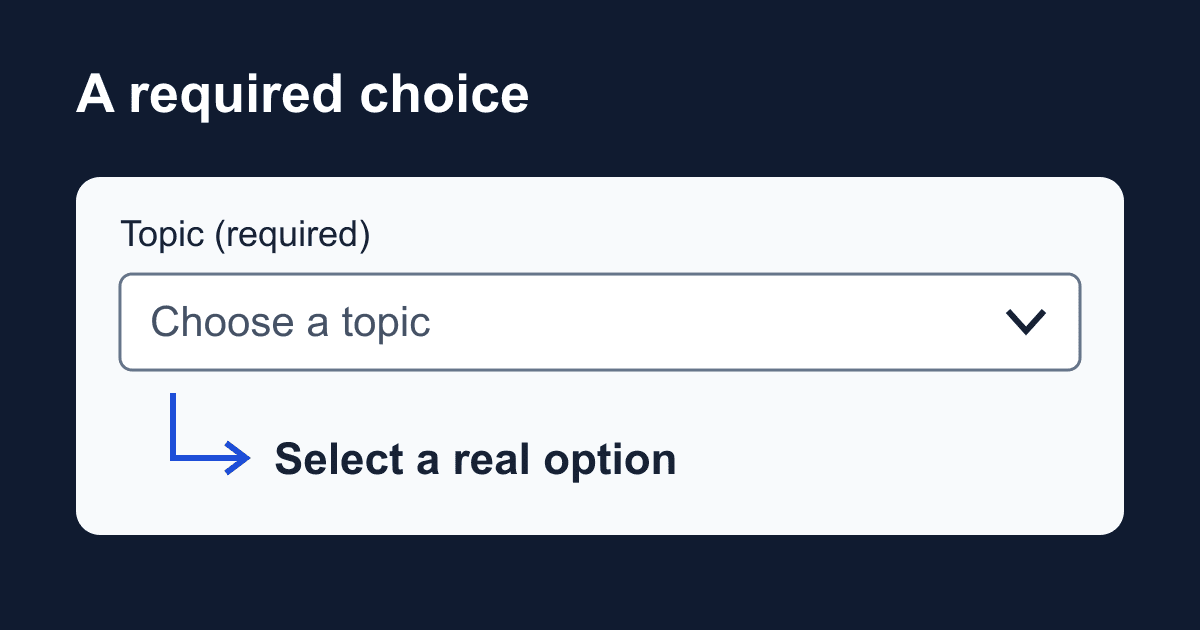
An HTML select does not use a placeholder attribute. To show "Choose a topic" before a required choice, put an option with value="" first inside a single-select dropdown. Keep a visible label above it: the prompt disappears when someone chooses an option, but the label still needs to explain the field.
The detail that causes bugs is the position of that empty option. required does not reject every option whose value happens to be empty. This guide builds a local checker so you can see the difference between the prompt, a real choice, and the value a form would send.
The placeholder option has specific rules
For the pattern here, the select must have required, must not have multiple, and must display one option at a time. Omitting size gives an ordinary dropdown. Its first option must have an empty value and be a direct child of the select, outside any optgroup.
That first option is the placeholder label option defined by the HTML standard. While it is selected, the required field is missing a value. Choosing a real option satisfies that constraint.
Use an explicit value="". If you omit value, the option's text supplies its value, so "Choose a topic" can become a valid answer. The MDN select reference explains how values and default selection work.
A later empty-valued option is not the placeholder. Neither is an empty option nested in a group. Avoid giving real choices empty values; use stable identifiers such as support and billing instead. The text can change without changing those identifiers.
Build a local selection checker
Save this complete example as select-check.html and open it in a browser. It has no backend and sends no request. Choose a topic, then activate "Check selection" to see the exact field name and value. Leaving the prompt selected shows the browser's validation message instead.
<!doctype html>
<html lang="en">
<head>
  <meta charset="utf-8">
  <meta name="viewport" content="width=device-width, initial-scale=1">
  <title>Required select checker</title>
  <style>
    * { box-sizing: border-box; }
    body {
      margin: 0 auto;
      padding: 1.5rem;
      max-width: 36rem;
      font: 1rem/1.6 system-ui, sans-serif;
      color: #172033;
      background: #fff;
    }
    label, select, button { display: block; }
    label { font-weight: 700; }
    select, button {
      font: inherit;
      padding: .75rem;
      border: 1px solid #64748b;
      border-radius: .35rem;
    }
    select { width: 100%; background: #fff; color: #172033; }
    button { margin-top: 1rem; background: #172033; color: #fff; }
    :focus-visible { outline: 3px solid #1d4ed8; outline-offset: 3px; }
    #result { overflow-wrap: anywhere; }
  </style>
</head>
<body>
  <h1>Check a required topic</h1>
  <p>This demo checks your selection locally. It does not send it.</p>
  <form id="topic-form">
    <label for="topic">Topic (required)</label>
    <p id="topic-help">Choose the team you want to contact.</p>
    <select id="topic" name="topic" required
            aria-describedby="topic-help">
      <option value="" selected>Choose a topic</option>
      <optgroup label="Customer help">
        <option value="support">Technical support</option>
        <option value="billing">Billing question</option>
      </optgroup>
      <option value="other">Something else</option>
    </select>
    <button id="check-selection" type="button">Check selection</button>
    <p id="result" role="status" aria-live="polite"></p>
    <noscript><p>Enable JavaScript to run this local checker.</p></noscript>
  </form>
  <script>
    const form = document.querySelector('#topic-form');
    const topic = document.querySelector('#topic');
    const result = document.querySelector('#result');
    const check = document.querySelector('#check-selection');

    form.addEventListener('submit', (event) => event.preventDefault());
    topic.addEventListener('change', () => {
      result.textContent = '';
    });
    check.addEventListener('click', () => {
      result.textContent = '';
      if (!form.reportValidity()) {
        result.textContent = 'Choose a topic before checking.';
        return;
      }
      const data = new FormData(form);
      result.textContent = 'Local check passed: topic = '
        + data.get('topic') + '. Nothing was sent.';
    });
  </script>
</body>
</html>
There are no credentials or placeholders to replace in this lab. The button deliberately uses type="button": it runs a local inspection, not a submission. JavaScript calls reportValidity() to check the form and show native feedback. FormData itself does not validate a form.
The status text uses textContent rather than interpreting values as HTML. Changing the selection clears the previous result, so a success message cannot keep describing an option the visitor has already changed.
Should the prompt be disabled?
This example leaves "Choose a topic" enabled. A visitor can return to it, and the next check fails until they choose a real topic again. That is useful when someone wants to undo a choice.
You can add disabled to the prompt if your design should prevent selecting it again through the menu. You still need the empty value and required; disabling an option is not a replacement for required-field validation. Also, disabled options are excluded from the form's entry list. Do not rely on an invalid prompt contributing a particular value to a manually constructed payload.
selected sets the initial choice in this static example. If a framework controls the select's current value, configure that framework's state too. Do not assume an HTML attribute overrides a controlled component.
The prompt is not a label. Keep the visible label, its matching for and id, and the required wording whichever prompt behavior you choose. Native keyboard interaction varies by browser and operating system, so test the actual browsers your visitors use instead of rebuilding the select with clickable divs.
Why required sometimes seems to do nothing
If the initial prompt passes validation, inspect its value and position first. A value such as choose, a missing value attribute, or a prompt placed inside optgroup does not implement this pattern.
If a later empty-valued choice passes, that is the distinction described above: it is a regular option, not the first placeholder option. Give it a nonempty identifier, or remove it if it represents "no answer."
If the field is absent from the payload, check for a missing name or a disabled select. The id connects the label; name supplies the submitted field name. A visible label alone does not create a payload entry.
If a submission ignores validation, look for novalidate on the form, formnovalidate on the submit button, a direct form.submit() call, or JavaScript that sends a request without checking validity. Browser constraints do not automatically run merely because code builds FormData or calls fetch.
Finally, do not apply this prompt rule unchanged to a listbox with size greater than one or to a multiple select. Those controls have different selection behavior. For collecting several answers without dropping values, use the separate FormData.getAll() guide.
Move the field into a real contact form
Copy the label, hint, and select into your existing form. Keep their IDs unique if the page contains more than one form. Leave the lab's button and script behind unless you are deliberately building a local preview step.
Configure the submission endpoint, form identifier, destination, and any required spam controls using the Static Forms documentation. This article tests the select itself; it does not establish that a submission reached Static Forms or that an email arrived. A native production form needs a submit button. An enhanced form needs its own pending, accepted, and failed states, tied to the actual response rather than to a local validity check.
Treat the received topic as untrusted input. Browser checks can be bypassed, as the constraint-validation guide explains. If a downstream system uses topic to route messages, validate it against your allowed identifiers before acting. Do not let a client-provided value select arbitrary email recipients or authorize access. A hosted endpoint cannot infer your business rules from the HTML on your site.
Deploy the updated page to your normal static host, then check the deployed page rather than only the local file. Keep existing security headers; if they block inline scripts, use your site's approved script-loading approach rather than relaxing the policy for this lab.
Before shipping, test an untouched prompt, each real option, returning to the prompt, keyboard selection, and a narrow mobile viewport. Confirm that a real submission includes topic=support or the chosen identifier, then separately verify the configured delivery destination. Passing the select check proves only that the browser accepted the choice.
Related Articles
HTML number input: fix min, max, and step validation
Fix HTML number input validation with min, max, and step. Test decimals, required values, keyboard errors, and FormData in a complete local quantity checker.
HTML phone number input: type=tel without a restrictive regex
Build an accessible HTML phone number input with type=tel, autocomplete, and an optional extension. Test what submits and where phone validation belongs.
HTML date inputs: min, max, step, and timezone mistakes
Build an HTML date input with min, max, and step. Validate a weekly date range, preserve date-only values, and avoid off-by-one timezone mistakes.







































