

HTML date inputs: min, max, step, and timezone mistakes
A date input can display 11/02/2026 while sending 2026-11-02. That is expected: the browser chooses a localized interface, but the field's value is a date string. Trouble starts when code converts that calendar date into a timestamp and then formats it in another time zone.
For a preferred appointment day, keep the submitted value as a date. Use required, min, max, and step to guide the visitor, and let the system that accepts appointments enforce availability. A date picker does not reserve a slot.
This tutorial builds a consultation-request form that accepts Mondays during November 2026. The fixed window makes the example reproducible. Replace the dates and visible instructions with your own offering before deployment.
What a date input sends
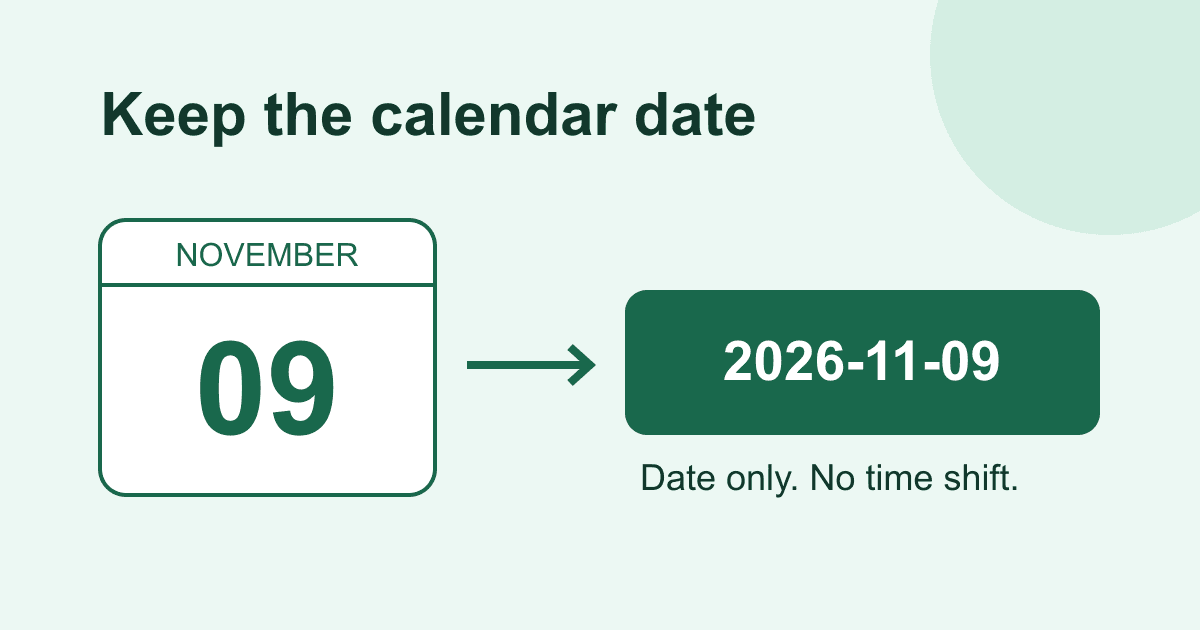
For the four-digit years in this example, an HTML date input exposes a value in YYYY-MM-DD form. The value contains a year, month, and day, but no time or time-zone identifier. The MDN date input reference distinguishes this value from the locale-dependent display.
A named date control is included in the form data like other successful controls. For example, choosing November 9 produces preferred_date=2026-11-09. It does not produce a localized string such as 09/11/2026 and does not require you to create a hidden ISO-date field.
If the business needs an exact appointment time, this example is not enough. You need a time, a clearly defined time zone, availability checks, and a confirmation process. Keep that separate from the request for a preferred day.
Build the request form
Save this as consultation.html. The browser performs normal constraint validation when the visitor activates the button. The small script only previews the selected date string; it does not replace native submission or turn a requested date into a booking.
<!doctype html>
<html lang="en">
<head>
  <meta charset="utf-8">
  <meta name="viewport" content="width=device-width, initial-scale=1">
  <title>Request a consultation</title>
  <style>
    * { box-sizing: border-box; }
    body {
      margin: 2rem auto;
      padding: 0 1rem;
      max-width: 36rem;
      font: 1rem/1.6 system-ui, sans-serif;
      color: #172033;
      background: #fff;
    }
    label { display: block; margin-top: 1rem; }
    input, button { font: inherit; }
    input {
      width: 100%;
      min-width: 0;
      padding: .6rem;
      border: 1px solid #64748b;
      border-radius: .3rem;
    }
    button {
      padding: .65rem 1rem;
      color: #fff;
      background: #173da6;
      border: 0;
      border-radius: .3rem;
    }
    :focus-visible { outline: 3px solid #b45309; outline-offset: 3px; }
  </style>
</head>
<body>
  <main>
    <h1>Request a consultation</h1>
    <p>Both fields are required. We will reply to confirm availability.</p>
    <form id="consultation"
          action="https://api.staticforms.dev/submit"
          method="post">
      <input type="hidden" name="apiKey" value="YOUR_API_KEY">

      <label for="email">Email (required)</label>
      <input id="email" name="email" type="email"
             autocomplete="email" required>

      <label for="preferred-date">Preferred date (required)</label>
      <input id="preferred-date" name="preferred_date" type="date"
             min="2026-11-02" max="2026-11-30" step="7"
             aria-describedby="date-help" required>
      <p id="date-help">
        Choose a Monday from November 2 to November 30, 2026.
        This is a request, not a confirmed appointment.
      </p>
      <p id="date-preview" role="status" aria-live="polite">
        No date selected.
      </p>
      <button id="send" type="submit">Request consultation</button>
    </form>
  </main>
  <script>
    const dateInput = document.getElementById("preferred-date");
    const preview = document.getElementById("date-preview");

    function showDate() {
      if (!dateInput.value) {
        preview.textContent = "No date selected.";
      } else if (!dateInput.validity.valid) {
        preview.textContent = "Choose a Monday in the stated range.";
      } else {
        preview.textContent = "Requested date: " + dateInput.value;
      }
    }

    dateInput.addEventListener("input", showDate);
    window.addEventListener("pageshow", showDate);
    showDate();
  </script>
</body>
</html>
Replace YOUR_API_KEY with your Static Forms submission key. Follow the quick-start guide to create the account and find the key. It belongs in client HTML; server secrets and webhook credentials do not.
The form uses the documented endpoint and native POST encoding. It does not need a JavaScript fetch() call. If you want a custom success destination, add a redirectTo hidden field with an existing HTTPS thank-you URL, as described in the API reference. Say that the request was received, not that an appointment is booked.
Before making the page public, configure allowed domains and your chosen spam protection. Add any CAPTCHA fields required by that configuration. These browser date constraints are not spam protection.
How min, max, and step work together
min and max are inclusive bounds. November 2 and November 30 are both permitted in this example. The required attribute prevents an empty date from passing ordinary form validation.
step="7" means seven days, not a weekday number. Because min="2026-11-02" supplies the step base, valid dates are November 2, 9, 16, 23, and 30. Change the minimum to a Tuesday and the seven-day sequence becomes Tuesdays instead.
Without a valid minimum, the step base comes from the value attribute if one is specified and valid, otherwise from the Unix epoch. Do not omit the base and assume that a weekly step means Mondays. For a date range accepting every day, use step="1" or leave the default step unchanged.
The browser may round an entered value that does not fit the step. Picker appearance and editing behavior differ between browsers and operating systems, so test the browsers your users have. Do not promise an identical calendar widget everywhere.
An impossible or incorrectly formatted bound is not a useful validation rule. Keep bounds in the input's date format, not the format shown in the picker, and keep max greater than or equal to min. The visible help text must describe the same rules as the attributes.
Avoid converting a date-only value to local time
The preview above uses dateInput.value directly. That avoids an unnecessary conversion through JavaScript Date.
The input's valueAsDate property represents midnight UTC for a date input. In a negative UTC offset, formatting that object as local time can display the preceding calendar day. MDN's valueAsDate reference documents this specific off-by-one trap.
If you only need to submit the chosen date, keep the string. If you need a localized display from valueAsDate, explicitly format it in UTC so the calendar day does not shift. This diagnostic can run in the console after the form is loaded:
const input = document.getElementById("preferred-date");
input.value = "2026-11-09";

const raw = input.value;
const utcDisplay = new Intl.DateTimeFormat("en-GB", {
  dateStyle: "long",
  timeZone: "UTC"
}).format(input.valueAsDate);

console.log(raw);        // 2026-11-09
console.log(utcDisplay); // 9 November 2026
This is a display diagnostic, not a recommendation to submit the formatted label. Keep preferred_date as 2026-11-09. Also note that assigning .value in a script does not dispatch an input event, so this console diagnostic does not update the example's preview automatically.
If your business defines "today" in a particular region, calculate a rolling minimum using that business's time zone. Slicing new Date().toISOString() gives the UTC date, which can differ from the visitor's or business's date near midnight. A fixed campaign window avoids that ambiguity; a rolling booking calendar needs an explicit rule.
Check the failure cases before launch
Start with a valid email, then test the date independently:
- Leave the date empty and activate Request consultation. The browser should block submission and focus the required date field.
- Try November 1 and December 1. They fall outside the stated range.
- Try November 3. It is inside the range but does not fit the seven-day step.
- Select November 2, November 9, and November 30. Each should be valid. Confirm that the preview preserves the selected date.
- Tab to the button and activate it with the keyboard. Confirm the same validation and submission behavior as a pointer activation.
- Inspect the request payload on your deployed page. It should contain the named
preferred_datevalue, not a locale-dependent display label.
We tested the exact example's bounds, step mismatch, empty state, preview, and date serialization in a browser. Pointer and keyboard submit events were intercepted locally to inspect form data without sending a real consultation request. Date-only behavior was also checked with different emulated time zones. This does not prove production delivery or identical native-picker behavior on every device.
Keep availability checks on the receiving side
Someone can remove min, change step, or bypass the page altogether. The receiving workflow must validate the requested date against its own rules before confirming an appointment. Do not assume a hosted form endpoint enforces the HTML attributes from your page: those attributes are not an authoritative booking policy.
For a manually reviewed consultation form, explain that a person will confirm the date. For automated booking, check the date and capacity in the booking system and handle concurrent requests there. A successful form submission alone must not reserve the same slot for two visitors.
Keep the label and range instructions visible rather than relying on placeholder text or color. The example associates the instructions using aria-describedby and announces preview changes through a polite status region. Test keyboard navigation and real assistive technology before calling the complete experience accessible; browser checks alone cannot establish that.
Deploy only after replacing the sample window, confirming account spam settings, and sending one clearly marked test request. Check the dashboard and email delivery separately. If the backend received the right date but no notification arrived, use the form email troubleshooting guide.
Sources
- MDN: input type=date, for normalization, bounds, step base, and native validation.
- MDN: valueAsDate, for UTC semantics and the off-by-one risk.
- W3C WAI: form instructions, for required fields and associated help text.
- Static Forms API reference, for native form POSTs, keys, and redirects.
Related Articles
requestSubmit() vs submit(): Validate Forms Before Sending
Learn why requestSubmit() runs browser validation and submit handlers while submit() skips them, with a tested contact form pattern and debugging checks.
HTML form attribute: include fields outside the form
Fix missing external form fields with the HTML form attribute. Check form ownership, native validation, keyboard submission, and the exact FormData payload.
Disabled vs readonly: why form fields go missing
Learn why disabled fields disappear from HTML form submissions, when readonly keeps a value, and how to inspect the exact payload with a working browser demo.




































