

HTML email multiple: validate a comma-separated list
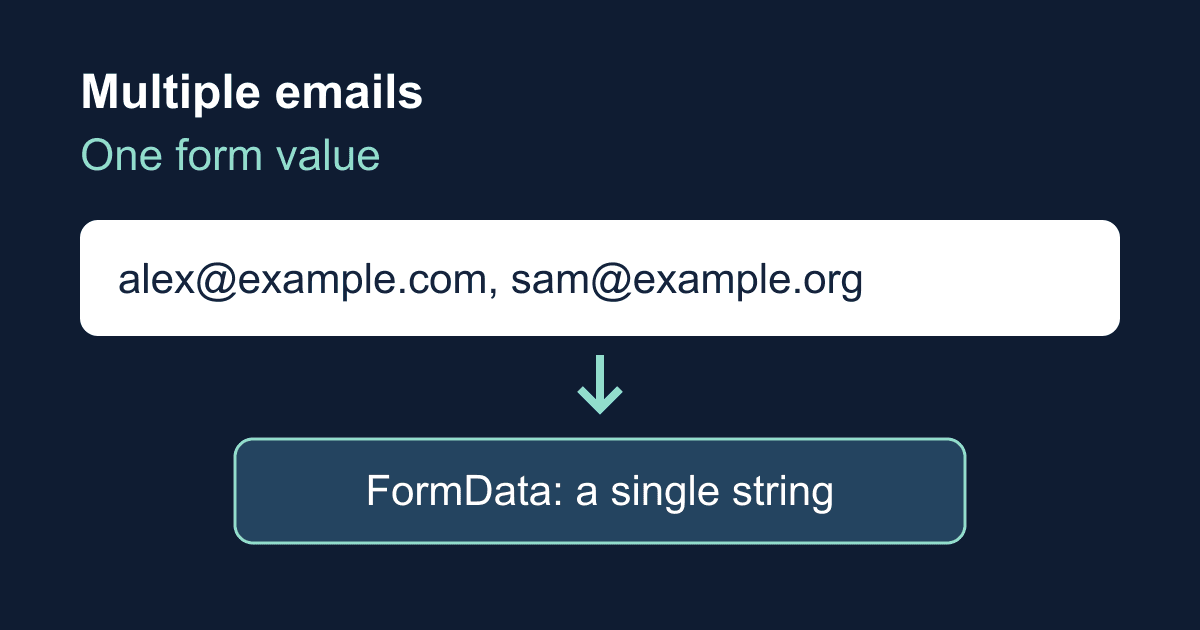
An HTML email input accepts one address by default. Add multiple and it accepts a comma-separated list instead. That changes browser validation, but it does not turn the field into several form entries or tell your email service to send a message to everyone listed.
This guide builds a local list inspector. You can paste addresses, check the browser's validation, and see the single string that FormData would contain. It sends nothing and needs no account, API key, or build tool. Use it to settle the field's format before connecting a real backend.
Use commas, not semicolons
The HTML Standard's email input rules define the list as comma-separated email addresses. Spaces around each address are stripped. A semicolon is not an alternative separator.
With multiple, alex@example.com, sam@example.org is a valid list. These are not:
alex@example.com; sam@example.org, because it uses a semicolon.alex@example.com sam@example.org, because a space does not separate addresses.Alex <alex@example.com>, because a mailbox display name is not the input's expected address syntax.alex@example.com,, because the trailing comma leaves an empty item.
The MDN email input reference explains the distinction between format checking and a real, usable mailbox. Passing this check does not prove an address exists, belongs to the visitor, or accepts mail. HTML's email syntax also does not require a dot in the domain. Do not use a successful browser check as proof of internet deliverability.
This example intentionally makes the list optional. Its hint says so, and an empty value produces an empty array. If your workflow needs at least one address, add that requirement explicitly and test the empty state in your supported browsers rather than silently changing the meaning of the field.
Run the complete list inspector
Save the following as email-list.html and open it in a browser. The disabled submit button prevents the demo from submitting before its JavaScript initializes. JavaScript then enables it and handles submission locally; there is no fetch request or delivery endpoint.
<!doctype html>
<html lang="en">
<head>
  <meta charset="utf-8">
  <meta name="viewport" content="width=device-width, initial-scale=1">
  <title>Email list inspector</title>
  <style>
    body { max-width: 42rem; margin: 2rem auto; padding: 0 1rem;
      font: 1rem/1.6 system-ui, sans-serif; color: #172033; }
    label { display: block; font-weight: 700; }
    input, button { font: inherit; }
    input { box-sizing: border-box; width: 100%; padding: .65rem; }
    button { margin-top: 1rem; padding: .6rem 1rem; }
    :focus-visible { outline: 3px solid #2458c4; outline-offset: 3px; }
    pre { padding: 1rem; background: #edf2f8; white-space: pre-wrap;
      overflow-wrap: anywhere; }
  </style>
</head>
<body>
  <h1>Email list inspector</h1>
  <form id="inspector">
    <label for="collaborators">Collaborator email addresses (optional)</label>
    <p id="email-hint">Use commas, not semicolons. Up to five addresses.
      This demo only displays data on this page; it does not send email.</p>
    <input id="collaborators" name="collaborators" type="email" multiple
      aria-describedby="email-hint" autocomplete="off">
    <button type="submit" disabled>Inspect list</button>
  </form>
  <p id="status" role="status"></p>
  <pre id="result" aria-label="Form data preview">No preview yet.</pre>
  <noscript>Enable JavaScript to use this local inspector.</noscript>
  <script>
    const form = document.querySelector('#inspector');
    const input = document.querySelector('#collaborators');
    const button = form.querySelector('button');
    const status = document.querySelector('#status');
    const result = document.querySelector('#result');

    function addresses() {
      const value = input.value.trim();
      return value === '' ? [] : value.split(',').map(item => item.trim());
    }

    function updateLimit() {
      input.setCustomValidity('');
      if (!input.validity.typeMismatch && addresses().length > 5) {
        input.setCustomValidity('Enter no more than five email addresses.');
      }
    }

    input.addEventListener('input', () => {
      updateLimit();
      status.textContent = '';
      result.textContent = 'Preview cleared. Inspect the edited list again.';
    });

    input.addEventListener('invalid', () => {
      status.textContent = input.validationMessage;
      result.textContent = 'Correct the list before previewing it.';
    });

    form.addEventListener('submit', event => {
      event.preventDefault();
      updateLimit();
      if (!form.reportValidity()) return;
      const data = new FormData(form);
      result.textContent = JSON.stringify({
        formValue: data.get('collaborators'),
        formEntries: data.getAll('collaborators'),
        parsedAddresses: addresses()
      }, null, 2);
      status.textContent = 'Preview updated. Nothing was sent.';
    });

    updateLimit();
    button.disabled = false;
  </script>
</body>
</html>
There are no placeholders to replace. The five-address limit is an example UI rule, not a Static Forms limit. Change both the visible hint and the comparison if your own workflow needs a different limit.
The browser checks email syntax before it dispatches a normal submit event. The input listener also keeps the custom count error current, clearing an old error before checking the edited value. Without that clearing step, a corrected list can remain invalid.
The preview uses textContent, not innerHTML, so the data is displayed as text. Its short status message is separate from the JSON output. The label stays visible while typing, the instructions are associated with the input, and the CSS preserves a keyboard focus outline.
One list is still one form value
Enter alex@example.com, sam@example.org and select Inspect list. The preview shows a comma-separated formValue, a formEntries array containing one string, and a parsedAddresses array containing two addresses.
multiple changes the email control's accepted syntax. It does not create repeated entries with the same field name. FormData.getAll('collaborators') therefore returns one item for this one named control, even when that item contains several addresses. For several separate controls sharing a name, see FormData.getAll() and repeated field values.
Splitting on commas is appropriate here because the accepted HTML list format uses commas between addresses. It is not a general-purpose parser for address-book exports or arbitrary email headers. Those can contain display names and quoted strings that this input does not accept.
The inspector does not remove duplicates or lowercase addresses. If either behavior matters to your application, define it separately from syntax validation and apply the same policy on the server. Do not quietly discard empty pieces before validation: that would turn a malformed list with a trailing comma into apparently valid data.
Keep collection separate from email recipients
A list collected from a visitor is untrusted input. Do not copy it into a provider's To, Cc, or Bcc settings merely because the browser accepted it. An invitation or notification feature needs a server-side recipient policy, abuse limits, and any ownership or consent checks appropriate to the workflow. Client-side validation can be bypassed.
For a Static Forms contact form, use the current submission API reference when wiring up the actual submission. Keep the visitor's reply address separate from an optional collaborator list. The inspector above is not a working Static Forms submission or an invitation sender, and adding multiple does not configure notification recipients.
A real deployment needs its own acceptance test: submit through the finished form, inspect the stored field value, and check the configured delivery destination. A successful preview here proves only that this browser accepted the list and produced the displayed form data. It does not prove backend acceptance or email delivery. For broader single-address checks, use the JavaScript email validation guide.
Test the mistakes people paste
Before you reuse the field, run these cases with both the button and keyboard submission where relevant:
- Leave it empty. The optional list should preview as an empty string and an empty
parsedAddressesarray. - Enter one address, then two separated by a comma. Both should preview;
formEntriesshould still contain one string. - Replace the comma with a semicolon or a space. Submission should stop and the browser should identify the email field.
- Add a trailing comma. The empty final item should fail rather than disappear.
- Enter six valid addresses. The custom five-address message should appear. Remove one address and confirm the old error clears.
- Edit a successful preview. The old data should disappear until you inspect again, so it cannot be mistaken for the current field value.
- Tab to the field and button, then submit with Enter. Confirm a visible focus indicator and the same preview behavior. Disable JavaScript and confirm the demo cannot submit.
If a valid-looking list fails, check punctuation first, then look for a pasted display name or a stale custom validity message. If your backend sees one string instead of an array, that is the expected serialization of this control; parse and validate the list at the receiving boundary. If mail is not arriving, investigate the delivery workflow rather than changing the comma separator.
Related Articles
requestSubmit() vs submit(): Validate Forms Before Sending
Learn why requestSubmit() runs browser validation and submit handlers while submit() skips them, with a tested contact form pattern and debugging checks.
HTML form reset: restore defaults and clear stale errors
Learn what form.reset() restores, why defaults are not empty values, and how to clear custom errors with a working HTML demo and keyboard-friendly feedback.
FormData.getAll(): keep every selected form value
Fix missing checkbox values with FormData.getAll(). Run a complete browser demo, compare JSON conversions, and check repeated fields before sending them.







































