

Vercel Static Site Contact Form: Plain HTML Tutorial
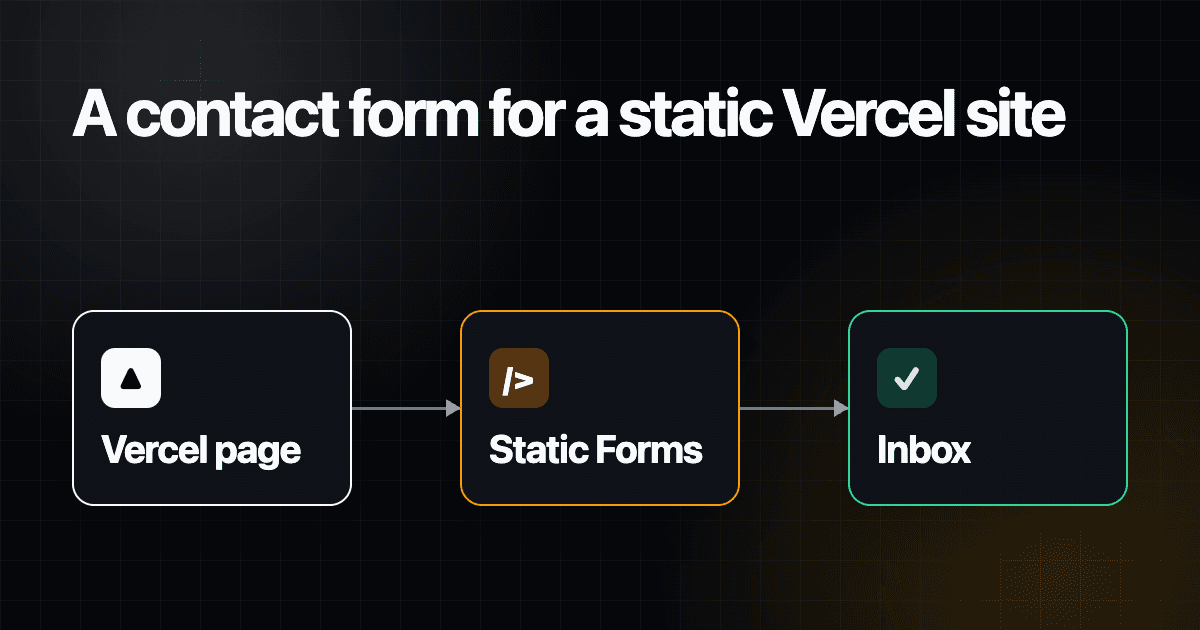
A plain HTML site on Vercel can collect contact messages without adding a Function or moving to a framework. The page still needs a form receiver, though. HTML and Vercel can publish the interface; neither one delivers the submission to your inbox by itself.
This tutorial builds one index.html file, sends it to Static Forms with fetch(), and gives visitors honest feedback when the request succeeds or fails. It also covers the Vercel detail that catches people out: preview deployments and production run on different URLs, which matters if you restrict where your form may be submitted from.
The result is a static deployment. There is no server code in this project and no confidential token in the browser.
Create the form destination first
Create a form in Static Forms and copy its form key. The key tells Static Forms which form should receive the submission. It will be present in the page source, as any identifier sent directly by a browser must be. Do not put an SMTP password, webhook secret, database credential, or other private token in this file.
The current Static Forms API reference accepts POST requests at:
https://api.staticforms.dev/submitThe payload needs an apiKey. Name, email, message, and other fields become submission data. This example also includes a honeypot field for basic bot filtering.
Add the complete static page
Create an empty directory with this structure:
vercel-contact-form/
└── index.html
Paste the following into index.html, then replace YOUR_STATIC_FORMS_KEY with the form key from your dashboard.
<!doctype html>
<html lang="en">
  <head>
    <meta charset="UTF-8" />
    <meta name="viewport" content="width=device-width, initial-scale=1" />
    <title>Contact us</title>
    <meta
      name="description"
      content="Send a message to our team and we will reply by email."
    />
    <style>
      :root {
        color-scheme: light;
        font-family:
          Inter,
          ui-sans-serif,
          system-ui,
          -apple-system,
          BlinkMacSystemFont,
          "Segoe UI",
          sans-serif;
        color: #172033;
        background: #f4f7fb;
      }

      * {
        box-sizing: border-box;
      }

      body {
        min-height: 100vh;
        margin: 0;
        display: grid;
        place-items: center;
        padding: 2rem 1rem;
      }

      main {
        width: min(100%, 42rem);
      }

      h1 {
        margin-bottom: 0.5rem;
        font-size: clamp(2rem, 7vw, 3.25rem);
        line-height: 1.05;
      }

      .intro {
        margin: 0 0 2rem;
        color: #4b5870;
      }

      form {
        display: grid;
        gap: 1.25rem;
        padding: clamp(1.25rem, 4vw, 2rem);
        border: 1px solid #d8dfeb;
        border-radius: 1rem;
        background: #ffffff;
        box-shadow: 0 1.25rem 3.5rem rgb(23 32 51 / 10%);
      }

      .field {
        display: grid;
        gap: 0.45rem;
      }

      label {
        font-weight: 700;
      }

      input,
      textarea,
      button {
        font: inherit;
      }

      input,
      textarea {
        width: 100%;
        padding: 0.8rem 0.9rem;
        border: 1px solid #8995a8;
        border-radius: 0.55rem;
        color: inherit;
        background: #ffffff;
      }

      textarea {
        min-height: 9rem;
        resize: vertical;
      }

      input:focus-visible,
      textarea:focus-visible,
      button:focus-visible {
        outline: 3px solid #2563eb;
        outline-offset: 3px;
      }

      button {
        min-height: 2.75rem;
        justify-self: start;
        padding: 0.7rem 1rem;
        border: 0;
        border-radius: 0.55rem;
        color: #ffffff;
        background: #172033;
        font-weight: 750;
        cursor: pointer;
      }

      button:disabled {
        cursor: wait;
        opacity: 0.65;
      }

      .status {
        min-height: 1.5rem;
        margin: 0;
      }

      .status[data-kind="success"] {
        color: #166534;
      }

      .status[data-kind="error"] {
        color: #b42318;
      }

      .honeypot {
        position: absolute;
        width: 1px;
        height: 1px;
        overflow: hidden;
        clip: rect(0 0 0 0);
        clip-path: inset(50%);
        white-space: nowrap;
      }
    </style>
  </head>
  <body>
    <main>
      <h1>Contact us</h1>
      <p class="intro">Tell us what you need and we will reply by email.</p>

      <form id="contact-form" novalidate>
        <input type="hidden" name="apiKey" value="YOUR_STATIC_FORMS_KEY" />

        <div class="field">
          <label for="name">Name</label>
          <input
            id="name"
            name="name"
            type="text"
            autocomplete="name"
            maxlength="100"
            required
          />
        </div>

        <div class="field">
          <label for="email">Email</label>
          <input
            id="email"
            name="email"
            type="email"
            autocomplete="email"
            inputmode="email"
            maxlength="254"
            required
          />
        </div>

        <div class="field">
          <label for="message">Message</label>
          <textarea
            id="message"
            name="message"
            minlength="10"
            maxlength="5000"
            required
          ></textarea>
        </div>

        <div class="honeypot" aria-hidden="true">
          <label for="company-honeypot">Leave this field empty</label>
          <input
            id="company-honeypot"
            name="company_honeypot"
            type="text"
            tabindex="-1"
            autocomplete="off"
          />
        </div>

        <button type="submit">Send message</button>
        <p
          id="form-status"
          class="status"
          role="status"
          aria-live="polite"
          aria-atomic="true"
        ></p>
      </form>
    </main>

    <script>
      const form = document.querySelector("#contact-form");
      const button = form.querySelector('button[type="submit"]');
      const status = document.querySelector("#form-status");
      const endpoint = "https://api.staticforms.dev/submit";

      form.addEventListener("submit", async (event) => {
        event.preventDefault();
        status.textContent = "";
        status.removeAttribute("data-kind");

        if (!form.reportValidity()) {
          return;
        }

        button.disabled = true;
        button.textContent = "Sending...";
        form.setAttribute("aria-busy", "true");
        status.textContent = "Sending your message...";

        const controller = new AbortController();
        const timeout = window.setTimeout(() => controller.abort(), 10000);

        try {
          const response = await fetch(endpoint, {
            method: "POST",
            body: new FormData(form),
            headers: { Accept: "application/json" },
            signal: controller.signal,
          });

          const result = await response.json().catch(() => null);

          if (!response.ok || result?.success !== true) {
            throw new Error(`Submission failed with status ${response.status}`);
          }

          form.reset();
          status.dataset.kind = "success";
          status.textContent = "Thanks, your message was submitted.";
        } catch (error) {
          status.dataset.kind = "error";
          status.textContent =
            error.name === "AbortError"
              ? "The request took too long. Check your connection and try again."
              : "Your message could not be sent. Please try again.";
        } finally {
          window.clearTimeout(timeout);
          button.disabled = false;
          button.textContent = "Send message";
          form.removeAttribute("aria-busy");
        }
      });
    </script>
  </body>
</html>
This page uses the browser's built-in validation before it sends anything. The button is disabled while the request is running, which prevents a second click from starting a duplicate request. A ten-second timeout stops the pending state from hanging forever on a bad connection.
The status container exists before the request starts. Its role="status" gives it a polite live region, so a screen reader can announce the changing message without having focus yanked away from the visitor.
The honeypot is a text input removed from normal interaction rather than type="hidden". That matches the current Static Forms honeypot guidance. It is a cheap first filter, not a complete spam strategy; the form security documentation covers the other controls available when a public form begins attracting abuse.
Run a local check
Serve the directory over HTTP instead of opening index.html as a file:// URL. If you already have Python installed, this is enough:
cd vercel-contact-form
python3 -m http.server 4173
Open http://localhost:4173. First submit the empty form and confirm the browser focuses the first invalid field. Then enter a malformed email. Finally, replace the form key and send a unique test message.
A successful API response proves that Static Forms accepted the submission. It does not prove that an email reached a mailbox. Check the matching row in the Static Forms inbox, then check email delivery separately if you configured it.
Deploy the static directory to Vercel
Vercel's current deployment documentation says it deploys files as-is when it finds no framework. You can connect the directory's Git repository in the dashboard, use Vercel Drop, or deploy from the CLI.
For the CLI path:
npm install --global vercel
cd vercel-contact-form
vercel
After the project has an initial production deployment, vercel creates a preview deployment and vercel --prod creates a production deployment. Vercel notes one exception in its environment documentation: the first deployment of a new project is production, even when you omit --prod.
You do not need a build command for this one-file project. Once the deployment finishes, open the URL Vercel printed and load the form in a browser. A green deployment badge only proves that Vercel published the files. It says nothing about the form receiver, the form key, or delivery.
Test preview and production as separate origins
Vercel gives each deployment its own URL. Its default workflow creates previews for non-production branches and pull requests, while a merge to the production branch updates the production domain.
That distinction becomes important if you enable Static Forms domain restriction. Static Forms checks the request's Origin or Referer against the domains you allowed. Add every production and staging origin that should submit before switching the restriction on. Then test again from those deployed pages. A localhost success does not prove that a Vercel preview URL is allowed.
Avoid putting the form key in a Vercel environment variable merely to hide it. A plain static site has no server process to keep that value private; anything needed by browser JavaScript ends up in the downloaded page or bundle. Environment variables are useful for confidential values only when server-side code reads them and does not send them to the client. This form key is intentionally client-visible. Private automation tokens are not.
Diagnose the failure you actually have
If the form fails after deployment, inspect the request in the browser's Network panel. Check the request URL, method, status code, response body, and Origin header before editing the page.
- A missing or invalid form key usually produces an authentication or validation error. Compare the deployed HTML with the key shown for the intended form.
- A
403can mean a domain rule or another account setting rejected the request. Confirm that the exact deployed origin is allowed. - A
429means a limit or rate control was reached. Stop retrying and wait before sending another test. - A browser CORS message needs the preflight and response headers, not a random
mode: "no-cors"change.no-corswould hide the response from this script and make truthful success feedback impossible. Use the Static Forms CORS guide to compare the failing request with the supported setup. - A
200response followed by the page's generic error means the response body did not containsuccess: true. Inspect the body, but do not send names, email addresses, or message text to public analytics logs.
Keep the failure message on the page generic. Detailed server text can help during development, but echoing it to every visitor may expose account settings or implementation details.
Production check before linking the page
Run the final check on the URL visitors will use:
- Submit with empty required fields and a malformed email.
- Navigate the entire form by keyboard and confirm every control has a visible focus indicator.
- Send one uniquely named test submission and watch the pending button and status announcement.
- Confirm one matching submission in the Static Forms inbox.
- Check configured email delivery separately rather than treating API acceptance as delivery proof.
- Test a narrow mobile viewport for clipped fields or page-level horizontal scrolling.
- If domain restriction is enabled, repeat the test on each origin you expect to accept.
The site remains a static Vercel deployment. The browser owns the field interaction and status message, while Static Forms owns the public receiver. That is a much smaller system than a custom Function, but it still deserves a real production submission test before you call it done.
Related Articles
Use a Custom Squarespace Form Without Losing Your Styling
Add a custom Squarespace contact form that keeps your site styling. Use tested HTML, a thank-you page, accessible focus states, and production checks.
Build a Custom Shopify Contact Form Section in Liquid
Build a reusable Shopify contact form section in Liquid. Add custom fields, accessible errors, native hCaptcha, theme settings, and a storefront test.
Angular Contact Form Without a Backend: Reactive Forms Guide
Build an Angular contact form with Reactive Forms and HttpClient. Add accessible validation, honest status messages, spam controls, and production checks.







































