

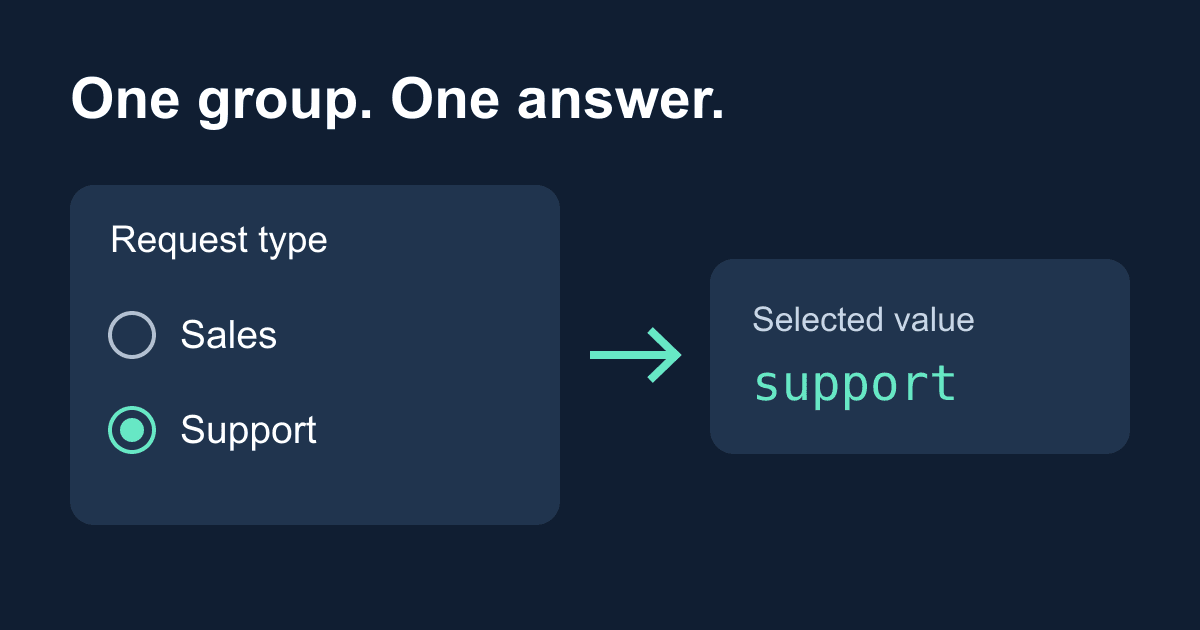
HTML radio button required: validate one choice per group
A required radio group should ask the visitor to choose one option. If your form insists on a particular option, accepts two answers, or sends on instead of the selected value, inspect the HTML before adding JavaScript validation.
The important distinction is between a group and an individual control. Radios in the same form with the same name belong to one group. If any radio in that group has required, selecting any enabled option satisfies the requirement. You do not have to select the radio that carries the attribute.
This guide builds a local radio-group checker. It shows the selected value without sending a request, then gives you a test sequence for adapting the group to a real form. It focuses on validation and submitted data; the separate radio button styling guide covers visual customization.
How required works on radio buttons
Give the options a shared name, separate id values, and meaningful value attributes. The name identifies the answer in the submitted data. Each ID connects one control to its label. The value is the answer your handler receives.
According to MDN's radio input reference, putting required on one member makes a selection necessary for the group. Putting it on every member also works. The example below repeats it so that the requirement remains visible when someone edits or moves an option.
Do not put required on the fieldset: that element does not make its child controls required. A fieldset and legend describe the question, while the radio inputs provide the validation behavior. W3C's grouping guidance recommends fieldsets for radio groups.
A default checked option already satisfies the requirement. Leave all options unchecked when you want the visitor to make a choice. That is a design decision, not a browser limitation.
Build a local checker
Save the following complete file as radio-checker.html and open it in a browser. It requires no packages, API key, or network connection. The button starts disabled and the script enables it after attaching its handler; if scripts are blocked, the page explains why the preview is unavailable rather than submitting to itself.
<!doctype html>
<html lang="en">
<head>
  <meta charset="utf-8">
  <meta name="viewport" content="width=device-width, initial-scale=1">
  <title>Required radio group checker</title>
  <style>
    body {
      max-width: 38rem;
      margin: 2rem auto;
      padding: 0 1rem;
      font: 1rem/1.6 system-ui, sans-serif;
      color: #182638;
      background: #fff;
    }
    fieldset { min-inline-size: 0; padding: 1rem; }
    legend { font-weight: 700; }
    .option { display: flex; align-items: center; gap: .5rem; }
    .option label { padding: .65rem .25rem; cursor: pointer; }
    input[type="radio"] { width: 1.2rem; height: 1.2rem; }
    :focus-visible { outline: 3px solid #1457b8; outline-offset: 3px; }
    button { margin-top: 1rem; padding: .7rem 1rem; font: inherit; }
    #result { overflow-wrap: anywhere; }
  </style>
</head>
<body>
  <h1>Required radio group checker</h1>
  <p>This preview stays in your browser. It sends nothing.</p>
  <form id="checker">
    <fieldset>
      <legend>Request type (required)</legend>
      <div class="option">
        <input id="sales" type="radio"
          name="request_type" value="sales" required>
        <label for="sales">Sales question</label>
      </div>
      <div class="option">
        <input id="support" type="radio"
          name="request_type" value="support" required>
        <label for="support">Support request</label>
      </div>
    </fieldset>
    <button id="preview" type="submit" disabled>Preview value</button>
  </form>
  <p id="result" role="status" aria-live="polite"></p>
  <noscript>Enable JavaScript to run this local preview.</noscript>
  <script>
    const form = document.getElementById("checker");
    const result = document.getElementById("result");
    form.addEventListener("change", () => {
      result.textContent = "";
    });
    form.addEventListener("submit", (event) => {
      event.preventDefault();
      const values = new FormData(form).getAll("request_type");
      result.textContent = "Preview only: " + JSON.stringify(values);
    });
    document.getElementById("preview").disabled = false;
  </script>
</body>
</html>
There are no placeholders to replace. Keep the name shared if you rename the choices. Change each option's value deliberately: changing the visible label alone does not change the transmitted answer.
The browser runs interactive constraint validation before dispatching a normal submit event. An empty group therefore stops the preview before its submit handler runs. For a valid group, the handler reads FormData and writes the result with textContent, not HTML insertion. The status region reports a local preview, never a successful delivery.
Test the empty, selected, and changed states
Open a fresh copy of the file and press Preview value without selecting anything. The browser should ask you to select an option. The exact message and presentation depend on the browser and language. Neither option is preselected in the HTML.
Click the Support request label, then preview again. The result should be Preview only: ["support"]. Select Sales question and repeat; the array should contain only "sales". It should never contain both values for this same-name group.
Use the keyboard too. Tab to the radio group, use the arrow keys to change the selection, then tab to Preview value and activate it. Keep a visible focus outline. Native radio controls already supply keyboard behavior; replacing them with clickable divs means rebuilding behavior that this example gets from HTML.
As a diagnostic experiment, remove required from the Support radio only. Selecting Support must still satisfy the group because Sales still has required. Restore the original file afterward. This is a useful regression test when a component library moves attributes between options.
A second experiment exposes a different bug: remove value="support". Selecting Support now produces "on", the default radio value. Validation still succeeds. A passing validity check does not prove the submitted answer is useful.
Why radio validation or submitted data looks wrong
If both choices stay selected, compare their names and form owners. Different names create different groups, even when the controls sit inside the same fieldset. Conversely, reusing one name for two separate questions in the same form merges them into one group. Selecting an answer to one question can clear the other.
If submission succeeds before the visitor chooses, look for a checked default, a novalidate form attribute, or a submit button with formnovalidate. A script calling form.submit() also bypasses normal interactive validation. The distinction is covered in requestSubmit versus submit.
If your payload omits the group, inspect whether an option is checked and enabled. Unchecked radios do not contribute an entry. A disabled selected control is not included either; see disabled versus readonly fields. Avoid disabling the selected radio merely to make it look locked.
If the browser says an invisible control is invalid, inspect CSS and conditional sections. Hiding a required radio visually does not make its requirement disappear. Decide whether that question still applies, then update its enabled and required state consistently. Do not hide an error-producing control and leave the visitor without a way to answer it.
Move the group into a production form
Copy the fieldset into your existing form, not the outer form element. Nested forms are not a supported way to combine examples. Give every copied control a unique ID on the page and preserve the label connections.
This checker deliberately cancels submission. Do not copy its preview handler into a form that should send data and then mistake the preview text for delivery confirmation. For Static Forms, follow the submission API reference for the POST endpoint and apiKey field, and keep your existing recipient, spam protection, and response handling configuration. This article does not configure or test email delivery.
Your server cannot learn a business rule from the page's required attribute. A caller can send a missing, repeated, or unrecognized request_type directly. Any downstream process that depends on this answer should require exactly one allowed value before taking action. Do not use a radio answer as permission to access an account, set a price, or grant a privilege.
On the deployed page, repeat the empty-group, label-click, and keyboard checks. Inspect the submitted payload to confirm the expected field and value, then verify acceptance and delivery separately. If your site blocks inline scripts through its Content Security Policy, put the checker script in an allowed external file for testing rather than weakening production policy.
Before you ship
- Each question has its own name; its options share that name and form owner.
- Every option has an explicit value and an associated visible label.
- The legend describes the question and says when an answer is required.
- Empty submission is blocked, either option satisfies the group, and the payload contains one expected answer.
- Keyboard selection and focus remain usable after styling.
- The receiver treats the answer as untrusted input, and the interface reports actual delivery separately from local validation.
Related Articles
HTML input pattern: validate a format without blocking users
Learn how HTML input pattern matches a whole value, handles empty fields, and uses the v flag. Build a local checker with clear, accessible format hints.
Preserve textarea line breaks in HTML without innerHTML
Fix textarea line breaks that disappear in a preview. Use textContent and CSS pre-wrap, keep user input as plain text, and test a complete HTML example.
Confirm email field validation in HTML and JavaScript
Build a confirm email field that catches mismatches, clears stale errors, and works with Enter. Test the exact HTML example without confusing matching with verification.







































