

HTML form enctype: URL encoding, multipart, and file uploads
A file picker can show a selected file while the request sends only its name. The control is working; the form is using the wrong encoding. For a native HTML file upload, set method="post" and enctype="multipart/form-data". If JavaScript sends a FormData object with fetch, let the browser set the request's Content-Type, including its boundary.
Those are two different submission paths. Changing a form's enctype does not change how JavaScript serializes a request body.
This guide helps you choose an encoding and inspect the bytes before connecting a form to a service. You'll build a browser-only request preview with a small synthetic file. It does not send requests, read your files, or need an API key.
Choose the encoding for the submission path
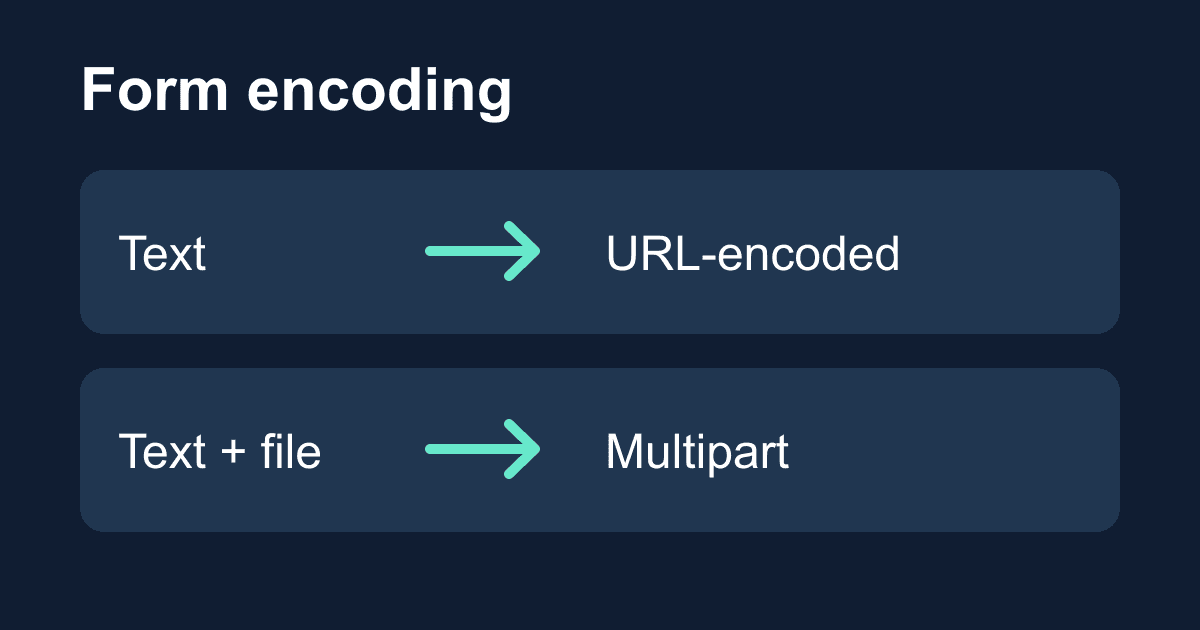
For native forms that submit with POST, MDN's form reference lists three encodings:
application/x-www-form-urlencodedis the default. It represents text fields as name/value pairs, with characters encoded as needed. It does not carry selected file contents.multipart/form-datacarries separate parts for fields and files. Use it for native file uploads; it also works for text-only forms.text/plainis a debugging format, not a good default for a production form. Use an encoding your receiving endpoint explicitly supports.
The HTTP method is a separate choice. A native GET form appends its fields to the destination URL. Setting enctype="multipart/form-data" does not turn GET into a file upload. Keep contact details and messages out of query strings, which can appear in browser history and server logs; use the documented POST endpoint over HTTPS.
A submit button can also override the form's encoding with formenctype. If two buttons produce different requests, inspect the clicked button as well as the opening form tag.
JSON is not another native HTML form encoding. An endpoint may accept JSON, but JavaScript must construct that body and set the corresponding header. Adding enctype="application/json" to a form is not a JSON submission implementation.
Build a request preview without sending anything
Save this complete file as encoding-demo.html and open it in a modern browser. The first preview uses URL-encoded text. The second constructs multipart data with the same text and a generated note.txt file. The strings are fictional; use synthetic data while debugging your own forms too.
<!doctype html>
<html lang="en">
<head>
  <meta charset="utf-8">
  <meta name="viewport" content="width=device-width, initial-scale=1">
  <title>Form encoding preview</title>
  <style>
    * { box-sizing: border-box; }
    body {
      max-width: 44rem;
      margin: 2rem auto;
      padding: 0 1rem;
      font: 1rem/1.5 system-ui, sans-serif;
      color: #172033;
      background: #fff;
    }
    label { display: block; margin-top: 1rem; }
    input, button { font: inherit; padding: .65rem; }
    input { width: 100%; }
    button { margin-top: 1rem; }
    :focus-visible {
      outline: 3px solid #175cd3;
      outline-offset: 3px;
    }
    pre {
      padding: 1rem;
      background: #f0f3f7;
      white-space: pre-wrap;
      overflow-wrap: anywhere;
    }
  </style>
</head>
<body>
  <h1>Preview form encodings</h1>
  <p>No request is sent. The file is generated in memory.</p>
  <label for="message">Example message</label>
  <input id="message" value="Tea & cake + coffee">
  <button id="preview" type="button" disabled>
    Preview request bodies
  </button>
  <noscript>Enable JavaScript to run this preview.</noscript>
  <p id="status" role="status"></p>
  <h2>URL-encoded text</h2>
  <pre id="urlencoded"></pre>
  <h2>Multipart text and file</h2>
  <pre id="multipart"></pre>
  <script>
    const button = document.querySelector('#preview');
    const status = document.querySelector('#status');
    let previews = 0;

    button.addEventListener('click', async () => {
      button.disabled = true;
      try {
        const message = document.querySelector('#message').value;
        const textBody = new URLSearchParams({ message });
        const parts = new FormData();
        parts.append('message', message);
        parts.append('attachment', new File(
          ['Synthetic attachment.'], 'note.txt',
          { type: 'text/plain' }
        ));

        for (const [id, body] of [
          ['urlencoded', textBody], ['multipart', parts]
        ]) {
          const request = new Request('https://example.invalid/', {
            method: 'POST', body
          });
          const header = request.headers.get('Content-Type');
          const encoded = await request.text();
          document.getElementById(id).textContent =
            header + '\n\n' + encoded;
        }
        previews += 1;
        status.textContent =
          `Preview ${previews} ready. Nothing was sent.`;
      } catch {
        status.textContent =
          'Preview failed. Check browser support and try again.';
      } finally {
        button.disabled = false;
      }
    });
    button.disabled = false;
  </script>
</body>
</html>
There are no placeholders to replace. The .invalid URL is a deliberately unusable destination, and the code never calls fetch. A Request object describes a request; constructing one does not send it. The button starts disabled until its handler is installed.
The input is deliberately outside a form. This is a local encoder, not a submit interface: pressing Enter in the input should not navigate or send anything. Tab to the button and press Enter or Space to run the preview.
Read the header and body together
In the first output, the default message becomes message=Tea+%26+cake+%2B+coffee. A space becomes +, the ampersand becomes %26, and the literal plus sign becomes %2B. Let URLSearchParams do this work rather than joining raw strings with ampersands. A message that contains & should not accidentally create another field.
The multipart output has a Content-Type beginning with multipart/form-data; boundary=. The body uses that boundary to separate parts. Look for a part named message, another named attachment, the filename note.txt, and the synthetic file contents.
The exact boundary changes. Do not copy it into application code or expect the preview to match a screenshot character for character. The relevant check is that the header's boundary matches the body's separators.
Change the message to include non-English text or a line break pasted from another source. The control here is a single-line input, so it is not a textarea test; the preview encodes the value the input actually holds. Try an empty string too. An empty value still has a field name in this example because the script explicitly constructs that pair.
Both results are encodings, not encryption. Percent escapes and multipart boundaries do not protect a message from someone who can read the request. Use HTTPS, minimize collected data, and avoid sharing real submission payloads in screenshots or logs.
Let FormData generate its own Content-Type
MDN's FormData guide warns against manually setting Content-Type when sending FormData through Fetch or XMLHttpRequest. The browser must add the boundary it used for the body.
A header containing only multipart/form-data is incomplete for that body. A hard-coded boundary can be just as wrong if it differs from the actual serializer output. Remove the manual header and let the browser generate it. This rule applies to a FormData body, not every kind of request: a JSON body still needs its documented JSON content type.
The preview intentionally omits a headers object. Its two Request instances infer different content types from different body objects. The same distinction matters when passing those bodies to fetch.
Avoid turning a file-bearing FormData into URLSearchParams or an ordinary JSON object as an upload shortcut. Those conversions do not transmit the selected file bytes as multipart attachments. If repeated field names are your problem instead, use the separate FormData.getAll() guide; choosing a file transport and preserving repeated values are different jobs.
Connect the right encoding to Static Forms
The current Static Forms API reference accepts POST requests at https://api.staticforms.dev/submit with JSON, URL-encoded form data, or multipart form data. It requires an apiKey body field. The local preview does not include that field because it does not submit anything.
For an existing native text-only contact form, the default URL encoding is usually enough. For an existing native form with a file input, use POST with multipart encoding and keep a name on the file control. Follow the file upload setup for supported account configuration and current limits rather than treating an encoding change as permission to upload files.
For a JavaScript submission, inspect the body passed to fetch, not just the HTML. Keep the existing endpoint, authentication field, spam controls, and success/error handling. Changing form.enctype while still sending a JSON string will leave the request as JSON. Passing FormData while forcing a JSON header creates a mismatch.
The public form submission key belongs in the form's documented configuration. It is not an OAuth token or permission to read private submissions. Never add server credentials or integration secrets to a browser demo.
This article verifies local serialization, not production acceptance, attachment storage, or notification delivery. After changing a real form, deploy it over HTTPS and submit a clearly marked test with a harmless file through your own authorized form. Check the request, the stored submission, and any destination you rely on separately. An HTTP success response alone does not prove that a notification reached an inbox.
Diagnose the request before rewriting the form
If a file's name arrives but its contents do not, check the native form's method and encoding first. If JavaScript handles submission, inspect its body construction for a conversion that discarded the file bytes.
If the server cannot parse a multipart request, compare the Content-Type boundary with the body. Check middleware or a shared Fetch wrapper for a default JSON header. Do not solve a parsing error by disabling authentication or spam protection.
If a field is absent altogether, check its name, disabled state, and form ownership. Encoding does not restore controls that were never included. MDN notes that FormData(form) excludes disabled fields; a missing value is not necessarily a serialization failure.
If only one submit button fails, inspect its formenctype, formmethod, and formaction overrides. If every encoding fails, verify the receiver's documented content types and read its response before trying a different format.
Before shipping, run the preview with an ampersand, a literal plus sign, non-English text, and an empty value. Then inspect one real test submission in the browser's Network panel. Confirm the method, destination, content type, and expected fields or file contents before following the data into storage and delivery.
Related Articles
FormData.getAll(): keep every selected form value
Fix missing checkbox values with FormData.getAll(). Run a complete browser demo, compare JSON conversions, and check repeated fields before sending them.
Disabled vs readonly: why form fields go missing
Learn why disabled fields disappear from HTML form submissions, when readonly keeps a value, and how to inspect the exact payload with a working browser demo.
HTML datalist vs select: suggestions are not validation
Learn when to use HTML datalist instead of select. Test free-text values, required validation, form data, and accessibility limits with a working local example.







































