

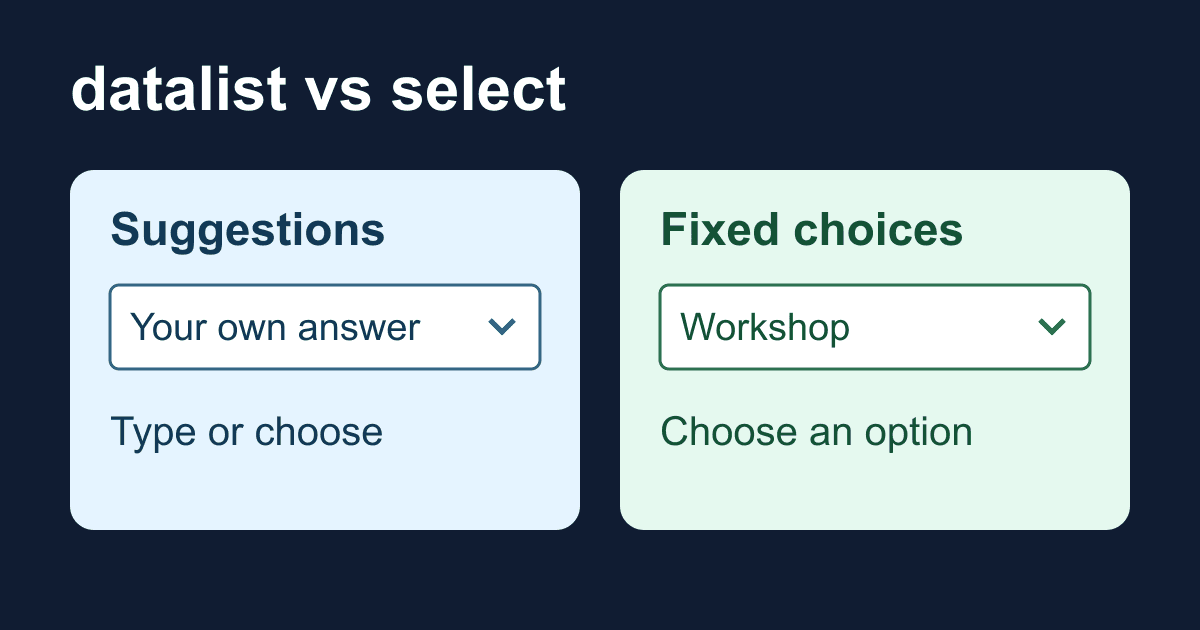
HTML datalist vs select: suggestions are not validation
An HTML datalist suggests answers. It does not limit a text field to those answers. If you offer "Design review" and "Workshop" as suggestions, someone can still type "Something else" and pass native validation.
That difference matters when you choose between datalist and select. Use suggestions when you welcome an answer you did not anticipate. Use a select when visitors must choose from a fixed set, such as the department that should receive a request.
This guide builds a local checker that shows the value a suggested-text field would contribute to a form. You can test a listed value, an unlisted value, and an empty field without an account or a network request. It is a field-behavior lab, not a working contact-form delivery example.
How datalist connects to an input
The input's list attribute points to the datalist's id. The input needs its own id for the visible label and a name for form data. These attributes do different jobs; putting an id on the suggestions does not give the input a submitted name.
Each option supplies a suggested value. When someone chooses it, that value becomes the input's value. An option's label or text may appear differently across browsers, so do not use a friendly label as if it concealed a separate database identifier. For example, an option with the value support-17 can leave the visitor looking at support-17 in the text field.
The HTML Standard defines datalist as suggestions. The MDN datalist reference explicitly notes that other values can pass validation. required only makes this text input nonempty; it does not mean "pick an option."
Build a local suggestion checker
Save the following as datalist-check.html and open it in a browser. The suggestions are also written in ordinary page text, so the exercise does not depend on seeing or hearing a popup.
<!doctype html>
<html lang="en">
<head>
  <meta charset="utf-8">
  <meta name="viewport" content="width=device-width, initial-scale=1">
  <title>Datalist value checker</title>
  <style>
    * { box-sizing: border-box; }
    body {
      max-width: 36rem;
      margin: 0 auto;
      padding: 1.5rem;
      font: 1rem/1.6 system-ui, sans-serif;
      color: #172033;
      background: #fff;
    }
    label { display: block; font-weight: 700; }
    input, button {
      font: inherit;
      padding: .75rem;
      border: 1px solid #64748b;
      border-radius: .35rem;
    }
    input { width: 100%; color: #172033; background: #fff; }
    button { margin-top: 1rem; color: #fff; background: #172033; }
    :focus-visible { outline: 3px solid #1d4ed8; outline-offset: 3px; }
    #result { overflow-wrap: anywhere; }
  </style>
</head>
<body>
  <main>
    <h1>Check a suggested answer</h1>
    <p>This local demo does not send or save your answer.</p>
    <form id="request-form">
      <label for="service">Service (required)</label>
      <p id="service-help">
        Suggestions: Design review, Workshop, Accessibility review.
        You can also type a different service.
      </p>
      <input id="service" name="service" type="text"
        list="service-suggestions" required disabled
        aria-describedby="service-help">
      <datalist id="service-suggestions">
        <option value="Design review"></option>
        <option value="Workshop"></option>
        <option value="Accessibility review"></option>
      </datalist>
      <button id="check" type="button" disabled>Check value</button>
      <p id="result" role="status" aria-live="polite"></p>
      <noscript><p>Enable JavaScript to run this local checker.</p></noscript>
    </form>
  </main>
  <script>
    const form = document.querySelector('#request-form');
    const service = document.querySelector('#service');
    const button = document.querySelector('#check');
    const result = document.querySelector('#result');

    function checkValue() {
      result.textContent = '';
      if (!form.reportValidity()) {
        result.textContent = 'Enter a service before checking.';
        return;
      }
      const value = new FormData(form).get('service');
      result.textContent = 'Local check passed: service = '
        + value + '. Nothing was sent.';
    }

    form.addEventListener('submit', (event) => {
      event.preventDefault();
      checkValue();
    });
    button.addEventListener('click', checkValue);
    service.addEventListener('input', () => {
      result.textContent = '';
    });
    service.disabled = false;
    button.disabled = false;
  </script>
</body>
</html>
There are no credentials or placeholders to replace. The input and button start disabled so the lab cannot be used before its JavaScript attaches the handlers. Do not copy that disabled state into a production form without the corresponding initialization.
The button runs reportValidity() before inspecting FormData. Constructing FormData does not validate the fields. The status uses textContent, so an answer that contains HTML-like text stays text. Editing the input clears the old result.
Test what the browser accepts
Leave the field empty and activate Check value. The required constraint should fail. Enter Workshop and check again: the result should include service = Workshop.
Now type Website migration, which is not in the list. It should also pass. That is the behavior this field is designed to allow, not a missing validation rule. Clear the field and confirm that it fails again.
Try the same steps with a keyboard. You should be able to focus the labeled input, type an answer, tab to Check value, and activate the button. Enter in the input runs the form's submit path; the handler prevents navigation. The popup's opening and selection behavior varies by browser, so test it separately on the browsers and devices your visitors use. Do not make access to the popup the only way to finish.
A native text field treats spaces as a nonempty value. If your business rule rejects whitespace-only answers or normalizes capitalization, enforce that rule on the server and give matching feedback in the interface. This lab deliberately demonstrates native constraints rather than inventing a service-name policy.
Choose select when the list is mandatory
A datalist works well for a short set of suggestions where free text is useful: a service request can mention work that your list missed. A select is a better fit when a value must belong to a small known set. Our required select guide covers the empty first option and the rules for a placeholder prompt.
Do not assume that adding required or checking whether a suggestion is visible makes datalist membership mandatory. You can implement a membership check, but then you also need to maintain errors, matching rules, and accessible interaction. For a short fixed list, a native select is usually less work.
Neither control authorizes a business action. A visitor can alter HTML or send a request without your page. A server that uses a field to route work, grant access, or set a price must validate the permitted values itself. Suggestions shipped in page HTML are public; do not populate a datalist with private customer records.
Account for popup accessibility and browser differences
MDN currently marks datalist as having limited availability. It also documents popup text that does not resize with page zoom, limited styling for high-contrast needs, and screen-reader/browser combinations that do not announce the suggestions. A visible label and a live result region do not fix those popup limitations.
Keep essential instructions outside the popup, as the example does. Test zoom, keyboard access, and your supported assistive-technology combinations. If choosing a suggestion is necessary to complete the task, prefer a control you have verified for those users rather than relying on datalist as the only path. A responsive Chromium screenshot alone cannot establish screen-reader compatibility or behavior in Safari and Firefox.
Move the field into a real form
Copy the label, help paragraph, input, and datalist into your existing form. Remove the demo's disabled attribute from the input. Keep the list and datalist id matched, and avoid duplicate IDs if the page has more than one form.
The local checker intentionally prevents submission. Do not carry its submit handler into a form that should navigate to a backend. Use a real submit button and follow the Static Forms plain HTML integration guide for the endpoint and public form key, then configure the destination and spam controls for that form. This guide does not test backend acceptance or email delivery.
After deployment, test an ordinary listed value and an unlisted value from your actual page. Inspect the submitted service field and confirm the intended destination received it. A successful local check only proves what the browser accepted and serialized.
If suggestions are missing, first check that list="service-suggestions" matches the datalist ID exactly. If the value is missing from form data, check that the input has a name and is not disabled. If users can submit an unlisted answer, decide whether that answer should be allowed before changing code: you may need a select rather than a datalist.
Related Articles
HTML URL input validation: accept website links correctly
Learn what HTML URL inputs validate, add HTTP and HTTPS checks, and test an accessible website field without confusing valid syntax with a safe or working link.
HTML select placeholder: make required choices work
Build an HTML select placeholder that works with required. Test empty options, optgroups, keyboard input, and the exact FormData value in a local checker.
Add a Contact Form to Hexo Without a Backend
Add a no-JavaScript contact form to Hexo, keep it outside fragile theme files, inspect the generated HTML, and test the deployed form safely.







































