

Keep an Astro contact form working after ClientRouter navigation
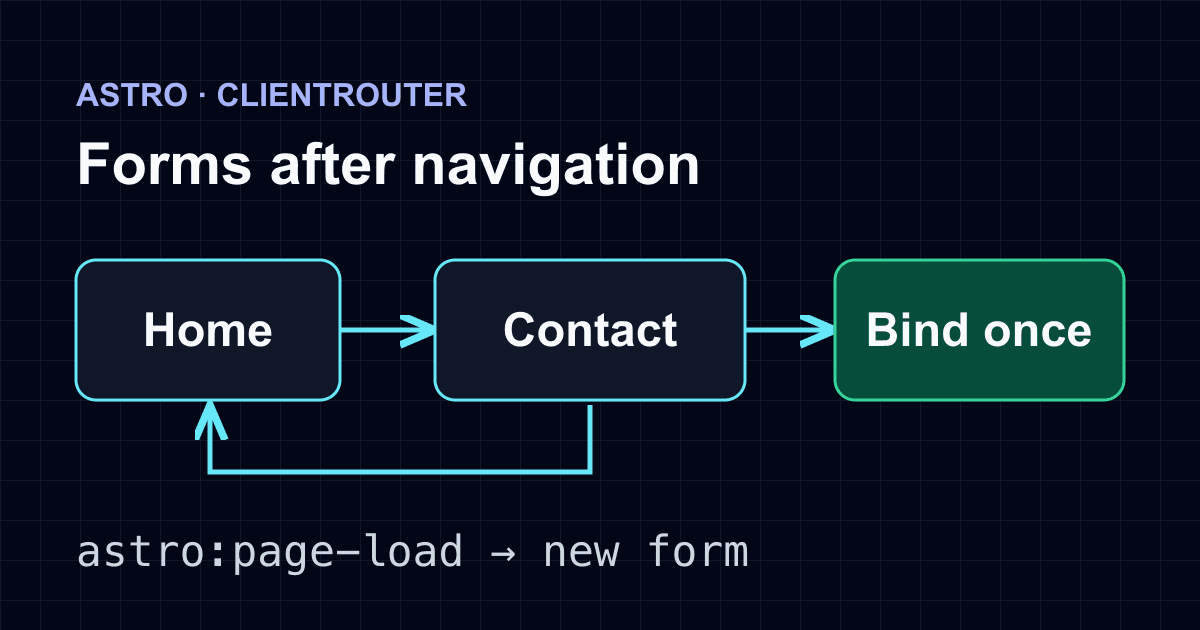
A contact form can work after a hard refresh and stop working when someone reaches it through an Astro navigation link. With ClientRouter, navigation replaces page elements without restarting every bundled script. A listener attached to the previous form element does not follow the new one.
This tutorial builds a two-page navigation lab. You can open Contact, leave, return, and submit without accumulating listeners. The form keeps a native POST fallback, reports failures without erasing the message, and ignores late responses belonging to a page you already left. If you only need a basic integration, start with the Astro contact form guide.
Why the first visit is different
Astro's view transitions documentation distinguishes browser-native cross-document animations from its ClientRouter. Native animations do not change script execution into a single-page lifecycle. ClientRouter does.
A processed module script runs once, while the router may replace the form many times. Astro fires astro:page-load after the initial load and subsequent client navigation. Register your setup function there, and make that function safe to call again for the same element. Do not solve the problem by adding another document-level submit listener on every visit.
You do not need to enable ClientRouter just to send a form. Keep ordinary navigation if your site does not need client routing. The example below is for a site that already wants it.
Create the small project
Use Node.js supported by your Astro version. This lab pins Astro 7.4.2, whose package requires Node 22.23.4 or newer. Create an empty directory with this package.json, then run npm install. The files below are the complete application; no adapter or server route is needed.
{
  "name": "astro-contact-lifecycle-lab",
  "private": true,
  "type": "module",
  "scripts": {
    "dev": "astro dev",
    "build": "astro build",
    "preview": "astro preview"
  },
  "dependencies": { "astro": "7.4.2" }
}
Create src/layouts/Layout.astro:
---
import { ClientRouter } from 'astro:transitions';
const { title } = Astro.props;
---
<!doctype html>
<html lang="en">
  <head>
    <meta charset="utf-8" />
    <meta name="viewport" content="width=device-width" />
    <title>{title}</title>
    <ClientRouter />
  </head>
  <body>
    <nav aria-label="Main">
      <a href="/">Home</a> <a href="/contact/">Contact</a>
    </nav>
    <main><slot /></main>
  </body>
</html>
<style is:global>
  body { font: 1rem/1.6 system-ui; max-width: 42rem; margin: auto; padding: 1rem; }
  nav { display: flex; gap: 1.5rem; }
  form { display: grid; gap: .75rem; }
  input, textarea, button { font: inherit; padding: .65rem; min-width: 0; }
  textarea { min-height: 8rem; resize: vertical; }
  :focus-visible { outline: 3px solid #4338ca; outline-offset: 3px; }
  [role="status"] { min-height: 3rem; }
</style>
Create src/pages/index.astro:
---
import Layout from '../layouts/Layout.astro';
---
<Layout title="Navigation lab">
  <h1>Navigation lab</h1>
  <p>Visit Contact, return here, then visit Contact again.</p>
</Layout>
Bind each new form once
Create src/pages/contact.astro:
---
import Layout from '../layouts/Layout.astro';
---
<Layout title="Contact">
  <h1>Contact</h1>
  <p>Send an inquiry. Do not include passwords or sensitive documents.</p>
  <form id="contact" action="https://api.staticforms.dev/submit"
    method="post" data-astro-reload>
    <input type="hidden" name="apiKey" value="YOUR_FORM_API_KEY" />
    <div hidden>
      <label for="trap">Leave this blank</label>
      <input id="trap" name="honeypot" tabindex="-1" autocomplete="off" />
    </div>
    <label for="name">Name</label>
    <input id="name" name="name" autocomplete="name" required />
    <label for="email">Email</label>
    <input id="email" name="email" type="email" autocomplete="email" required />
    <label for="message">Message</label>
    <textarea id="message" name="message" required></textarea>
    <button type="submit">Send inquiry</button>
    <p id="status" role="status" aria-live="polite" tabindex="-1"></p>
  </form>
</Layout>
<script>
  const bound = new WeakSet<HTMLFormElement>();

  function setupContact() {
    const form = document.querySelector<HTMLFormElement>('#contact');
    if (!form || bound.has(form)) return;
    const button = form.querySelector<HTMLButtonElement>('button[type="submit"]')!;
    const status = form.querySelector<HTMLParagraphElement>('#status')!;
    bound.add(form);
    status.textContent = '';
    button.disabled = false;
    let pending = false;

    form.addEventListener('submit', async (event) => {
      event.preventDefault();
      if (pending) return;
      const data = Object.fromEntries(new FormData(form));
      pending = true;
      button.disabled = true;
      form.setAttribute('aria-busy', 'true');
      status.textContent = 'Sending inquiry...';
      try {
        const response = await fetch(form.action, {
          method: 'POST',
          headers: { 'Content-Type': 'application/json', 'Accept': 'application/json' },
          body: JSON.stringify(data),
        });
        const result = await response.json();
        if (!response.ok || result.success !== true) throw new Error('Not accepted');
        if (!form.isConnected) return;
        status.textContent = 'Your inquiry was accepted. Thank you.';
        form.reset();
      } catch {
        if (!form.isConnected) return;
        status.textContent = 'We could not confirm receipt. Your message is still here. Check before sending again.';
      } finally {
        pending = false;
        if (form.isConnected) {
          button.disabled = false;
          form.removeAttribute('aria-busy');
          status.focus();
        }
      }
    });
  }

  document.addEventListener('astro:page-load', setupContact);
  setupContact();
</script>
Replace YOUR_FORM_API_KEY with the submission key for your form. This key is visible in the generated HTML; it is not a workspace-management credential. Never put an OAuth token, CAPTCHA secret, or integration credential here. The API reference documents the endpoint, apiKey field, and accepted request formats.
The WeakSet tracks element identity, not an ID string. Calling setup twice for the same form does nothing. After a navigation creates a new form with the same id, setup attaches a listener to that new element. A WeakSet does not keep removed elements alive on its own.
The pending flag prevents a second request while this form's request is unresolved. It is not server-side deduplication. A timeout or closed tab can leave the delivery outcome unknown; the code does not retry automatically. Leaving the page does not cancel server processing. The isConnected check only prevents a late response from changing detached form UI.
This lab deliberately does not persist the form across routes. Returning creates a fresh status area and button. Unsaved text is not preserved across navigation. If you add transition:persist, revisit the state model instead of assuming these reset rules still apply.
Configure delivery and spam protection
In Static Forms, create or select the form and copy its submission key. The primary notification recipient is your account email, or the workspace owner's email for a team. Check Account → Notifications to make sure notifications are enabled. In Delivery settings, verify any additional CC recipients before relying on them. A successful API response proves acceptance, not arrival in a mailbox. Check both the submission inbox and destination mailbox when testing your real setup.
The hidden honeypot field is a basic trap. Leave it empty; it is not a CAPTCHA replacement or a guarantee against spam. Review the form's Security settings and honeypot reference.
This exact example assumes the form does not require a JavaScript CAPTCHA token. If your form requires one, add the selected provider's integration and verify its token and widget lifecycle on every route entry. Do not disable an existing protection just to make this demo pass. A CAPTCHA that needs JavaScript also changes the no-JavaScript fallback promise. Domain restrictions, when configured, must include the actual deployment host and the approved development origin.
Test the navigation, not just the refresh
Run npm run build, then npm run preview. The default static output is dist/; deploy that directory to your static host. A successful build is not evidence that a deployed form sends email.
Before using a real key, intercept the submission endpoint in a local test browser and return controlled responses. Check these behaviors against the built output:
- Start on Home, click Contact, return Home, and repeat three times. Each valid submit must create exactly one request.
- Run setup again through an
astro:page-loadevent on the current page. Submitting must still create one request. - Return HTTP 200 with
success: true. The message clears, status reports acceptance, and keyboard focus moves to the status. - Return HTTP 403 with
success: false, or reject the network request. The entered values stay present; the status does not claim success. - Hold a response pending and attempt a second submit. There must be no second request. Leave and return before resolving it; the old result must not clear the new form.
- Disable JavaScript and reload Contact. The labeled native form still POSTs to its action. This tests the browser fallback, not server acceptance with a placeholder key.
- Confirm an empty honeypot reaches the request. Test the configured service-side spam protections separately with an authorized test form.
Open /contact/ directly on the deployed host as well as through the navigation link. Keep the Network panel open for the production test and distinguish the HTML document request from the POST to Static Forms. Use synthetic contact details and one deliberate test submission; do not test by generating repeated real messages.
Troubleshooting
It works on refresh but not after navigation. Look for a one-time querySelector outside a lifecycle initializer. Check that the shared layout includes ClientRouter and the new page contains the expected form ID.
One click creates multiple requests. Look for a document-level listener registered inside astro:page-load, or another script that also submits the same form. The per-element guard prevents this module from binding twice; it cannot stop an unrelated integration from submitting too.
The fallback works but fetch fails. Inspect the JSON response and HTTP status. Verify the key, configured origin restrictions, CAPTCHA requirements, and quota in the dashboard. Do not automatically retry a rejection or an uncertain response.
The old success message returns. Check whether the form or its parent uses transition:persist. This example expects replacement, not persistence. Do not clear a genuinely pending request merely because another lifecycle event fired.
Acceptance appears but no email arrives. Check the submission record, recipient verification, spam folder, and delivery configuration. Use the email-delivery troubleshooting guide rather than adding another frontend retry.
Keep the navigation loop in your regression checklist. Test direct entry and client navigation after changing the layout, form scripts, or spam provider; those paths exercise different initialization conditions.
Related Articles
Build an MJML confirmation email for Static Forms
Compile a responsive MJML confirmation email, validate the generated HTML, and add it safely to a Static Forms auto-reply template.
Multiple submit buttons: keep the chosen value in FormData
Keep the clicked submit button's value with event.submitter and FormData. Try a complete browser demo and fix values lost when buttons are disabled too soon.
File input accept: validate type hints and file size
Build a local PDF picker with file-size checks, accessible errors, and reset handling. Learn why accept and MIME types cannot prove a file is safe.







































