

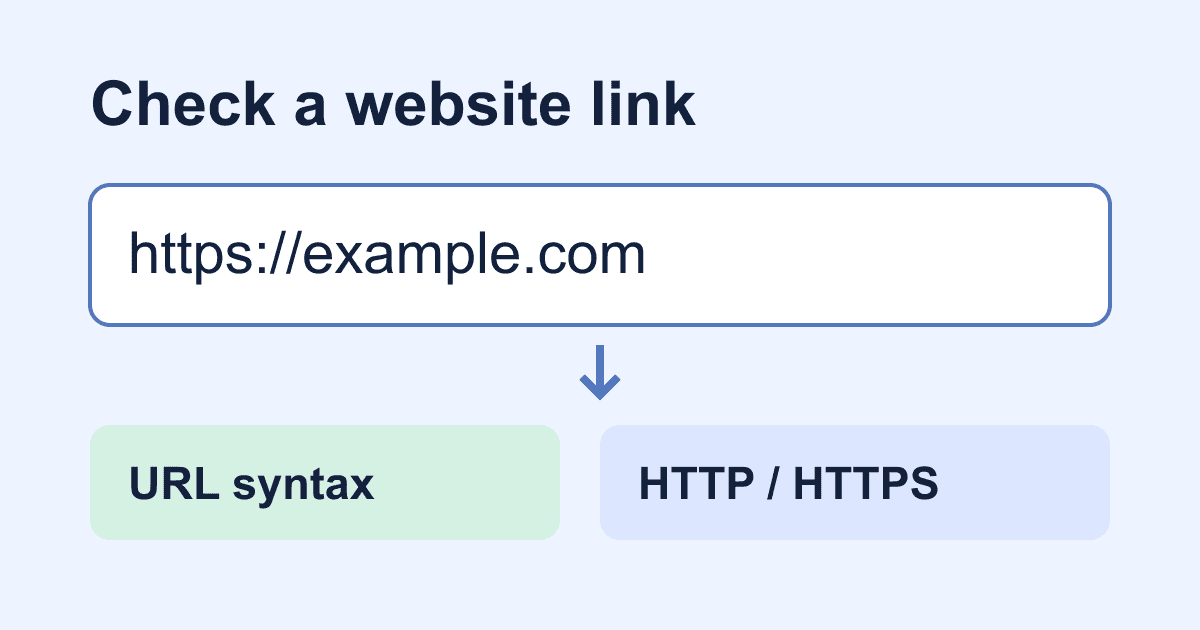
HTML URL input validation: accept website links correctly
A website field can reject example.com and still accept ftp://example.com. That isn't a browser bug. An HTML URL input checks whether a value is an absolute URL; it doesn't promise that the address uses HTTPS, exists, or belongs to a safe website.
For a portfolio or company-website field, start with type="url", then decide which schemes your application accepts. This tutorial builds a small, local validation demo that accepts HTTP and HTTPS links, rejects embedded credentials, and explains errors beside the field. It never visits the submitted address or sends a form submission.
What an HTML URL input validates
The HTML Standard's URL input rules define the control as an editor for a single absolute URL. A nonempty value that isn't a valid absolute URL has a typeMismatch validity error. Add required if leaving it blank should also fail.
That gives these useful starting expectations:
https://example.com/workis an absolute URL.example.comis missing a scheme. Ask forhttps://example.comrather than silently changing what someone typed./workis a relative reference, so it doesn't belong in this field.- An empty field is valid unless you add
required. ftp://example.comcan satisfy the native URL check, even when your application only wants web links.
MDN's URL input reference also makes an important distinction: a syntactically valid address need not exist. Native validation doesn't perform a DNS lookup or check for a successful page response.
Use a visible label and put the expected format in nearby help text. A placeholder disappears as soon as someone types, so it shouldn't carry the only explanation. If you're choosing between several kinds of fields, the broader HTML input types guide covers that decision.
Build a website-link validation demo
Save this complete example as url-demo.html and open it in a browser with JavaScript enabled. You don't need an API key, a package install, or a hosting account. Nothing in this demo needs replacing.
Click Check website or press Enter in the field. A passing value produces a local status message, not a claim that a website was reached or that a form was delivered.
<!doctype html>
<html lang="en">
<head>
  <meta charset="utf-8">
  <meta name="viewport" content="width=device-width, initial-scale=1">
  <title>Website URL validation demo</title>
  <style>
    body {
      max-width: 36rem;
      margin: 2rem auto;
      padding: 0 1rem;
      font: 1rem/1.5 system-ui, sans-serif;
      color: #172033;
      background: #fff;
    }
    label, input, button { display: block; }
    input, button { font: inherit; }
    input {
      box-sizing: border-box;
      width: 100%;
      padding: .65rem;
      border: 2px solid #64748b;
      border-radius: .3rem;
    }
    button { margin-top: 1rem; padding: .65rem 1rem; }
    :focus-visible { outline: 3px solid #1d4ed8; outline-offset: 3px; }
    #website-error { color: #a11818; min-height: 1.5em; }
    #result { overflow-wrap: anywhere; }
  </style>
</head>
<body>
  <h1>Check a website link</h1>
  <form id="website-form">
    <label for="website">Website (required)</label>
    <p id="website-help">
      Include http:// or https://, for example https://example.com.
      Don't include a username, password, or private access token.
    </p>
    <input id="website" name="website" type="url" required
      autocomplete="url" spellcheck="false"
      aria-describedby="website-help website-error">
    <p id="website-error" aria-live="polite"></p>
    <button id="check" type="submit" disabled>Check website</button>
    <p id="result" role="status"></p>
  </form>
  <noscript>This local demo needs JavaScript to check your link.</noscript>
  <script>
    const form = document.querySelector('#website-form');
    const input = document.querySelector('#website');
    const error = document.querySelector('#website-error');
    const result = document.querySelector('#result');

    function websiteError() {
      if (!input.value) return 'Enter a website URL.';
      if (input.validity.typeMismatch) {
        return 'Enter a full URL, such as https://example.com.';
      }
      try {
        const url = new URL(input.value);
        if (url.protocol !== 'http:' && url.protocol !== 'https:') {
          return 'Use a link that starts with http:// or https://.';
        }
        if (url.username || url.password) {
          return 'Remove the username and password from the URL.';
        }
      } catch {
        return 'Enter a full URL, such as https://example.com.';
      }
      return '';
    }

    function updatePolicy(showError) {
      input.setCustomValidity('');
      const message = websiteError();
      input.setCustomValidity(message);
      error.textContent = showError ? message : '';
      if (showError && message) input.setAttribute('aria-invalid', 'true');
      else input.removeAttribute('aria-invalid');
      return message;
    }

    input.addEventListener('input', () => {
      result.textContent = '';
      updatePolicy(false);
    });
    input.addEventListener('blur', () => updatePolicy(true));
    input.addEventListener('invalid', () => updatePolicy(true));
    form.addEventListener('submit', (event) => {
      event.preventDefault();
      if (updatePolicy(true)) {
        input.reportValidity();
        return;
      }
      result.textContent = 'Format accepted: ' + input.value +
        '. This demo did not visit the link or send a submission.';
    });
    updatePolicy(false);
    document.querySelector('#check').disabled = false;
  </script>
</body>
</html>
The button starts disabled and the script enables it after installing the handlers. With JavaScript disabled, the demo offers no enabled submit button and shows its limitation instead of pretending to validate an HTTP-only policy.
The native type="url" check still handles URL syntax. The script adds the application rule: HTTP or HTTPS, without a username or password. The URL constructor parses the value without fetching it. Calling it without a base URL also avoids accidentally accepting /work as a link relative to your own site. The parsed protocol property includes its trailing colon, which is why the comparisons use http: and https:.
The script clears setCustomValidity() before evaluating the current value. A custom error remains active until you clear it; changing the text alone doesn't remove it. It also clears the old success message when editing starts, so an accepted result doesn't linger beside a different value.
Choose a policy before tightening validation
HTTP and HTTPS are a reasonable policy for a general website field. If your workflow genuinely requires HTTPS, remove the http: allowance and update the help text and error message together. That is a product decision, not a requirement imposed by type="url".
Don't require a dot in every hostname just to make URLs look familiar. An internal address such as https://intranet/ may be intentional. Conversely, accepting its syntax says nothing about whether your application should use it. If you only accept a specific service, compare the parsed hostname with an explicit allowed hostname rather than searching the whole input string for a brand name.
The demo rejects URL credentials because a website field shouldn't collect a username and password. It does not detect secrets in query strings or fragments. A pasted sharing link can contain a private token even when it passes every check here. Ask people for public links and avoid putting submitted URLs into analytics or diagnostic logs unnecessarily.
For a field that only needs native checks, you can omit the custom script in your real form and keep type="url", required, the label, and the help text. The guide to form validation without JavaScript covers that simpler approach. Native validation alone will not enforce the demo's scheme or credential policy.
Keep server validation separate from browser feedback
Anyone can bypass your HTML and send an HTTP request directly. Repeat the rules your application depends on at the server boundary you control. Don't assume a hosted form receiver inherits required, pattern, or a JavaScript function from your page.
If you use Static Forms for delivery, follow the current setup documentation for the form endpoint and configuration. This demo deliberately stops before that step. Replacing its local status message with a real delivery flow requires submission handling and honest success/error states; a local format check must never display "Message sent."
Receiving a URL as text and fetching its contents are different operations. A preview generator, link checker, or webhook consumer that fetches an address can create a server-side request forgery risk. Allowing https: does not prevent requests to internal services, redirects to restricted destinations, or other SSRF paths. Use OWASP's SSRF prevention guidance to design that separate network boundary. This tutorial's validator is not an SSRF defense or a safe-link scanner.
Test the field before putting it on a live form
Try these values in the demo, using both the button and Enter:
- Leave it blank. It should request a website URL.
- Enter
example.comor/work. It should request a full URL. - Enter
ftp://example.com. It should request HTTP or HTTPS. - Enter
https://user:password@example.com. It should ask you to remove the credentials. Use only these dummy credentials in testing. - Enter
https://example.com/work?ref=portfolio#samples. It should show the local acceptance message. - Edit an accepted value. The earlier success message should disappear immediately.
Also test an uppercase scheme such as HTTPS://example.com. The URL parser reports the normalized scheme, so this example accepts it. It doesn't rewrite the displayed input into the parser's serialized URL.
Tab through the field and button. The focus outline should remain visible, the label should focus the field when clicked, and errors should appear as text rather than only a red border. The help and error text are associated with the input through aria-describedby; the result has role="status". Screen-reader announcement timing varies, so include your supported assistive-technology combinations in release testing.
If you host the demo, deploy url-demo.html as a static asset and open that exact deployed path. A restrictive Content Security Policy can block its inline script or style. In that environment, move the script and styles into permitted external files according to your site's policy; don't weaken CSP just to make the example run. When adapting the field into a real form, test validation and actual delivery separately on the production origin.
Troubleshoot the confusing cases
A link without https:// fails. The control expects an absolute URL. Keep the visible example near the field. If your product chooses to add a missing scheme, make that behavior explicit and test it rather than silently treating arbitrary text as a website.
A valid-looking address still fails after an edit. Check whether your code clears an old custom validity message. The demo calls setCustomValidity('') on each policy update for that reason.
An FTP address passes in another form. That form may only be using native URL validation. Add an application-specific scheme check if it should accept web links only, and enforce it again on the server where it matters.
The demo's button stays disabled. Check that JavaScript is enabled and that CSP hasn't blocked the script. This page intentionally doesn't provide a working submission flow without its local validation script.
The browser accepts a URL but the destination doesn't load. Syntax validation cannot prove that a host exists, a page is public, or a link is trustworthy. Keep the confirmation wording limited to what you actually checked.
Before shipping, decide whether the field is optional and which schemes you accept. Then test those choices against the server's handling of the submitted address, especially if anything downstream will fetch it.
Related Articles
HTML form reset: restore defaults and clear stale errors
Learn what form.reset() restores, why defaults are not empty values, and how to clear custom errors with a working HTML demo and keyboard-friendly feedback.
HTML select placeholder: make required choices work
Build an HTML select placeholder that works with required. Test empty options, optgroups, keyboard input, and the exact FormData value in a local checker.
FormData.getAll(): keep every selected form value
Fix missing checkbox values with FormData.getAll(). Run a complete browser demo, compare JSON conversions, and check repeated fields before sending them.







































