

Missing form attachments: storage and eviction checks
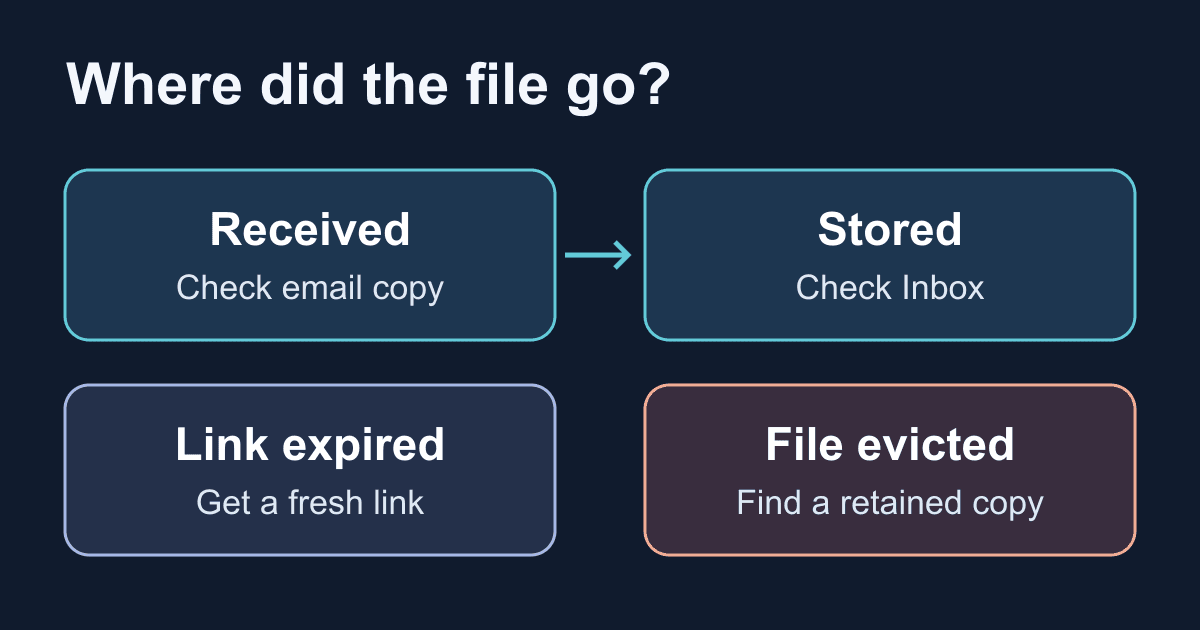
An attachment can stop downloading while its form submission is still visible. That does not always mean the upload failed. The download URL may have expired, the stored file may have been removed to make room for new uploads, or your access to the submission may have changed.
This runbook separates those cases before you ask someone to send the same document again. It also includes an offline storage worksheet you can run with synthetic numbers. It makes no requests and deletes nothing.
Check the download, not just the message
Start in Inbox, open the original submission, and find its Attachments section. Click Download there rather than reopening a saved download URL. The file uploads reference documents a fresh five-minute presigned URL for each download click.
If a fresh download works, the old URL was no longer usable; you have not demonstrated that the file was evicted. Save the document only in an approved location if your workflow requires a separate copy. A bookmark to the temporary URL is not an archive.
If the fresh download fails, record the time and timezone, submission ID, filename, visible error, and which request failed. Keep this record private. Do not paste the full signed URL, cookies, document contents, or a raw HAR into a public issue.
There are two requests to distinguish: the authenticated dashboard request that obtains a download URL, and the subsequent storage request that retrieves the bytes. A failure at the first step is not automatically a storage failure. A successful first step does not prove that the second download completed.
The Inbox guide explains where to find attachments and delivery history. If the submission itself is missing, first check the correct form, your current access, and the available history window. Do not diagnose eviction from a missing Inbox row alone.
Separate the four things that can survive independently
The submission record contains the form fields and attachment metadata. Its retention and your visible history determine whether you can still open it. The stored attachment is a separate object. Storage pressure can remove that object before the submission disappears.
The download URL is temporary permission to retrieve the object, not the object itself. Static Forms checks the signed-in user's access before issuing the URL. Treat the resulting URL as sensitive: Amazon S3's documentation explains that a presigned URL grants time-limited access and can be used multiple times before expiry. Do not assume a copied URL requires the recipient to sign in again.
Finally, a delivered notification email may contain its own attachment copy. Evicting a stored upload does not recall a message already delivered to a mailbox. Conversely, seeing a submission in Inbox does not prove that its notification arrived. Check the Delivery tab and the actual recipient mailbox separately.
These distinctions matter when recovering a document and when deleting one. A downloaded copy, a forwarded email, and an integration's copy need their own handling. Removing a submission is not evidence that every downstream copy has gone.
Recognize eviction without treating every error as eviction
Static Forms documents oldest-uploaded-first eviction when a new upload would exceed the storage quota. Opening an old file does not make it newly uploaded. The current Plan & Usage reference lists 1 GB of file storage for Starter, 5 GB for Pro, and 10 GB for Agency. File uploads require Starter or above; the per-file limit is documented as 4.5MB. Those are separate limits: a small allowed file still consumes aggregate storage.
Use the following checks in order:
- A saved URL fails, but a new Inbox download works: replace the stale link in your workflow. Do not resubmit the form.
- The attachment says "no longer available": quota eviction is a documented cause. Check storage usage and whether uploads continued after that file arrived. The current usage alone cannot prove the past quota was never full; eviction frees space.
- The authenticated download request returns 401 or 403: check sign-in and current form access before investigating the file's lifetime. Do not work around access controls by circulating someone else's signed URL.
- A request returns 404: record which request and its error message. An unavailable submission, a history restriction, missing storage configuration, and a missing file record can all produce a 404 in the download path. The status alone is not an eviction diagnosis.
- There was never a Download button: persistent storage may not have succeeded for that attachment. The email and storage paths are separate. Check the original notification and delivery evidence before calling this a later eviction.
- A new URL still produces a storage error: preserve the sanitized error and contact support. Repeated clicking cannot restore a deleted object.
If you need background on where the bytes live, use the data residency guide. Changing regions is not a recovery procedure for missing files.
Estimate storage headroom before the next batch
Use bytes consistently. The product labels its quotas in GB; the current implementation calculates them with powers of 1024. The worksheet below uses the same byte basis. It is a planning model, not a copy of the production eviction service: it does not model concurrent uploads, failed storage operations, retention cleanup, or account changes.
Save this as storage-budget.mjs. It runs with Node.js and needs no packages, keys, or network access.
export function storageBudget({ quotaBytes, usedBytes, incomingBytes,
  oldestFileBytes = [] }) {
  const values = [quotaBytes, usedBytes, incomingBytes, ...oldestFileBytes];
  if (!values.every(n => Number.isSafeInteger(n) && n >= 0)) {
    throw new TypeError("Use non-negative safe integer byte counts");
  }
  if (!Number.isSafeInteger(usedBytes + incomingBytes)) {
    throw new RangeError("Combined size exceeds safe integer range");
  }
  if (oldestFileBytes.some(n => n === 0)) {
    throw new RangeError("Listed files must have positive sizes");
  }
  const listedBytes = oldestFileBytes.reduce((sum, n) => sum + n, 0);
  if (!Number.isSafeInteger(listedBytes) || listedBytes > usedBytes) {
    throw new RangeError("Listed files exceed reported storage usage");
  }
  const bytesNeeded = Math.max(0, usedBytes + incomingBytes - quotaBytes);
  let freedBytes = 0;
  let filesAtRisk = 0;
  while (freedBytes < bytesNeeded && filesAtRisk < oldestFileBytes.length) {
    freedBytes += oldestFileBytes[filesAtRisk++];
  }
  return {
    headroomBytes: Math.max(0, quotaBytes - usedBytes),
    bytesNeeded,
    filesAtRisk,
    fitsAfterListedEvictions: usedBytes - freedBytes + incomingBytes <= quotaBytes
  };
}

const MiB = 1024 ** 2;
console.log(storageBudget({
  quotaBytes: 1024 ** 3,
  usedBytes: 1020 * MiB,
  incomingBytes: 8 * MiB,
  oldestFileBytes: [3 * MiB, 2 * MiB, 4 * MiB]
}));
Run node storage-budget.mjs. The synthetic example has 4 MiB of headroom and an 8 MiB incoming batch, so it needs to free 4 MiB. Its two oldest files total 5 MiB; the result reports filesAtRisk: 2 and fitsAfterListedEvictions: true. The batch can contain several individually valid files; 8 MiB is not a claim that one file of that size is allowed.
Replace quotaBytes and usedBytes with your current quota and usage in bytes, incomingBytes with the planned batch total, and oldestFileBytes with known file sizes ordered from oldest upload to newest. Do not convert a rounded dashboard percentage into a supposedly exact file inventory. If you lack that inventory, omit the list: a false fitsAfterListedEvictions then means the supplied data cannot establish that enough space can be freed.
A result of zero files at risk means the batch fits this snapshot. It does not reserve space or guarantee permanent retention. If incomingBytes exceeds the entire quota, the model cannot make the batch fit even after every listed file is removed.
Keep a small recovery record
Before changing anything, write down the submission ID, upload date, current form access, fresh-download result, and present storage usage. Add whether an original email attachment or an approved separate copy exists. Record evidence, not conclusions such as "S3 lost it."
If the original notification arrived with the attachment and your mailbox still has it, recover that copy according to your organization's access and retention rules. Check the actual file, not just the presence of an email subject. An email that failed delivery or lost its attachment is not a backup.
If you cannot find a retained copy, escalate with the sanitized evidence. Do not promise that upgrading restores already evicted files. More quota provides room for future storage; it does not recreate missing bytes. Ask the submitter for another copy only after checking existing copies and agreeing on an appropriate upload route.
Do not test this runbook by filling a production workspace until it evicts customer files. The worksheet is deliberately offline. A real recovery drill should use a dedicated test form, non-sensitive documents, known recipients, and explicit permission for any submission or deletion.
Make the next missing-file incident less likely
Assign an owner to review Workspace → Plan & Usage, especially before a campaign or application deadline. The file-upload reference documents an 80% usage warning, but a warning email is not a storage reservation. Other submissions can keep arriving.
For documents you must retain independently of form storage, define an approved archive destination, who can access it, and when it must be deleted. Confirm the copy arrived and can be opened. Do not turn every applicant's file into an indefinite personal-download backup.
Keep the form's size guidance clear, but do not advertise the HTML accept attribute as malware scanning or server-side type enforcement. Existing spam controls still matter: unwanted uploads can consume storage too. Diagnose a missing attachment without weakening CAPTCHA, domain restrictions, or access permissions.
Finish the incident with a specific outcome: fresh download restored, approved copy recovered, access corrected, or unresolved and escalated. Keep URL expiry, quota eviction, retention, and email delivery separate in that record. That gives the next person enough evidence to continue without asking the customer to submit the same document twice.
Related Articles
Form returns 429: burst limit or exhausted quota?
Diagnose a contact form's 429 response with its error body and workspace usage. Test an offline classifier and separate burst limits, quota, and billing fixes.
Multiple submit buttons: keep the chosen value in FormData
Keep the clicked submit button's value with event.submitter and FormData. Try a complete browser demo and fix values lost when buttons are disabled too soon.
File input accept: validate type hints and file size
Build a local PDF picker with file-size checks, accessible errors, and reset handling. Learn why accept and MIME types cannot prove a file is safe.







































