

Send HTML Form Submissions to Telegram Safely
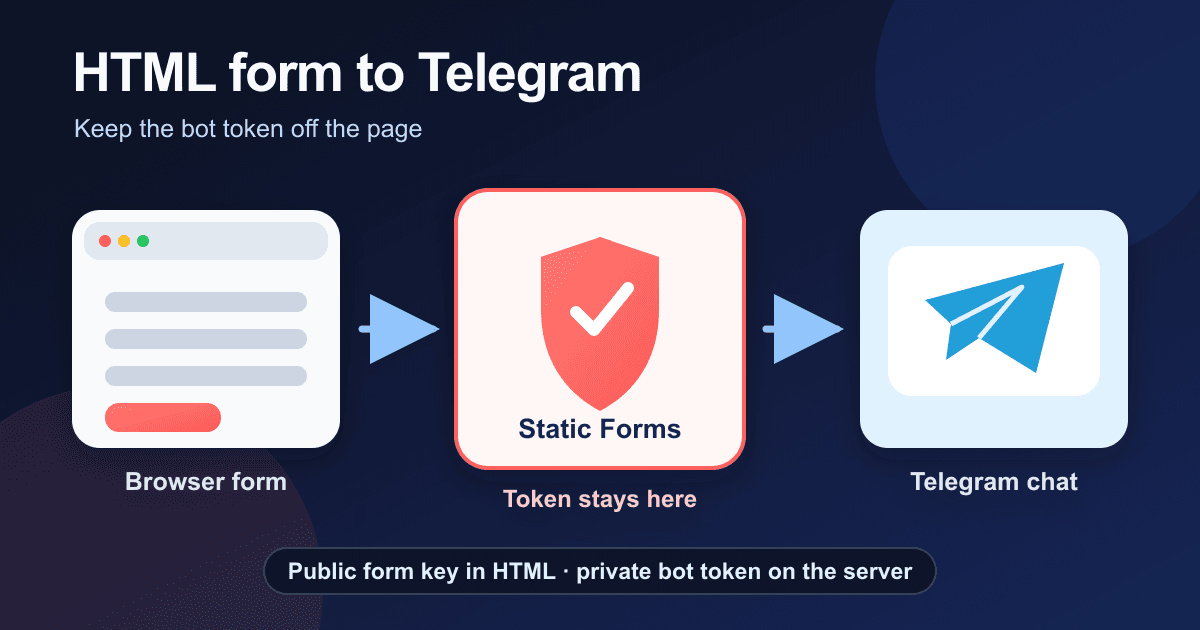
A Telegram bot token can send messages as your bot. It belongs in a password manager or server-side integration, not in a web page. Putting it in a hidden input or frontend environment variable only makes it slightly less obvious to someone reading the page source.
Static Forms can hold the bot token and send each accepted form submission to Telegram:
visitor's browser -> Static Forms -> Telegram Bot API -> your chat
The browser only needs a Static Forms form key. This guide covers the bot setup, an accessible HTML form, and the two tests that tell you which part of the delivery path is working.
What you need
Create a form in Static Forms and make sure you can edit your site's HTML. You also need access to the Telegram chat, group, or channel that should receive notifications. The native Telegram integration is available from the Starter plan upward.
Telegram bots cannot start a conversation with a person who has never contacted them. For a direct chat, open the bot and send it a message first. For a group or channel, add the bot to the destination and give it permission to post there.
Create the bot without leaking its token
Open Telegram and start a conversation with @BotFather. Send /newbot, follow the naming prompts, and copy the token it returns.
Treat that token like a password. Anyone who obtains it can call the Bot API as your bot. Do not paste it into HTML, JavaScript, public environment files, screenshots, support tickets, or test fixtures. If it leaks, revoke it through BotFather and save the replacement in Static Forms.
The bot token is different from the chat ID. The token identifies and authenticates the bot; the chat ID identifies the destination.
Find the destination chat
Send a message in the destination before trying to detect it. Then open your form in Static Forms and go to Edit -> Delivery -> Telegram. Paste the bot token and choose Find my chat ID. Select the chat that should receive notifications.
If the chat does not appear, send another message where the bot can see it and try again. The Telegram Bot API keeps incoming updates until the bot retrieves them, for no longer than 24 hours. A bot configured to receive updates through a webhook cannot use getUpdates at the same time, so remove that webhook or enter the chat ID manually if another application already controls the bot.
Do not use the number before the colon in the token. That is the bot's own user ID, not a destination chat. Static Forms checks for that mistake before saving the connection.
After selecting the destination, save and enable the integration. Static Forms stores the bot token encrypted and does not return it in the integration settings response.
Add the HTML form
The form posts to Static Forms, never to api.telegram.org. That separation keeps the bot token out of the browser and lets the same accepted submission continue to the normal Static Forms inbox and email path.
<form action="https://api.staticforms.dev/submit" method="POST">
  <input type="hidden" name="apiKey" value="YOUR_STATIC_FORMS_KEY" />
  <input
    type="hidden"
    name="redirectTo"
    value="https://example.com/contact/thanks"
  />

  <div>
    <label for="contact-name">Name</label>
    <input
      id="contact-name"
      name="name"
      type="text"
      autocomplete="name"
      minlength="2"
      maxlength="80"
      required
    />
  </div>

  <div>
    <label for="contact-email">Email</label>
    <input
      id="contact-email"
      name="email"
      type="email"
      autocomplete="email"
      maxlength="254"
      required
    />
  </div>

  <div>
    <label for="contact-topic">Topic</label>
    <select id="contact-topic" name="topic" required>
      <option value="">Choose a topic</option>
      <option value="Sales">Sales</option>
      <option value="Support">Support</option>
      <option value="Partnership">Partnership</option>
    </select>
  </div>

  <div>
    <label for="contact-message">Message</label>
    <textarea
      id="contact-message"
      name="message"
      rows="7"
      minlength="10"
      maxlength="3000"
      required
    ></textarea>
  </div>

  <div style="display: none" aria-hidden="true">
    <label for="contact-honeypot">Leave this field empty</label>
    <input
      id="contact-honeypot"
      name="honeypot"
      type="text"
      tabindex="-1"
      autocomplete="off"
    />
  </div>

  <button type="submit">Send message</button>
</form>
Replace YOUR_STATIC_FORMS_KEY with the key for this form. A form key is visible in the page and is not a server secret. Domain restriction limits where that key can be used by checking the request's Origin or Referer. Add the production hostname and any preview hostname you intentionally use.
Replace the redirectTo URL with an HTTPS thank-you page on your site. The redirect confirms that Static Forms accepted the browser request; it does not prove that Telegram received the notification.
Every visible field has a label, and the browser can enforce the declared input type and length limits before submission. The off-screen bot trap follows the Static Forms honeypot pattern: it is a text input, its name contains honeypot, and keyboard navigation and autofill skip it.
What the Telegram message contains
Static Forms formats submitted fields as labeled lines and sends them with Telegram's sendMessage method. Telegram's current sendMessage documentation allows text messages from 1 to 4096 characters after entity parsing.
To stay inside that limit, Static Forms caps long field values, escapes HTML-sensitive characters, and drops complete overflow fields rather than cutting through a tag or entity. An overflow note tells you how many fields were left out. The full accepted submission remains in the Static Forms inbox.
That makes Telegram useful for a quick notification, but it should not become the only copy of the submission. Long application forms and file uploads are easier to review in the inbox.
Test the connection and the real form separately
The Send test message button checks the saved credentials and the Static Forms-to-Telegram hop. A successful test should produce a message in the selected chat. It does not exercise your website, form key, domain allowlist, or redirect.
Run a second test from the deployed page:
- Submit synthetic details that are easy to recognize, such as
Telegram production test. - Confirm the browser reaches the intended thank-you page.
- Check that the submission appears in the Static Forms inbox.
- Check the Telegram destination and compare each label and value.
- Submit once using only the keyboard to confirm the controls and button are reachable.
Repeat the browser test from the production hostname after enabling domain restriction. A localhost submission cannot prove that the deployed origin is allowed.
Troubleshooting the delivery path
| Symptom | Likely cause | What to check |
|---|---|---|
| No chats appear during detection | The bot has not received a recent update, or another app registered a webhook for it | Message the bot or destination, check the bot's webhook use, then detect again |
| Static Forms rejects the chat ID | The value is malformed or identifies the bot itself | Select a detected chat instead of copying the number from the token |
| The test message fails | The token was revoked, the bot was removed, or it cannot post in that destination | Recheck the bot in Telegram, its permissions, and the saved destination |
| The test works but the website form does not | The browser-to-Static Forms hop is failing | Check the form action, POST method, form key, network response, and domain allowlist |
| The inbox has the submission but Telegram does not | Telegram delivery failed after the submission was accepted | Read the last Telegram error in Delivery settings and verify the bot can still post |
| Telegram shows an overflow note | The formatted message reached its character budget | Shorten field names and values, then use the inbox for the complete record |
Telegram delivery failures are contained so they do not reject the original form submission. This is why a visitor can reach the thank-you page while the Telegram card records an error. Check both systems before calling the setup finished.
Protect the destination
A Telegram notification may contain names, email addresses, phone numbers, or free-form messages. Only send fields that the destination's members are allowed to read. Review the chat membership before connecting a support or sales form, and remove former team members promptly.
Keep the bot token out of logs. If a debugging screenshot or copied error exposes it, rotate the token instead of hoping nobody noticed. The same rule applies to a manual getUpdates URL because the token appears in the URL itself.
Enable the honeypot and domain restriction before publishing the form. Add a stronger bot challenge if spam still gets through. Those controls protect the submission path; they do not turn Telegram into an archive or a private case-management system.
Production checklist
- The bot token exists only in BotFather, your secret storage, and authenticated Static Forms settings.
- The page contains a Static Forms form key and no Telegram token or Bot API URL.
- The selected chat is the intended destination, not the bot's own user ID.
- Every visible form control has a label and a useful
name. - Domain restriction includes production and any intentional preview hostnames.
- The Static Forms test message reaches Telegram.
- A real browser submission reaches the inbox and Telegram with synthetic data.
- The Telegram integration card shows no new delivery error.
- Everyone in the Telegram destination is allowed to read the submitted fields.
Related Articles
Send an HTML Form to Discord Without Exposing the Webhook
Connect an HTML form to Discord without exposing the webhook URL. Includes secure setup, accessible HTML, two-hop testing, and practical failure checks.
Bearer vs Basic vs Custom Header Auth for Form Webhooks
Choose Bearer, Basic, or a custom header for form webhooks. See exact request formats, safe Node.js validation, token rotation, and 401/403 fixes.
Send Form Submissions to n8n With a Reliable Webhook
Connect Static Forms to n8n with a production webhook, Header auth, payload mapping, branching, retry-safe deduplication, and end-to-end tests.







































