


Add reCAPTCHA to Webflow Forms (and Stop Form Spam)
To add reCAPTCHA to a Webflow form, you create reCAPTCHA v2 checkbox keys in Google's admin console, paste them into Site settings > Apps & Integrations > reCAPTCHA validation, drop a reCAPTCHA element into every form, and publish. That covers forms Webflow processes itself.
It stops covering them the moment a form has a custom action. Webflow says its native reCAPTCHA won't work as expected on a form whose action points at another service. A lot of the spam complaints about Webflow forms come from exactly that setup: the checkbox is on the page, and the form still submits with it unticked.
This guide covers both: the native setting step by step, then what to do when your form posts somewhere else (a honeypot, reCAPTCHA v2 or Turnstile).
We make Static Forms, the form backend in the external-endpoint examples. The Webflow steps below reflect Webflow's documentation as we read it on November 11, 2026, and we haven't tested every panel in a live Webflow project. Webflow changes its settings panels now and then, so check the labels against your own dashboard.
Which spam controls apply to your Webflow form
Start by checking where the form sends its data. Select the Form element and look at its settings. If it lists Webflow's own destinations (store in Webflow, email notifications), Webflow processes the submission. If it has a Custom action URL, the browser posts straight to that URL and Webflow never sees the submission.
| Webflow processes the form | Form has a custom action | |
|---|---|---|
| Webflow's reCAPTCHA element | Works once site-wide validation is on | Webflow says it won't work as expected |
| Webflow spam filtering | Applies to submissions Webflow receives | Can't help: Webflow never receives the data |
| Who checks the CAPTCHA token | Webflow | The service at the action URL |
| Honeypot | Webflow documents a JavaScript-based honeypot | The backend can reject a filled honeypot field |
| Exported site | Native Webflow forms stop working on exports | Same setup keeps working on any host |
A CAPTCHA stops spam only when a server checks its token. If nothing checks it, bots can skip the widget and post the form directly.
Add reCAPTCHA to a Webflow form that Webflow processes
These are the native steps based on Webflow's documentation (read November 11, 2026). Panel names may differ slightly in your project.
1. Create reCAPTCHA v2 checkbox keys
Open the Google reCAPTCHA admin console and register a new site. Choose reCAPTCHA v2 with the "I'm not a robot" checkbox. Webflow's native integration uses reCAPTCHA v2 keys, so don't use v3 keys.
Add every domain the form will be used on: your custom domain, any extra custom domains on the site, and the webflow.io staging subdomain if you test there. Google gives you a site key and a secret key.
2. Turn on reCAPTCHA validation in Site settings
In Webflow, open Site settings > Apps & Integrations, find reCAPTCHA validation, paste the site key and secret key into their fields, switch validation on and save.
Don't publish yet. Read the next step first.
3. Add a reCAPTCHA element to every form on the site
In the Designer, open the Add panel, find the reCAPTCHA element (it's grouped with the other form elements) and drag it inside the form, usually just above the submit button. It has to sit inside the Form element.
Do this for every form on the site before you publish. Webflow's docs are explicit: once validation is on, forms without a reCAPTCHA element fail to submit. Newsletter sign-ups in the footer and forms inside reusable components are the ones people forget.
4. Publish and test on the live site
Test on the published site rather than in the Designer. Publish, open the live page in a private window, and send two tests:
- Fill in the form, tick the checkbox and submit. The submission should appear under the site's form submissions.
- Fill in the form, leave the checkbox empty and submit. It should be blocked.
If the second test goes through, check the form's settings for a custom action. That is the case in the next section.
When Webflow's native reCAPTCHA is enough
If Webflow stores your submissions and sends the notification emails, the native setup is the right one and you can stop here. It needs no code, and Webflow checks the token. Pair it with Webflow's spam filtering and a honeypot for extra cover.
You need the next section only if the form posts to another service, the site is exported and hosted elsewhere, or you want something other than a visible checkbox.
Why reCAPTCHA stops working with a custom form action
A Webflow form with a custom action is an ordinary HTML form: action="https://..." and method="post". When someone submits it, the browser sends the fields straight to that URL. Webflow's form handling is out of the loop, which is also why Webflow doesn't store those submissions or send its own notification emails.
reCAPTCHA has two halves. The widget in the page produces a token, and a server has to send that token to Google with the secret key to ask whether it's valid. In a Webflow-processed form, Webflow does the second half. With a custom action, the only server that sees the submission is the one at the action URL. If that service doesn't verify g-recaptcha-response, the token is ignored and bots submit freely.
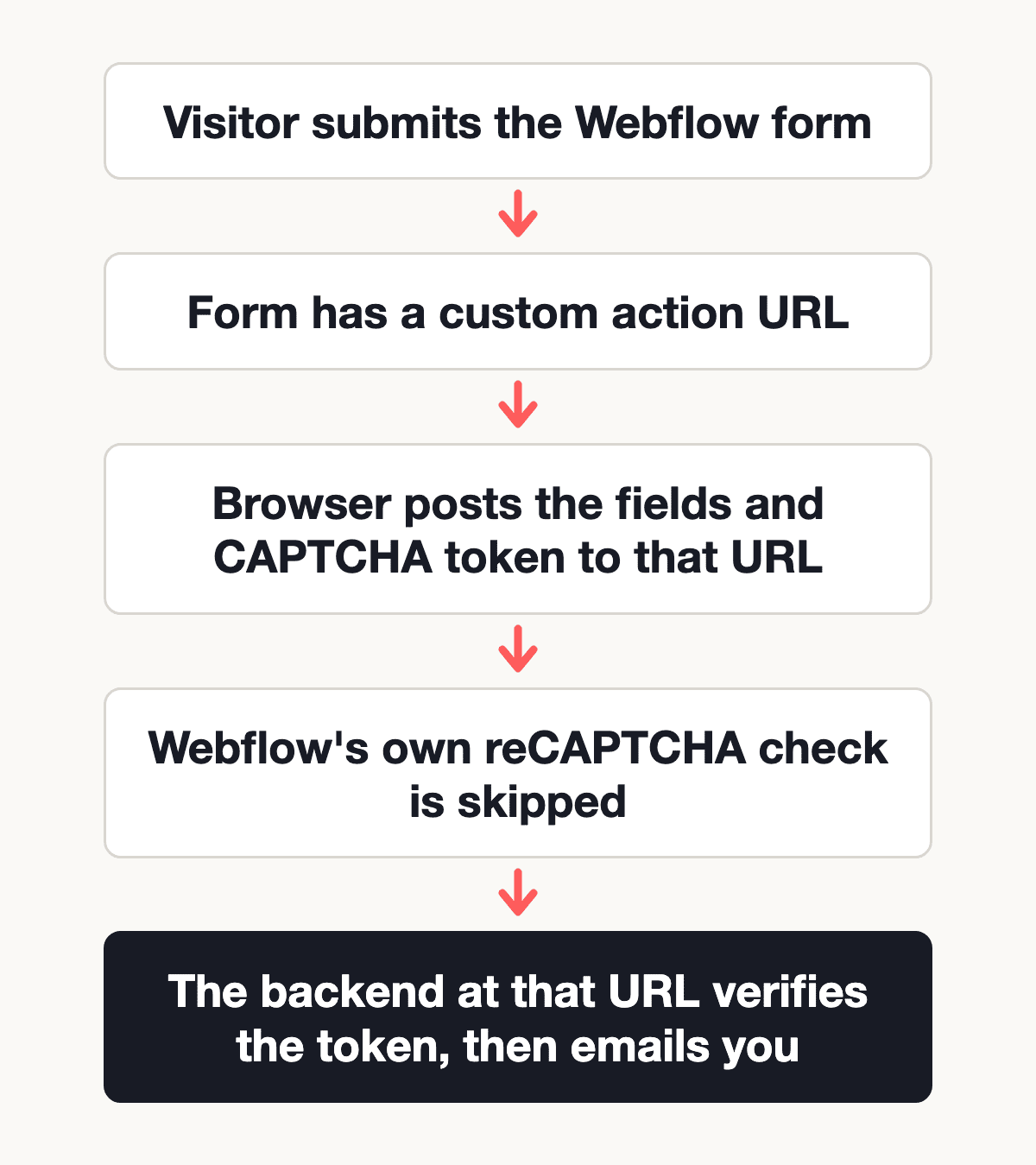
So for a custom-action form, the CAPTCHA has to be set up on the receiving service, not in Webflow's Site settings. The examples below use Static Forms as that service. For general reCAPTCHA setup outside Webflow, the reCAPTCHA guide covers keys, versions and testing in more depth.
A note on Webflow's site-wide switch: Webflow says that with reCAPTCHA validation on, forms without its reCAPTCHA element fail to submit. Its docs don't say how that interacts with custom-action forms. Test your custom-action forms on the published site after you change that switch, and again after any change to the site's forms.
Add spam protection to a Webflow form that posts to Static Forms
If your form doesn't post to Static Forms yet, the Webflow setup docs take two minutes: set the action to https://api.staticforms.dev/submit with method POST, name the fields, and add your API key in a Code Embed. The longer Webflow form to email guide covers keeping Webflow's inline success and error panels.
Pick one of the three options below. Start with the honeypot; add a CAPTCHA when spam still gets through.
Option 1: a honeypot (no visible change)
A honeypot is a field people never see and bots tend to fill in. Static Forms treats any submission that fills a field whose name contains honeypot as spam. Add this to the Code Embed inside your form:
<div class="sf-hp" aria-hidden="true">
  <label for="sf-honeypot">Leave this field empty</label>
  <input type="text" id="sf-honeypot" name="honeypot" tabindex="-1" autocomplete="off">
</div>
<style>
  .sf-hp { position: absolute; left: -10000px; width: 1px; height: 1px; overflow: hidden; }
</style>
It costs visitors nothing and works on the Free plan, but it won't stop a bot written for your form. The honeypot docs list the accepted field names.
Option 2: reCAPTCHA v2 checked by Static Forms
reCAPTCHA v2 is available on every Static Forms plan, Free included.
- Create reCAPTCHA v2 checkbox keys as in step 1 above. If you already made a pair for Webflow on the same domains, you can reuse it.
- In the Static Forms dashboard, open the form's Security tab, choose reCAPTCHA v2 and paste the secret key. Save.
- In Webflow, add this to the Code Embed inside the form, with your site key:
<script src="https://www.google.com/recaptcha/api.js" async defer></script>
<div class="g-recaptcha" data-sitekey="YOUR_RECAPTCHA_SITE_KEY"></div>- Don't add Webflow's own reCAPTCHA element to this form. Use the embed.
- Publish and test on the live domain.
Google's script turns the div into the checkbox and adds a hidden g-recaptcha-response field to the form. The browser posts it with the other fields, and Static Forms checks it with Google before it emails you. Once reCAPTCHA is on for the form, a submission without a valid token is rejected, so publish the embed and the dashboard setting together. The reCAPTCHA docs list the error codes the endpoint returns.
The checkbox token is valid for 120 seconds, so on a long form place it right above the submit button.
Option 3: Cloudflare Turnstile (no checkbox for most visitors)
Turnstile is Cloudflare's CAPTCHA. Most visitors pass without solving anything, which suits forms where a checkbox feels heavy. Turnstile, hCaptcha, ALTCHA and reCAPTCHA v3 are available on Static Forms Starter and up.
- Create a Turnstile widget in the Cloudflare dashboard for your domains and copy the site key and secret key.
- In the form's Security tab in Static Forms, choose Turnstile and paste the secret key.
- Add this to the Code Embed inside the Webflow form:
<script src="https://challenges.cloudflare.com/turnstile/v0/api.js" async defer></script>
<div class="cf-turnstile" data-sitekey="YOUR_TURNSTILE_SITE_KEY"></div>
The widget adds a hidden cf-turnstile-response field to the form, and Static Forms verifies it on submit. The Turnstile docs show a variant that creates the token at submit time, which is better for long forms because tokens expire.
Complete Working Example
This is the full HTML of a contact form set up the way the Webflow steps above produce it: custom action, named fields, and the Code Embed contents (API key, thank-you redirect, honeypot and reCAPTCHA v2). Save it as contact.html to try the setup outside Webflow, replace the three placeholders, and open it from a domain registered with your reCAPTCHA keys.
<!DOCTYPE html>
<html lang="en">
<head>
  <meta charset="UTF-8">
  <meta name="viewport" content="width=device-width, initial-scale=1.0">
  <title>Contact</title>
  <script src="https://www.google.com/recaptcha/api.js" async defer></script>
  <style>
    body { font-family: system-ui, sans-serif; padding: 2rem; }
    form { max-width: 480px; }
    label { display: block; font-weight: 600; margin: 1rem 0 0.35rem; }
    input, textarea { width: 100%; box-sizing: border-box; padding: 0.6rem; font: inherit; }
    .g-recaptcha { margin: 1rem 0; }
    button { padding: 0.7rem 1.25rem; font: inherit; }
    .sf-hp { position: absolute; left: -10000px; width: 1px; height: 1px; overflow: hidden; }
  </style>
</head>
<body>
  <form action="https://api.staticforms.dev/submit" method="post">
    <label for="name">Name</label>
    <input type="text" id="name" name="name" required>

    <label for="email">Email</label>
    <input type="email" id="email" name="email" required>

    <label for="message">Message</label>
    <textarea id="message" name="message" rows="5" required></textarea>

    <!-- Code Embed contents -->
    <input type="hidden" name="apiKey" value="YOUR_API_KEY">
    <input type="hidden" name="redirectTo" value="https://example.com/thank-you">
    <div class="sf-hp" aria-hidden="true">
      <label for="sf-honeypot">Leave this field empty</label>
      <input type="text" id="sf-honeypot" name="honeypot" tabindex="-1" autocomplete="off">
    </div>
    <div class="g-recaptcha" data-sitekey="YOUR_RECAPTCHA_SITE_KEY"></div>

    <button type="submit">Send message</button>
  </form>
</body>
</html>
In Webflow you don't paste the whole document. The form, labels and inputs are Webflow elements you style in the Designer; only the block marked as Code Embed contents goes into a Code Embed inside the form, plus the script tag, which can sit in the same embed.
Troubleshooting Webflow form spam and reCAPTCHA
| What you see | Likely cause | Fix |
|---|---|---|
| The form submits with the checkbox unticked | The form has a custom action, so Webflow doesn't check the token | Turn on reCAPTCHA for the form in the receiving service and use the embed above |
| "Invalid site key" in the widget | The keys are the wrong type (for example v3) or the domain isn't registered | Create reCAPTCHA v2 checkbox keys and register every domain |
| The widget works on staging but not on your domain | The domain isn't registered with the keys | Add every domain in Google's admin console |
| reCAPTCHA doesn't appear in the Designer | Webflow's widget may not render there | Publish and test the live page |
| Some forms stopped submitting after you turned validation on | Those forms have no reCAPTCHA element | Add the element to every Webflow-processed form |
| Static Forms rejects every submission after you enable reCAPTCHA | The embed isn't published, or it uses the secret key | Publish the embed with the site key; the secret key goes only in the dashboard |
| Spam still arrives with a honeypot | A bot built for your form skips it | Add reCAPTCHA v2 or Turnstile |
| CAPTCHA stopped working after you exported the site | Webflow's native forms stop working on exported sites | Post the form to a backend and verify the CAPTCHA there |
Webflow reCAPTCHA questions
Does Webflow support reCAPTCHA v3?
Not natively: Webflow's built-in integration uses reCAPTCHA v2 keys. For invisible checks on a form that posts to Static Forms, use Turnstile or reCAPTCHA v3, both (Starter and up).
Why does my Webflow form still get spam with reCAPTCHA on?
Usually because the form posts to a custom action, so nobody verifies the token. Check the Form element's settings. If the form is Webflow-processed and spam still gets through, check that validation is on and add a honeypot.
Can I use Webflow's reCAPTCHA element with a custom form action?
Webflow says its native reCAPTCHA won't function as expected with a custom action. Add the reCAPTCHA widget through a Code Embed and have the receiving service check it.
Is reCAPTCHA free on Static Forms?
Yes. reCAPTCHA v2 and the honeypot work on the Free plan, which covers 250 submissions every 30 days.
Next step
Open your Webflow form's settings and check where it posts. If Webflow processes it, finish the four native steps. If it has a custom action, create a free Static Forms account, turn on reCAPTCHA v2 in the form's Security tab, and paste the embed. The Webflow setup docs have the base form setup.
Related Articles
Understanding reCAPTCHA Integration with Static Forms
Learn how to effectively implement Google reCAPTCHA with Static Forms to prevent spam submissions while maintaining a good user experience.
Send Webflow Form Submissions to Email Without Restyling
Send Webflow form submissions to email with Static Forms while keeping your design. Includes setup, inline success states, spam controls, tests, and fixes.
Introducing reCAPTCHA v3 for Paid Plans
Learn how to implement invisible reCAPTCHA v3 protection on your forms with any Static Forms paid plan, starting at $6/month on Starter. No user interaction required, score-based spam detection.